Move WhatsApp Chats Between iPhone and Android
Matthew Mbaka · August 11, 2026 · Guides
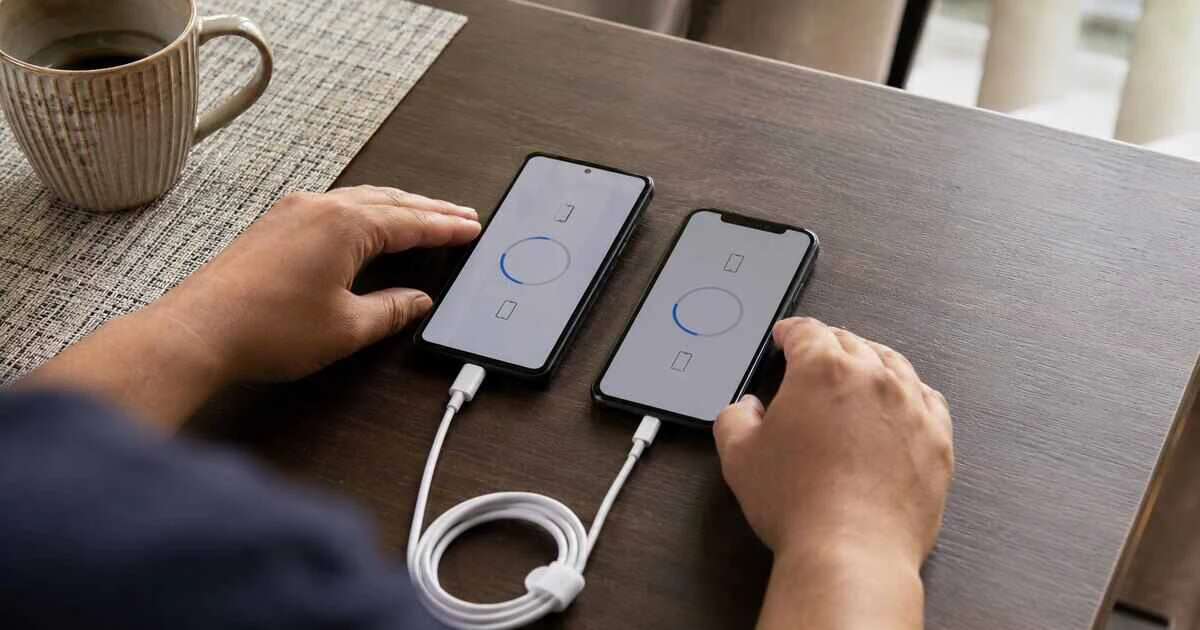
WhatsApp can move chat history between iPhone and Android, but the official transfer has to happen during the receiving phone’s setup—not after weeks of ordinary use.
The safest approach is to keep the old phone untouched until the new one displays the expected chats and media. A cloud backup from one platform is not a universal restore file: an iPhone backup in iCloud does not simply restore into Android, and a Google Drive backup does not restore directly onto an iPhone.
This guide covers WhatsApp’s supported migration routes on current devices. Requirements vary by manufacturer and operating-system version, so update both phones and WhatsApp before starting.
Prepare before touching either phone
Use the same telephone number on the new phone, unless you first complete WhatsApp’s Change Number process on the old device. Keep both phones charged and connected to reliable power.
Confirm that the receiving phone has enough free storage for the app, messages and media. Large video libraries can make the transfer take much longer than the initial progress estimate.
You may need a USB-C to Lightning cable for an older iPhone, a USB-C cable for an iPhone 15 or newer, or a manufacturer’s supported wireless transfer route. A cable is usually more reliable for a large archive.
Do not erase, trade in or mail the old phone yet. Do not remove WhatsApp from it, and preserve access to the SIM, eSIM or telephone account required to receive a verification code.
Move WhatsApp from iPhone to Android
Current Android setup systems can transfer WhatsApp data from an iPhone, with the exact flow depending on the Android version and manufacturer. Google’s Android transfer process and Samsung Smart Switch are common supported routes.
- Turn on the new or factory-reset Android phone and begin setup.
- Choose to copy applications and data from an old device.
- Connect the iPhone when prompted and trust the connection.
- Select WhatsApp among the data to transfer.
- Use the iPhone camera to scan the QR code shown by Android, or follow the displayed WhatsApp prompt.
- On the iPhone, start the export and keep both devices connected.
- Complete Android setup and install or open WhatsApp.
- Verify the same telephone number and choose Import when prompted.
Do not open and fully configure WhatsApp on Android before the migration flow asks for it. If the import prompt is missed, repeating the process may require factory-resetting the new phone.
The transfer is device-to-device. The phones should remain unlocked, close together and connected until both the system copy and WhatsApp import finish.
Move WhatsApp from Android to iPhone
Apple’s Move to iOS application provides the official route from Android. It works while the iPhone is new or has been erased and is displaying its setup assistant.
- Install Apple’s Move to iOS app on the Android phone.
- Start setting up the new or factory-reset iPhone.
- At Transfer Your Apps & Data, choose From Android.
- Enter the code shown on the iPhone into Move to iOS.
- Select WhatsApp on the Android transfer screen.
- Follow WhatsApp’s preparation prompt and wait for it to finish packaging the data.
- Complete the Move to iOS transfer and finish iPhone setup.
- Install the current WhatsApp app from Apple’s App Store.
- Verify the same telephone number and choose the offered import.
Keep Move to iOS in the foreground on Android. Answering a call, switching applications or losing the temporary connection can interrupt the process.
If the iPhone has already been configured, Apple’s supported migration route normally requires erasing it. Back up any new iPhone content first, because the erase removes it.
Understand what may not move
WhatsApp transfers messages and much of the associated media, but not every category of data is guaranteed to migrate. Some payment messages, call history or locally unsupported features may remain behind, and business features can have additional requirements.
The transfer does not merge two independent chat histories. If you have already created new chats on the receiving phone, importing the old archive can require starting over rather than combining both sets.
Cloud backups also remain platform-specific. After verifying the migration, create a new backup using the destination platform’s supported service. That new backup does not automatically delete the old one.
Protect privacy during the handover
A WhatsApp archive can contain identity documents, private photographs, health conversations and business records. Perform the transfer on networks and equipment you control.
Avoid unofficial desktop utilities that promise to convert backups between platforms. They may require broad access to the phone, account credentials or unencrypted copies of the archive. Their privacy, security and reliability are difficult to assess.
If the old phone belongs to an employer, stop and ask the administrator. Device-management rules, work profiles and retention duties can change what may be transferred.
Fix common transfer failures
The WhatsApp option does not appear
Update the operating systems, WhatsApp, Move to iOS or the Android manufacturer’s transfer application. Confirm that the receiving phone is in initial setup and that the transfer route supports the device pair.
The transfer stalls
Connect both phones to power, disable battery-saving modes and keep the applications in the foreground. Use a known-good cable and remove adapters that disconnect easily. Check free space on the destination.
The verification number is unavailable
Restore access to the original telephone number before proceeding. Repeated verification attempts can create delays. Never give a verification code to someone claiming to be support.
The import prompt was skipped
Do not erase the old phone. Confirm that its data is intact, back up anything newly created on the destination, then repeat the official setup process. This may require erasing the new device.
Verify the result before erasing anything
Open several old individual and group chats. Check early and recent dates, photographs, videos, voice messages and documents. Search for a distinctive older message and confirm that starred items important to you are present.
Then create a fresh destination-platform backup and confirm that it completes. Only after those checks should you remove the account from the old phone and use the manufacturer’s proper erase process.
The transfer is successful when the archive exists on the new phone and the old phone is still available as a recovery path. The worst time to discover a missing year of messages is after the trade-in box has left the house.
Tags: WhatsApp, iPhone, Android, data transfer, messaging