Move an Android eSIM to iPhone in Canada With iOS 26
Matthew Leo · Published August 30, 2026 · Guides
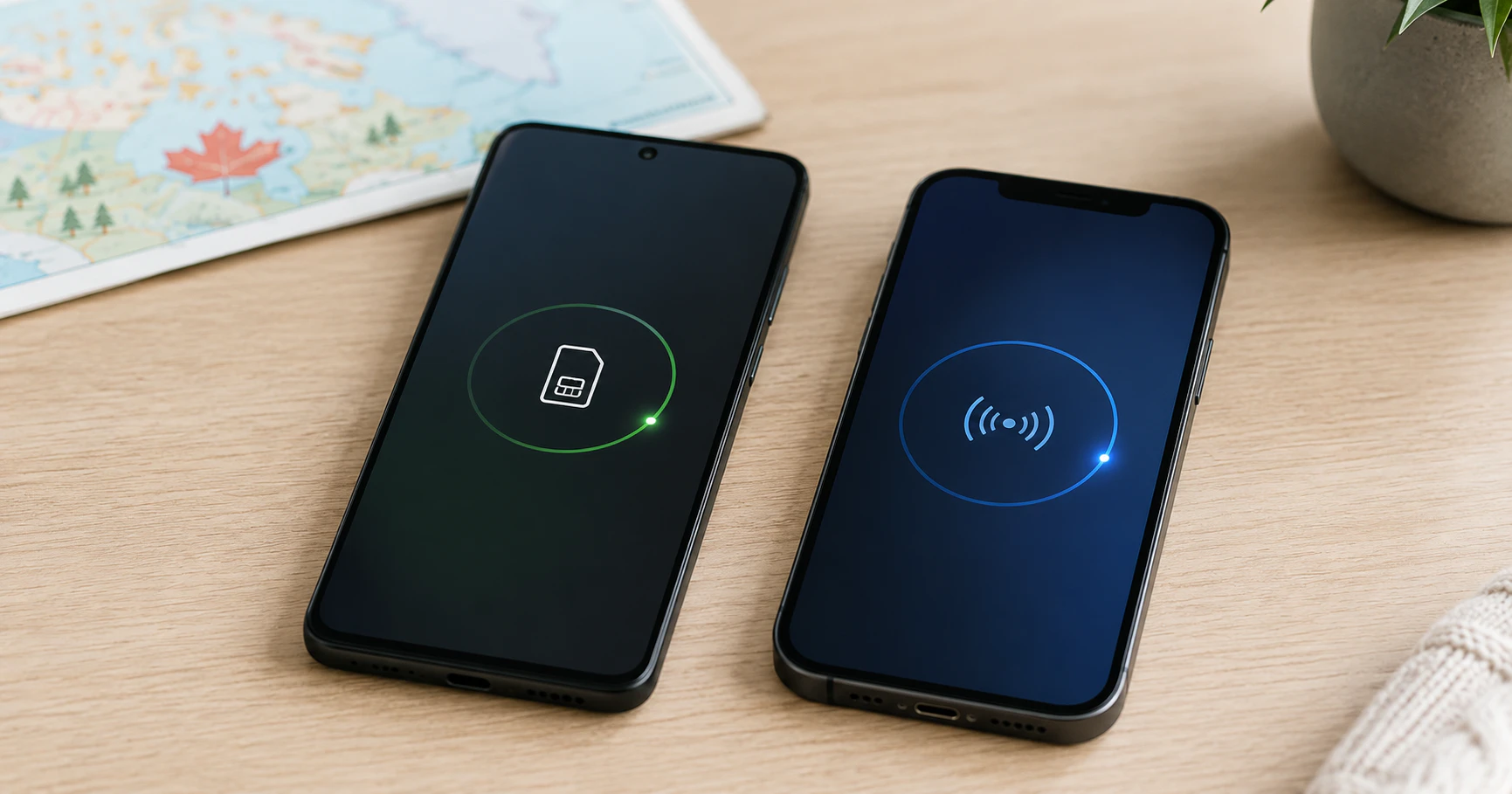
Moving from Android to iPhone no longer always means calling your carrier for a new eSIM. With iOS 26, Apple supports direct Android-to-iPhone eSIM transfer with several Canadian carriers.
In Canada, Apple currently lists Bell, Koodo, Lucky Mobile, TELUS and Virgin Mobile as supporting the feature. Support still depends on the Android phone and carrier, so keep your old phone active until the transfer is finished and tested.
What you need before starting
- An iPhone running iOS 26.
- A supported Android phone with the active SIM or eSIM you want to move.
- A participating carrier. Apple’s Canadian list currently includes Bell, Koodo, Lucky Mobile, TELUS and Virgin Mobile.
- Both phones powered on and available during the transfer.
- Wi-Fi or another working internet connection for setup where required.
If your carrier or Android device does not support direct transfer, the fallback is still carrier activation, usually through a QR code, carrier app or account-assisted activation.
Transfer the number during iPhone setup
On the iPhone’s cellular setup screen, choose the option to transfer from Android. The iPhone generates a QR code. Scan that code with the Android phone, choose the number you want to move and approve the transfer when prompted.
Once activation completes, the SIM on the Android device is disabled. Make a test call from the iPhone before wiping, selling or trading in the old phone.
If you cannot scan the QR code
Apple provides a second route. On the iPhone, choose the alternative-options path shown beneath the QR code. On Android, open Settings and look under Google services for the option to pair with an iPhone or iPad and transfer an eSIM. Enter the session ID and pairing code displayed by the iPhone, select the number and approve the move.
The wording can differ slightly between Android manufacturers. If the transfer option is absent, do not delete the existing eSIM. Contact the carrier instead.
What happens to the old SIM?
After a successful transfer, the old Android SIM or eSIM for that number is deactivated. That is why the safest order is transfer, wait for cellular service, make a call, test SMS and mobile data, and only then erase the old phone.
For accounts using SMS-based two-factor authentication, test an incoming verification code as well. Banking and account-security apps may independently require you to register the new device even though the phone number stayed the same.
If the eSIM will not activate
Apple recommends a short troubleshooting sequence before calling the carrier. Toggle Airplane Mode on and off, open Settings > Cellular and turn the affected line off and back on, then restart the iPhone.
Also check for a carrier-settings update under Settings > General > About. If activation still fails, note the error message and have your phone number, carrier account PIN or password, and the iPhone’s IMEI or EID ready. Those identifiers are available under Settings > General > About.
What about Rogers and Fido?
Apple’s current Canadian support list for direct Android-to-iPhone transfer does not include every Canadian carrier. That does not mean an iPhone cannot use an eSIM from an unlisted carrier. It means you may need that carrier’s normal activation process instead of the direct Android transfer workflow.
Do not assume the list will stay fixed. Carrier support can expand through software and provisioning changes, so Apple’s support page is the best place to check before a future move.
Can you move more than one number?
Apple says iOS 26 can transfer multiple phone numbers when moving to a new iPhone, although carrier support still governs whether a particular line can use the automated transfer. Modern iPhones can store multiple eSIMs, and supported models can keep two lines active at once.
The safest migration checklist
- Update both phones before starting.
- Do not erase the Android phone first.
- Transfer the cellular line.
- Test a voice call, SMS and mobile data.
- Check two-factor authentication and banking apps.
- Only erase the old phone after the new one is fully working.
Apple’s current instructions are available in its eSIM troubleshooting guide and its Android-to-iPhone eSIM transfer documentation.
Tags: iPhone, eSIM, iOS 26, Canada carriers