How to Audit App Permissions on iPhone and Android
Matthew Leo · Published August 18, 2026 · Guides
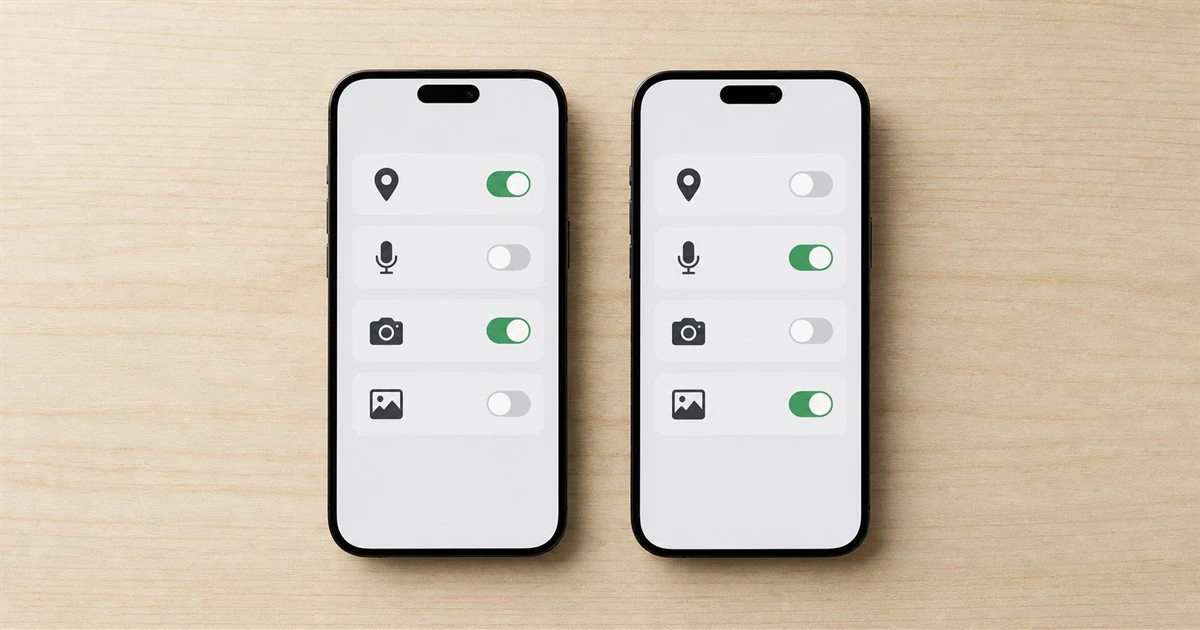
The most revealing privacy screen on your phone is not a policy page; it is the list of apps that can use your location, microphone, camera, photos and contacts.
Permissions are easy to approve when an app is new and easy to forget months later. A weather app may still know your precise location. A game may retain microphone access. An old shopping app may see every photo even though you only uploaded one receipt.
Both iPhone and Android now show which apps used sensitive permissions and let you reduce access without deleting everything. A short audit every few months can remove access that no longer matches how you use the app.
Start with the most sensitive categories
Do not work through hundreds of apps alphabetically. Start with location, microphone, camera, photos, contacts, calendars and health data. These permissions can reveal where you go, who you know, what you say and what is around you.
The Office of the Privacy Commissioner of Canada advises people to check whether an app's requested permissions match what the app is supposed to do. Its mobile-app housekeeping advice recommends limiting location and device access and deleting apps that are no longer used.
Questions to ask for sensitive permissions
Location: Navigation while a route is active is reasonable. Does this app also need precise or background location?
Microphone: Recording a voice message after you tap record is reasonable. Why was the microphone used when you were not recording?
Photos: Selecting one image for a profile is reasonable. Can you allow selected photos instead of the full library?
Contacts: Finding people you choose to invite can be reasonable. Can you enter one address manually instead?
Health: A fitness app may need the metric it displays. Does it need to write data or read every category?
Audit permissions on an iPhone
Open Settings > Privacy & Security. Choose a category such as Location Services, Contacts, Photos, Bluetooth, Local Network, Microphone or Camera. The list shows apps that requested that kind of access.
For location, prefer While Using the App when background access is not essential. Turn off Precise Location when an approximate area is enough, such as local weather. For photos, choose selected items when the app only needs one or two pictures.
Apple's App Privacy Report adds evidence. Turn it on under Settings > Privacy & Security > App Privacy Report, then use the phone normally. It records the previous seven days of access to sensitive data and sensors, plus network activity. The report begins collecting only after it is enabled.
A microphone access while recording a video is expected. Repeated location access from a calculator is not. App Privacy Report also lists domains contacted by apps, but a domain name alone does not prove tracking or wrongdoing. Apps contact services for logins, media, crash reports and other normal functions. Use the pattern as a reason to investigate, not as a verdict.
Audit permissions on Android
Menu names vary by phone maker. On recent Android versions, open Settings > Security & privacy > Privacy > Privacy dashboard. Some phones show separate Security and Privacy sections.
Google's Privacy Dashboard instructions say Android 13 and newer can show seven days of recent permission access, while Android 12 shows 24 hours. Select a permission to see which apps used it and when.
You can also open Permission manager to review all apps by category. Depending on the permission and Android version, choices can include allow all the time, allow only while using the app, ask every time or do not allow. Location may offer a separate precise-location switch.
Change background location to while-in-use unless a core feature truly needs continuous access.
Use ask-every-time for an occasional feature when repeated prompts will not make the app unusable.
Pause or remove permissions for apps you rarely use.
Keep Google Play Protect on and review any warning about an app's behaviour.
Uninstall an app when its main function fails after a permission it cannot reasonably explain is denied.
A permission is not the whole privacy story
Phone settings control access to specific device data and sensors. They do not show every piece of information an app can collect. An app can record searches, purchases, screen actions, account details and device information without asking for microphone or location permission.
The Privacy Commissioner has also explained that granting a technical permission does not, by itself, answer whether a company has meaningful consent to collect, use or disclose the related personal information. Read the app's privacy information and look for a clear explanation of purpose, sharing, retention and deletion.
Store privacy labels can help, but they are not a live measurement of every network request. On Google Play, developer declarations in the Data safety section differ from the operating system's technical permission list. On Apple's App Store, privacy labels describe developer practices, while App Privacy Report shows device activity. Use both kinds of information.
Do not break emergency or accessibility features
Some permissions are essential. A screen reader needs broad accessibility access. A medical device may need Bluetooth and background operation. A family-safety app may need location. Denying access without understanding the function can stop alerts, syncing or assistive controls.
Before changing a permission tied to health, safety, work management or accessibility, check the official help page and test the feature. Make one change at a time so you can identify the cause if something stops working.
Use a simple keep, limit or delete decision
Keep access when the app's current function clearly needs it. Limit access when a narrower choice works. Delete the app when you no longer use it or when its demands do not match its purpose.
After the audit, review the phone again in a week. The recent-access dashboard will show whether the remaining permissions behave as expected. Repeat after installing a large group of apps, changing phones or travelling.
For more practical privacy steps, Mapletechie's guides section includes help with photo location data, repair preparation and account security. Permissions are only one layer, but they are a layer you can inspect today.