Check Whether Your Home Router Still Gets Security Updates
Matthew Leo · Published October 9, 2026 · Guides
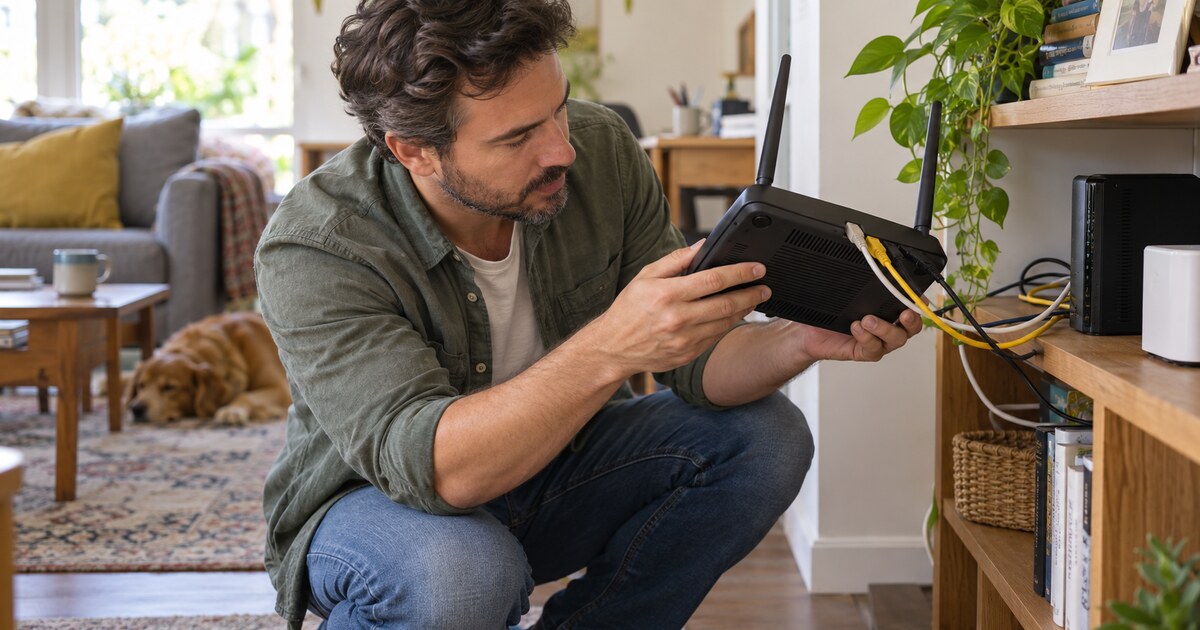
A home router can keep providing Wi-Fi years after its manufacturer stops fixing security flaws. The lights still blink, video still streams and nothing obviously looks broken. That is exactly why unsupported routers stay in service.
You do not need to replace a router simply because it is old. You do need to know its exact model, current firmware and support status. The check usually takes less than 15 minutes.
Start with the exact model number
Look at the label on the bottom or back of the router. Record the manufacturer, model number and hardware revision. A name such as “AC1900” is usually a speed class, not a unique model.
If your internet provider supplied the device, also note the provider’s model or gateway name. Providers sometimes use customized firmware, so an update listed on the manufacturer’s retail support page may not apply to your unit.
Do not photograph or share the entire label. It may contain the Wi-Fi password, serial number, MAC address or an administrative PIN.
Find the official support page
Search the manufacturer’s website for the exact model and hardware revision. Avoid firmware offered through forums, file-sharing sites or a result that does not belong to the manufacturer or your internet provider.
Look for three things:
- The latest firmware version: Compare it with the version installed on your router.
- The release date: A long gap does not automatically prove abandonment, but it deserves another check.
- An end-of-life or end-of-support notice: Some manufacturers maintain a separate list instead of placing the warning on the product page.
If the support page has disappeared, contact the manufacturer or provider. Ask whether the exact hardware revision still receives security fixes, not merely whether the router can still connect.
Check the firmware installed on the router
Use the router’s management app or enter its local management address in a browser. The address is often printed on the label or listed in the provider’s documentation. Do not follow a login link from an unexpected email or text.
Once signed in, look under sections named Administration, System, Maintenance, About or Firmware. Menus differ, so this guide does not use a screenshot that might send readers to the wrong control.
If an update is available, read the release notes and follow the vendor’s instructions. Keep the router connected to power. Do not unplug it during installation. A failed update can leave the device unable to start.
Provider-managed gateways may update automatically and hide the firmware control. In that case, ask the provider to confirm the installed version and whether the model remains supported.
Turn on automatic updates when available
The Canadian Centre for Cyber Security recommends keeping router firmware current and enabling automatic updates when the model supports them.
Automatic installation is usually the safer choice for a home network because router patches are easy to forget. If the device only sends update notifications, make sure the contact email is current and treat the message as a reminder to open the official app or support page yourself.
Check the settings that commonly stay exposed
An update does not compensate for an unsafe configuration. While you are signed in:
- Replace the default administrator password with a unique one.
- Disable internet-facing remote administration unless you genuinely need it and understand how it is protected.
- Disable WPS, especially PIN-based setup.
- Use WPA2 or WPA3 encryption. Do not leave the network open or use obsolete WEP security.
- Remove port-forwarding rules and guest networks you no longer use.
- Save a backup of the configuration only if the manufacturer supports restoring it safely.
The Cyber Centre has warned that compromised small-office and home routers have been used for DNS hijacking and to help conceal other attacks. Its joint advisory on vulnerable routers specifically recommends upgrading end-of-support devices, installing current firmware, changing default credentials and disabling remote management from the internet.
When replacement makes more sense
Replace the router when the manufacturer or provider confirms that security support has ended and no supported firmware is available. Replacement is also the safer choice when the device cannot use WPA2 or WPA3, exposes remote management that cannot be disabled, or repeatedly fails updates.
Do not assume an inexpensive new router is automatically better. Before buying, check the manufacturer’s stated support policy, automatic-update behaviour and whether security notices are easy to find. For a provider gateway, ask whether a supported replacement is available before purchasing separate equipment.
When retiring the old router, reset it to factory settings before recycling or returning it. That removes your network name, passwords and most custom settings. Follow the manufacturer’s disposal instructions.
The Canadian household angle
Many Canadian households use one provider gateway for work, banking, entertainment, cameras and smart-home devices. A compromised router sits in front of all of them.
That does not mean every old router has been hacked. It means support status belongs on the same household checklist as phone and computer updates. Mapletechie has previously covered how attackers can reach physical equipment through weakly protected networks in its report on changes made to small water-system controls. A home network is smaller, but the maintenance lesson is the same: equipment that still functions can still be unsafe to leave unpatched.
Tags: home routers, firmware updates, Wi-Fi security, end-of-support devices