How to Check Your Laptop Battery Health Before It Fails
Matthew Leo · Published August 14, 2026 · Guides
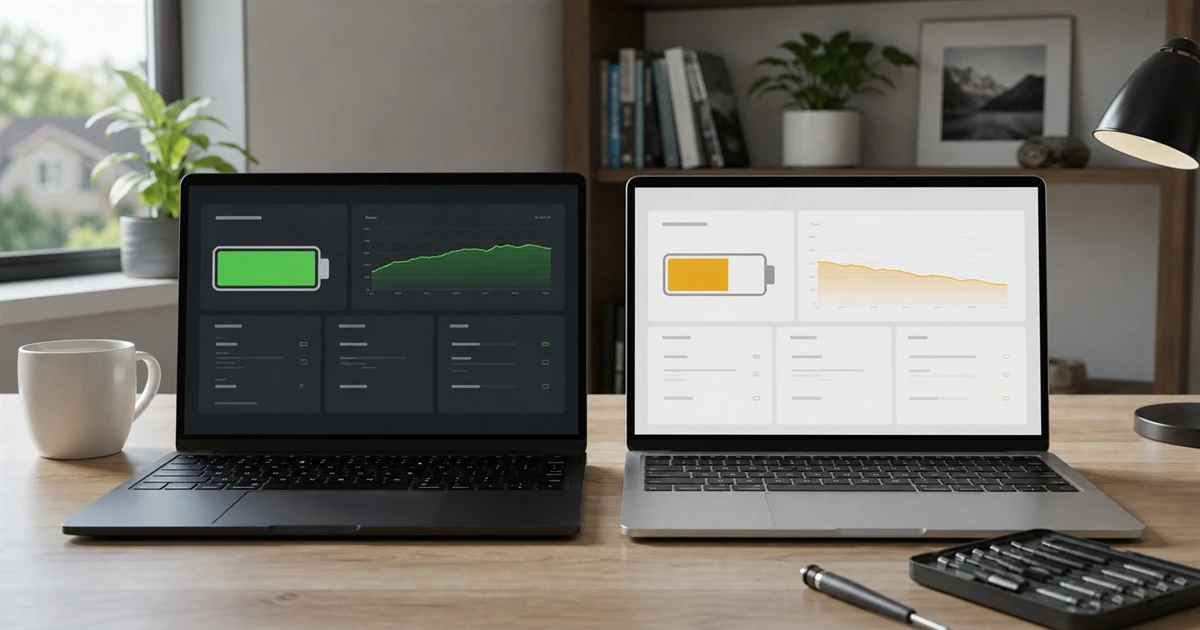
A laptop battery can look full at 100 per cent while holding far less energy than it did when it was new.
Windows and macOS include built-in tools that reveal battery condition, capacity and use. Checking those numbers can explain short run time, help price a used laptop and show when a battery problem needs service rather than another settings change.
Start with the operating system’s own report. Avoid installing a mystery “battery optimizer” simply to see information the computer already provides.
Battery percentage is not battery health
The percentage beside the battery icon shows how much of the battery’s current usable capacity remains. It does not show how large that capacity is.
Imagine a battery designed to hold 60 watt-hours that can now accept only 42. The computer may still call 42 watt-hours “100%” because that is the most the worn battery can hold. The laptop is fully charged, but its usable capacity is about 70% of the original design.
Heat, age and charging patterns all affect chemical wear. A cycle is not the same as one plug-in. It represents using a total amount equal to 100% of the battery’s capacity, even when that use happens across several partial charges.
Generate a Windows battery report
Microsoft builds a detailed battery report into Windows 11.
- Open Start and type Command Prompt.
- Right-click it and choose Run as administrator.
- Enter
powercfg /batteryreportand press Enter. - Note the file path shown in the window.
- Open that HTML file in a browser.
Begin with Installed batteries. Compare Design capacity with Full charge capacity. Divide full charge capacity by design capacity and multiply by 100 for a rough remaining-capacity percentage.
For example, 42,000 mWh divided by 60,000 mWh equals 0.70, or about 70%. Treat the result as an estimate. Some firmware reports imperfect numbers, and one reading is less useful than a clear trend over time.
The Capacity history section can show whether full-charge capacity has been falling. Recent usage and Battery usage can reveal an application or period that drained power quickly even when the battery itself is still healthy.
Check battery health on a Mac
On a current Mac, choose the Apple menu, open System Settings and select Battery. Look for Battery Health or click the information button beside it.
Apple may show Normal or Service Recommended. The settings can also show maximum capacity relative to when the battery was new, depending on the model and macOS version.
For the cycle count, hold the Option key, open the Apple menu and choose System Information. Select Power under Hardware. The Battery Information section lists the current cycle count.
Cycle limits vary by Mac model. Apple says many modern Mac laptop batteries are designed to retain up to 80% of their original capacity at their maximum cycle count, but real capacity depends on use, configuration and charging behaviour. Use Apple’s model table instead of assuming every Mac has the same limit.
Do not replace a battery from one percentage alone
A lower capacity does not automatically mean a laptop is unsafe. It means the computer will run for less time away from power.
Consider service when the short run time interferes with normal use, the operating system recommends it, charging becomes unreliable or performance drops under battery power. A used laptop price should also reflect a battery that will soon need replacement.
Check the charger and workload before blaming the battery. High screen brightness, video calls, games, browser tabs, background sync and external drives can drain even a healthy battery quickly. Compare run time during a repeatable light task rather than one unusually demanding day.
Swelling is a stop sign
A raised trackpad, separating case, rocking laptop or visible bulge can indicate a swollen battery. Microsoft says to stop using a device immediately if the battery expands beyond the enclosure.
Do not press the case closed, puncture the battery or keep charging it to finish one more task. Power down carefully, unplug it and arrange service through the manufacturer or a qualified repair provider. Check local hazardous-waste rules; lithium-ion batteries do not belong in household garbage.
Slow wear with settings that already exist
Windows manufacturers may provide a smart-charging or conservation mode that limits time at a full charge. The name and location vary by laptop.
On supported Macs, Optimized Battery Charging learns the charging routine and can delay charging beyond 80% when it expects the computer to remain plugged in. macOS Tahoe 26.4 or later also supports a user-set charge limit on Apple-silicon Macs.
These features reduce wear; they do not restore capacity already lost. Keep the laptop out of hot cars and direct sun, use a suitable charger and let the operating system manage charging rather than repeatedly forcing deep discharge.
Before any repair, make a current backup. Mapletechie’s guides treat that step as routine because a battery replacement should not become a data-loss event.
Read the trend, not one scary number
A battery report is most useful when it answers a practical question: Is the laptop draining because the battery is worn, because an app is busy or because today’s workload is unusually heavy?
Compare design and full-charge capacity, review recent use and watch for physical warning signs. A worn battery can often be replaced. A swollen one should not be negotiated with.