Clear Windows Clipboard History, Including Pinned Items
Matthew Leo · Published September 13, 2026 · Guides
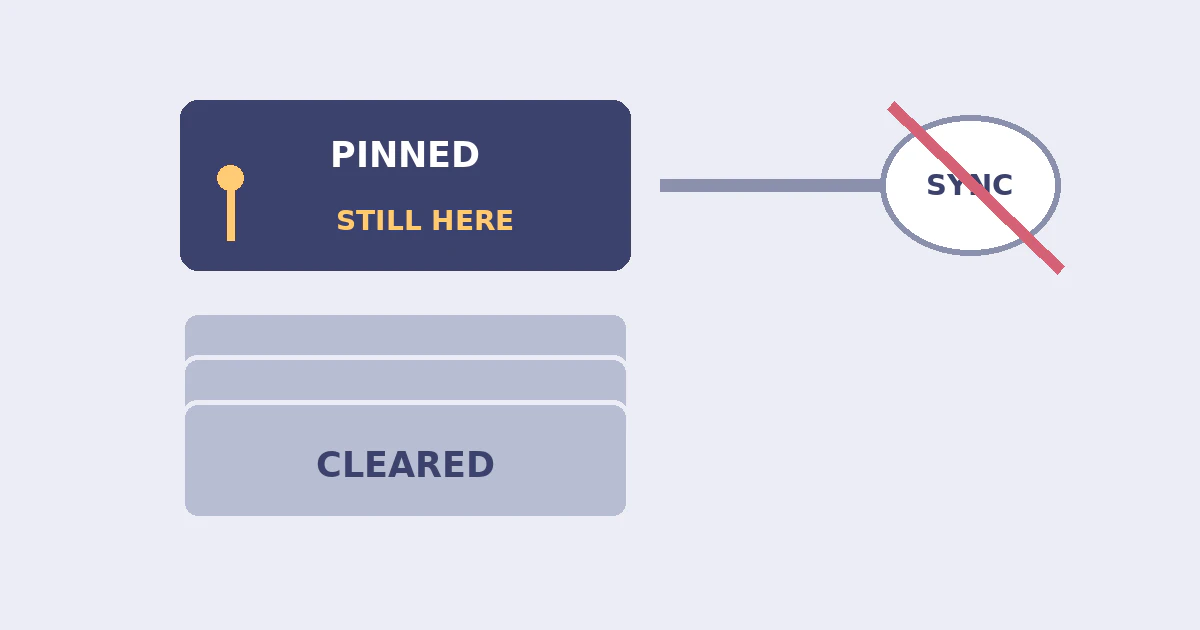
Copying a password, customer note or private message is easy. Remembering where that copied text might remain is less obvious.
Windows 11 can keep a clipboard history, pin entries and sync copied content across devices. Those are useful conveniences, but they also mean “I pasted it already” is not a cleanup policy.
This is a guide to Windows' built-in clipboard controls. It is not a promise to erase information from every application, third-party clipboard manager or device that received a copy.
Check before enabling anything
Press Windows + V to inspect history. If Windows offers to turn history on, leave it off unless you want the feature. There is no need to enable recording merely to investigate a privacy concern.
According to Microsoft's clipboard documentation, Settings, then System, then Clipboard contains history, cross-device history and clearing controls. Clear removes stored history except pinned items. Windows + V also provides Clear all and individual-item deletion.
For a pinned sensitive entry, use its menu to unpin or delete it, then check that it is gone. Restarting clears ordinary history, but pinned items survive. Review cross-device history separately and turn its toggle off if you do not need it.
Setting names may vary with the Windows release and account configuration. On a managed computer, an organisation may control what is available; do not try to bypass those controls.
Give each control a specific job
- History deletion: Removes the entries targeted by the built-in cleanup control, subject to the pinned-item exception.
- Pinned-item deletion: Deals with the entries you deliberately kept for reuse.
- Sync off: Changes whether the built-in feature sends future clipboard content across the configured devices. It is not proof that every earlier copy vanished.
- Credential replacement: Changes an exposed secret. Deleting the clipboard entry does not invalidate a password or recovery code.
These jobs are different. A settings toggle should not be treated as evidence of a completed investigation into where sensitive text went.
Use a small verification test
After cleanup, open Windows + V again and inspect the remaining entries. Do not take a screenshot of a sensitive history list just to prove that you checked it.
If you want to understand your configuration, copy a harmless phrase such as “clipboard test” and observe the local behaviour. Use non-sensitive text for any cross-device test too. You are checking a feature, not demonstrating it with the very information you want to protect.
A successful test tells you what happened under that configuration. It does not establish what an unrelated browser extension, remote-control session or clipboard utility captured previously.
If a secret was exposed
If someone else saw a copied password or a secret was pasted into the wrong conversation, assess the exposure itself. Remove the message where possible, but do not assume the recipient failed to save it. Change the affected password through the genuine service and review its account-security controls.
Recovery codes deserve the same care. A convenient everyday location can be the wrong place for emergency credentials. If a code was exposed, check the service's replacement procedure rather than treating local deletion as revocation.
For workplace information, follow the organisation's incident process rather than silently deleting evidence. Tell the responsible team what was copied, where it was pasted and which devices were involved. Avoid copying the secret again into your incident description.
The sensible long-term choice is not necessarily to abandon the clipboard. Keep history and sync only where their usefulness justifies them, avoid pinning sensitive material, and treat cleanup as reducing retained copies rather than undoing disclosure.
Tags: Guide