Cloud Backup vs External Drive: Which One Do You Need?
Matthew Leo · Published August 14, 2026 · Guides
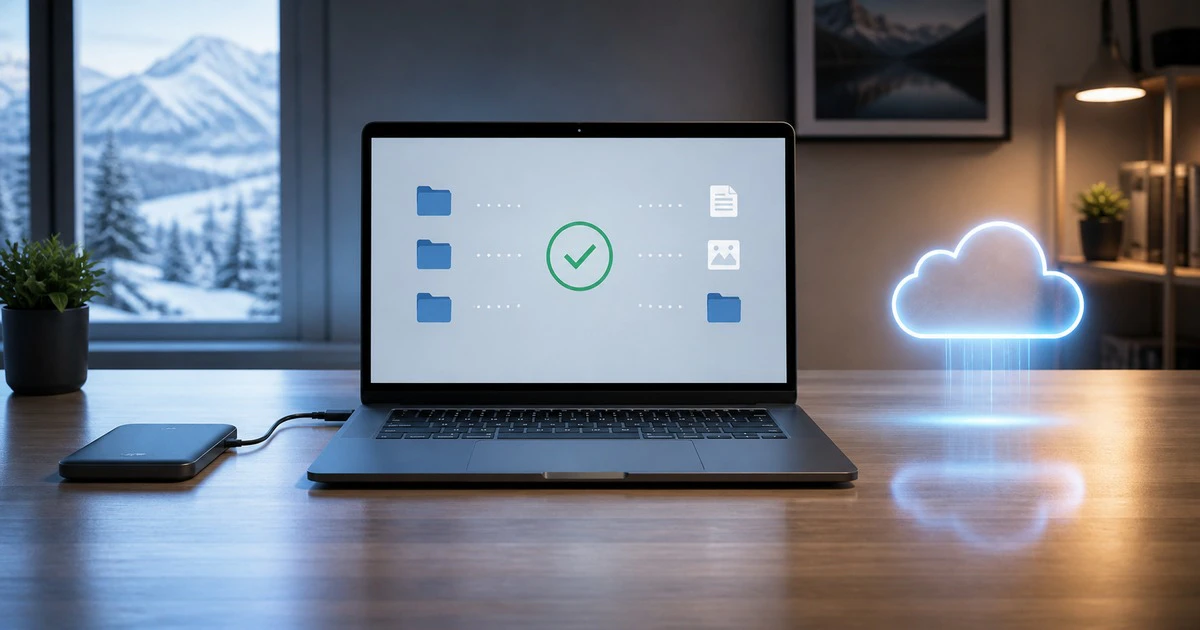
The best backup is not cloud or an external drive; it is the copy that survives the same disaster as your computer.
Cloud backup protects files when a laptop is stolen or a home is damaged. An external drive restores large folders quickly and does not depend on internet speed. Each covers a weakness in the other, which is why choosing only one creates an avoidable gap.
For most Canadian homes, the right answer is a small automatic cloud plan plus a larger external backup that is disconnected when it is not running.
Cloud backup is easy to keep current
A cloud service can copy selected folders in the background whenever the computer is online. The remote copy is outside the home, so theft, fire and a failed internal drive do not destroy it at the same time as the original.
It also makes a new computer easier to set up. Windows Backup can sync Desktop, Documents, Pictures and other selected folders through OneDrive, then restore files and remembered settings when the same Microsoft account signs in. Apple's iCloud and third-party backup services offer different versions of the same remote-copy idea.
Cloud is strongest when it includes version history or a point-in-time restore. Microsoft 365 subscribers, for example, can roll an entire OneDrive back within the previous 30 days after files are deleted, overwritten, corrupted or affected by malware.
That feature is valuable, but it has a time limit. A deletion that goes unnoticed beyond the provider's retention window can become permanent.
Sync is not automatically a complete backup
Synchronization keeps locations aligned. Delete a synced file on one device and the deletion may travel to the cloud and other devices. A recycle bin and version history can reverse many mistakes, but only while the provider retains them.
A backup should let you recover an earlier, independent copy. Before trusting a sync service, answer four questions:
Which folders are actually included?
How long are deleted files and older versions kept?
Can the whole account be rolled back after ransomware?
Can you restore files without the original computer?
A green cloud icon is not proof that every important folder is protected. Open the service settings and verify the list.
An external drive gives fast, private capacity
A local drive is usually cheaper than years of cloud fees when you need several terabytes. It can hold a full photo library, video projects and computer backups without waiting for an upload.
On a Mac, Time Machine can automatically back up apps, photos, email and documents to a connected drive. Apple recommends a backup disk with at least twice the storage capacity of the Mac. On Windows, file-history or third-party imaging tools can create local copies, while the built-in Windows Backup feature focuses heavily on OneDrive and settings.
Local recovery is fast. Restoring 500 GB from a USB drive can take hours; downloading the same amount over a modest connection can take days and may compete with everyone else using the network.
A connected drive can share the computer's danger
An external drive sitting beside the computer can be stolen, flooded or burned with it. If it remains mounted, ransomware or an accidental command may also damage the backup.
Disconnect the drive after the scheduled backup finishes. Store it somewhere separate from the computer. For irreplaceable material, rotate two drives and keep one at another trusted location.
Encryption is important if the drive leaves the home. BitLocker on appropriate Windows editions and encrypted Time Machine backups can protect a lost drive, but keep the recovery key somewhere that will survive the computer. Encryption without a recoverable key can turn your own backup into unreadable data.
Use the Canadian Cyber Centre's 3-2-1 rule
The Canadian Centre for Cyber Security recommends three copies of important information: the original and two backups, stored on two different types of media, with one copy kept off-site.
A simple household version looks like this:
The working files remain on the computer.
An external drive receives an automatic local backup each week.
A cloud service continuously protects the most important folders off-site.
The external drive is disconnected after use. The cloud account uses a unique password, multifactor authentication and saved recovery codes.
This arrangement does not require two paid cloud providers or a complicated server. It separates failures: a dead laptop, a stolen bag, a deleted folder and a house emergency no longer have the same outcome.
Choose storage by what cannot be replaced
Start with the documents and memories that would hurt most to lose: family photos, tax records, creative work, school files and scans of important paperwork. Put those in both backup paths.
Large replaceable files can stay local. A downloaded game library or installer may consume terabytes but be available again from its publisher. Paying monthly to duplicate it in the cloud may be poor value.
For someone with 200 GB of essential files and a 2 TB computer, a 2 TB or 4 TB external drive plus a 500 GB cloud tier can make more sense than buying 2 TB of cloud storage forever. Actual prices vary by service, exchange rate, tax and whether storage is bundled with software, so compare the annual cost rather than an introductory month.
Test recovery before calling it finished
A backup job that says completed has proved only that it wrote something. Every few months, restore a folder from the external drive and one from the cloud to a temporary location. Open several files and make sure the dates and contents are correct.
Also test account recovery. Confirm that the backup service has a current email or phone number and that recovery codes are stored away from the computer. If a family member would need to recover the files, leave clear instructions without putting passwords in an exposed note.
Mapletechie's practical technology guides treat recovery as the real measure of a backup. Buying storage is easy. Restoring the right file after a bad day is the job the system must finish.
Which one do you need?
Choose cloud first if the biggest risks are theft, travel and forgetting to connect a drive. Choose an external drive first if the collection is huge, the internet is slow or a recurring fee is difficult.
Then add the missing second layer. The Canadian 3-2-1 rule is not enterprise excess. It is a practical way to make sure one mistake, one failed device or one damaged room does not erase the only record of your life.