Put Emergency Medical Details on Your Phone's Lock Screen
Matthew Mbaka · September 15, 2026 · Guides
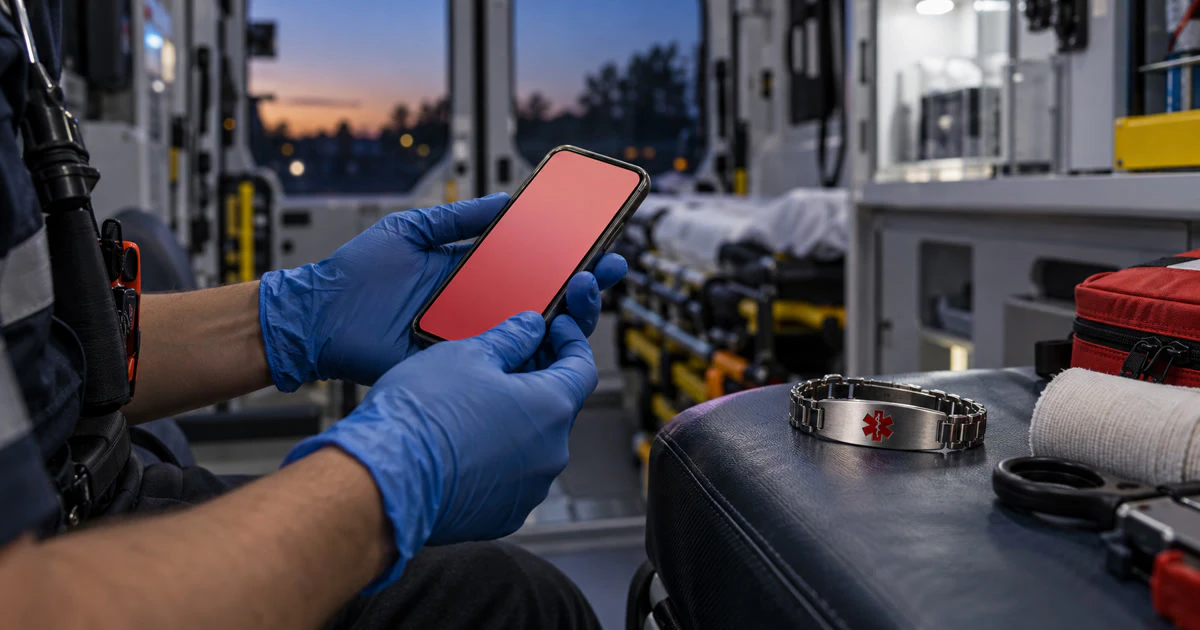
Your phone can show selected medical details and emergency contacts without giving someone access to the rest of the device. It takes a few minutes to set up, but only if you also test what appears on the lock screen.
The menus differ between iPhone, Pixel, Samsung and other Android phones. The basic choice is the same: decide which information could help in an emergency and which details you are comfortable making visible to anyone holding the phone.
What to include
Useful fields may include:
- Your name and an emergency contact.
- Serious allergies.
- Current medications that matter in urgent care.
- Medical conditions a responder should know about.
- Your blood type, but only if you are certain it is correct.
- An organ-donor preference, where the phone supports it.
Keep the note short. A long medical history is hard to scan and may expose more information than needed.
Do not rely on the phone as your only medical record. A dead, damaged or missing phone cannot help. A medical-alert bracelet or wallet card may still be the better backup for a time-sensitive condition.
Set up Medical ID on an iPhone
- Open the Health app.
- Tap your profile picture.
- Tap Medical ID, then Get Started or Edit.
- Add the information you want to share.
- Under Emergency Contacts, add one or more people from Contacts.
- Scroll down and turn on Show When Locked.
- In Canada and the United States, you can also enable the option that shares Medical ID during a supported emergency call.
- Tap Done.
Apple says an iPhone can notify emergency contacts after an Emergency SOS call unless you cancel the message. If location is available, those contacts may also receive your current location and later changes for a period of time.
Test the iPhone lock screen
Lock the phone. Wake it, go to the passcode screen, tap Emergency, then tap Medical ID. Check that the details are readable and that no information you meant to keep private is exposed.
Do not place a test emergency call.
Add emergency information on Android
On many current Android phones, open the Safety app, sign in, tap Your info and add medical information and emergency contacts. Turn on Show when locked or Emergency info access.
If you do not have Google's Safety app, search Settings for Safety & emergency, Emergency information or Medical info. Samsung and other manufacturers may use different names and screens.
Google's Android guidance says the lock-screen information can include blood type, allergies and medications. Emergency SOS is a separate feature. On supported Android 12 or later devices, it can call for help, share location or record video depending on the options you enable.
Test the Android lock screen
Lock the phone and look for Emergency or Emergency call. From there, open the emergency information screen. The exact route depends on the manufacturer.
If you cannot find your details while the phone is locked, a stranger or responder probably will not find them either. Return to Settings and confirm that lock-screen access is enabled.
Choose contacts who will actually answer
An emergency contact should know they are listed. Use someone likely to answer an unknown number, and include the correct relationship if the phone asks.
If a contact changes their number, replacing the number in Contacts may update the link, but you should test it. Also review the list after a breakup, move or family change.
Think about the privacy tradeoff
Lock-screen access is useful because it bypasses the passcode. That also means anyone who finds or steals the phone may see the information you chose to expose.
You do not need to list every diagnosis, medication or family member. Include details that could change emergency care or help someone reach the right person. Leave out health-card numbers, addresses, account information and anything that does not belong on a public-facing screen.
Review it twice a year
Set a simple reminder for every six months and after any major medication or contact change. Outdated information can be worse than a blank field because it looks current.
Sources: Apple's current Medical ID instructions and Google's guide to emergency information and Emergency SOS on Android. Features vary by phone, software version, carrier and country.
Tags: phone safety, Medical ID, emergency contacts