How to Wipe Your Phone Before You Sell It
Matthew Leo · Published August 2, 2026 · Guides
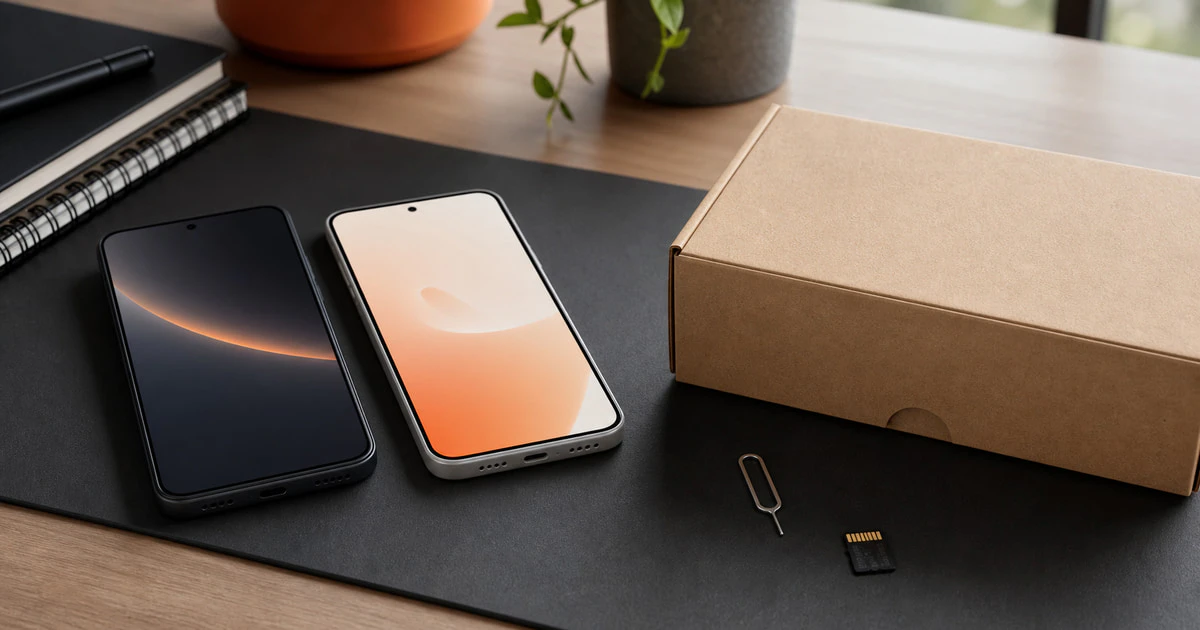
A factory reset is the last step before selling a phone, not the first.
Reset too early and you may lose photos, authenticator codes, transit cards or access to an account. Reset the wrong way and the next owner may meet an activation lock that still points back to you.
The safe process is simple when you follow the right order: copy, verify, disconnect, erase and check.
1. Make a backup you can actually restore
Start with a normal iCloud or Google backup, but do not stop there. Check that your newest photos, contacts, notes and messages are visible on the new phone or in the cloud account.
Open several important files. A backup icon does not prove the file finished uploading.
Move anything stored only in a downloads folder, secure folder, voice-recorder app or local photo album. Banking apps and some messaging apps may require a separate transfer or fresh activation.
If the phone is the only place holding an authenticator app, transfer those accounts before erasing it. Save recovery codes in a secure place. Confirm that passkeys are synchronized to your password manager or create another passkey on a second trusted device.
2. Move the services tied to the phone
Your photos are only one part of the move.
- Transfer the SIM or confirm that the eSIM works on the new phone.
- Move mobile-wallet cards and check transit passes with stored value.
- Unpair an Apple Watch or other wearable that depends on the old phone.
- Move authenticator apps and approve sign-in on the new device.
- Transfer chat histories that do not use the normal phone backup.
- Remove downloaded work files and disconnect employer-management profiles through the proper IT process.
Keep the old phone connected to Wi-Fi until these transfers are complete. Do not erase it simply because the new phone can make a call.
3. Record the phone’s condition
Take clear photos of the screen, frame, cameras and back. Record the serial number or IMEI for your own receipt, but do not include the full number in a public marketplace listing.
If you are mailing the phone to a trade-in company, photograph it powered on and again inside the package. Use tracked shipping and keep the receipt.
This is not a technical security step. It is protection when a buyer or trade-in company later says the condition was different.
How to prepare and erase an iPhone
Apple recommends transferring your information before removing personal data from the old device. If an Apple Watch is paired, unpair it first so the watch can be backed up and Activation Lock can be removed.
Then review your Apple Account, wallet and mobile service:
- Confirm the new iPhone or backup contains the information you need.
- Unpair any Apple Watch.
- If you are moving to a non-Apple phone, deregister iMessage so texts do not continue going to Apple’s system.
- Open Settings > General > Transfer or Reset iPhone.
- Choose Erase All Content and Settings.
- Enter the device passcode and Apple Account password when requested.
- Choose whether to erase the eSIM based on whether it has already been moved or cancelled.
Apple says the erase process turns off Find My and Activation Lock. That matters because an erased phone that remains activation-locked cannot be set up normally by the buyer.
How to prepare and erase an Android phone
Android menus vary between Google, Samsung, Motorola and other manufacturers. The safest general method is to reset the phone from its Settings app while you still know the screen lock and account passwords.
- Confirm the Google backup and any manufacturer backup are complete.
- Transfer authenticator apps, wallet items and eSIM service.
- Remove work profiles and organization management through the approved process.
- Open the account section in Settings and remove your Google Account and any Samsung or manufacturer account when the device instructions recommend it.
- On a Pixel or many other Android phones, open Settings > System > Reset options > Erase all data.
- On a Samsung phone, the path is commonly Settings > General management > Reset > Factory data reset.
- Read the list of data being removed, enter the screen lock and confirm.
Google advises knowing the Google Account username and password that were on the phone before resetting it. If you recently changed the Google Account password, wait 24 hours before the reset. This helps avoid account-protection problems.
A reset through recovery mode can trigger extra ownership checks. Use it only when the normal Settings method is unavailable and follow the manufacturer’s official instructions.
Remove physical storage and accessories
Take out the physical SIM unless the sale specifically includes it, which it normally should not. Remove a microSD card. A factory reset may not securely erase removable storage, and the card may contain photos or documents.
Remove cases, screen-protector fragments and personal labels. Clean the device with a soft cloth and follow the manufacturer’s liquid and cleaning guidance.
Check the phone after the reset
Do not put the phone in a box the moment the screen turns black.
Wait for it to restart. You should see the first welcome or language-selection screen. Do not continue through setup.
If the phone asks for your account before a new owner can begin, it may still be protected by Activation Lock or Factory Reset Protection. Resolve that through Apple, Google or the manufacturer before handing it over.
From another device, review the trusted-device list in your Apple or Google Account. Remove the sold phone when appropriate. Also remove it from banking, password-manager, employer and mobile-carrier device lists.
What a factory reset does not solve
A reset cannot cancel a financing agreement, remove a carrier blacklist or repair a phone reported lost. Sell only a device you own and can legally transfer.
It also does not move your data for you. Once the phone is erased and handed over, recovering a missing local file may be impossible.
If you are upgrading to an expensive folding phone, Mapletechie’s Galaxy Z Fold 8 analysis explains why repair cost and long-term ownership matter as much as the trade-in value.
The five-minute final check
- Your photos, contacts and important files exist somewhere else.
- Your authenticator codes, passkeys and recovery methods work.
- Your SIM or eSIM is moved or cancelled.
- Your Apple, Google and manufacturer accounts are disconnected.
- The phone starts at the welcome screen without asking for your account.
- The SIM and microSD card are removed.
- You kept a record of the condition, serial information and shipment.
Once every item is true, the phone is ready to leave your hands. Until then, it is still part of your digital life.
Sources and further reading
- Apple: What to do before selling, giving away or trading in an iPhone
- Google: Reset an Android device to factory settings