Erase a Windows PC Safely Before Selling It
Matthew Leo · Published August 13, 2026 · Guides
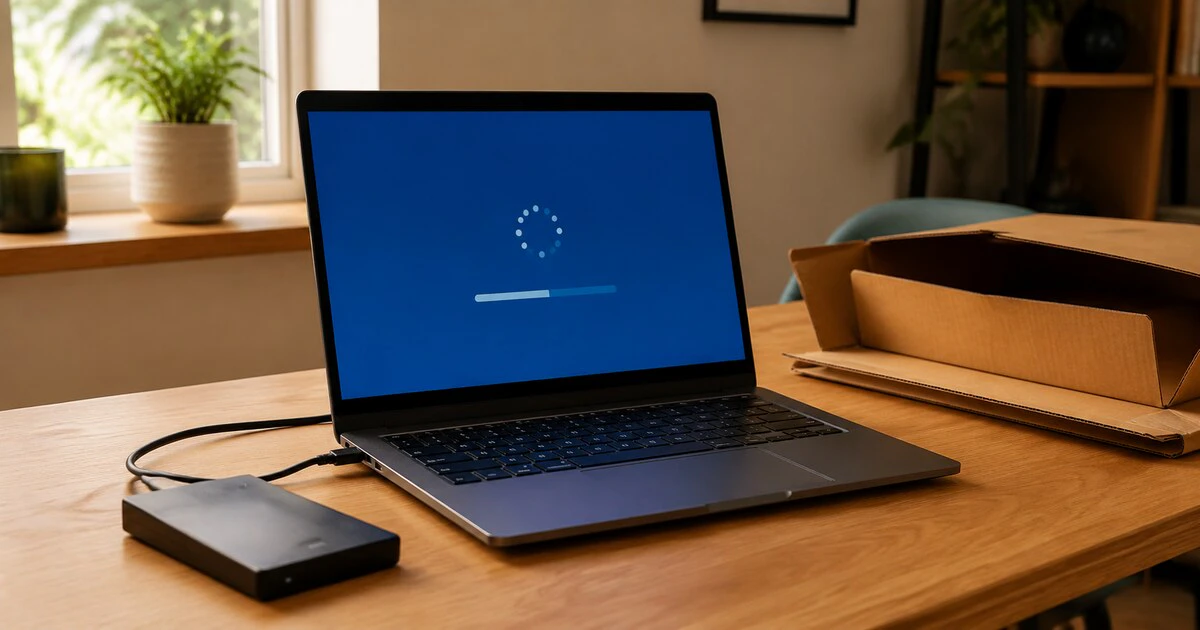
A Windows reset is not ready for a new owner until your files are backed up, the drive-cleaning option has finished and the computer stops at the first setup screen.
This guide applies to personal Windows 11 and Windows 10 PCs that still start normally. A work or school computer may be managed, leased or owned by the organization; return it through the employer’s process rather than removing its controls yourself.
Plan for the reset to take from roughly 30 minutes to several hours. Keep the computer plugged into reliable power and do not begin immediately before meeting a buyer.
Verify the backup instead of trusting a green check
Copy the files you need to an external drive or a cloud service. Microsoft’s Windows Backup guidance covers files, settings and supported preferences, but a synchronization service is not automatically a complete historical backup. Mapletechie’s 3-2-1 backup guide explains why a second copy matters before destructive work.
Open several documents, photographs and videos from the destination. Check folders that often escape attention: Downloads, Desktop, browser exports, local email archives, tax software, game saves, virtual machines and files stored outside OneDrive.
Record licence keys or deauthorize applications that limit the number of computers. If the PC holds cryptocurrency keys, authentication exports or encrypted vaults, confirm their recovery process on another device before erasing anything.
Do not proceed until the replacement device or backup can open the important material. The reset’s expected result is data loss; there is no reliable undo button afterward.
Find the BitLocker recovery key
Windows may require a BitLocker recovery key when entering recovery tools. From another device, check the Microsoft account recovery-key page and match the key identifier to the PC.
A work or school organization may hold the key instead. If the drive is encrypted and no valid recovery route exists, stop before making firmware or account changes that could trigger the recovery prompt.
You do not normally need to decrypt a healthy PC before resetting it. Preserving the key is a precaution against becoming locked out midway through the preparation.
Choose Remove everything and clean the drive
Open Settings, select System, Recovery and Reset PC. On Windows 10, use Settings, Update & Security, Recovery and Get started under Reset this PC.
Choose Remove everything. “Keep my files” is designed for troubleshooting your own machine; it is not the handover option.
Windows may offer Cloud download or Local reinstall. Cloud download retrieves a fresh Windows image and needs a stable connection plus several gigabytes of data. Local reinstall uses files already on the computer and can be faster, but damaged system files may make it fail.
Open Change settings when it appears and enable the option described as cleaning data or cleaning the drive. Microsoft explains that the cleaning option takes longer and makes recovery by another person more difficult. Wording varies by Windows version.
- Connect the PC to power.
- Open Settings > System > Recovery > Reset PC.
- Select Remove everything.
- Choose Cloud download or Local reinstall.
- Open Change settings and enable drive/data cleaning.
- Review every listed drive and confirm that external backup media is disconnected.
- Start the reset and allow every restart to finish.
If the computer has a second internal drive, read the confirmation screen carefully. Windows may ask whether to clean only the Windows drive or all drives. Disconnect external drives first so an ambiguous label cannot put the backup at risk.
Stop at the first setup screen
After the reset, Windows should display its initial region or language setup. Do not create a new account for the buyer and do not sign back into your Microsoft account. Shut the PC down from that screen if possible.
If your files, old account name or desktop reappear, the reset did not produce the intended result. Do not hand over the computer. Repeat the process, use Windows recovery media or obtain professional help if the internal drive is failing.
For a broken machine that cannot be erased, remove the storage drive where practical and keep it. Soldered storage or an unfamiliar chassis may require a qualified repair or recycling provider. Physical destruction can create battery, fire and environmental hazards, so do not improvise with drills or hammers.
Remove the PC from your Microsoft account
Once the reset is complete, follow Microsoft’s sale and recycling instructions. Sign in at account.microsoft.com/devices, find the computer and choose the removal option.
Also review Microsoft Store device limits and unlink the PC if it remains listed there. Removing the device record tidies account access and licensing; it is not a substitute for wiping the physical drive.
For a business or school account, ask the administrator to retire the device from management. A reset can leave an organization’s automatic-enrolment record intact, causing the next owner to see a corporate sign-in screen.
Handle sale and recycling details separately
Photograph the serial number, condition and reset setup screen before a private sale or shipment. Keep the receipt and tracking record. Remove SD cards, USB receivers, SIM cards and security keys that are easy to overlook.
If the PC is being discarded, use a municipal or provincial electronics programme. Canada’s Office of Consumer Affairs recommends wiping personal data before recycling. Do not place a laptop with a lithium-ion battery in household garbage.
The handover is complete when the buyer receives a machine at the Windows setup screen, while you retain a working backup and no longer see the PC as an active personal device. Anything less leaves either your data or the next owner’s setup unfinished.
Tags: Windows, PC security, data privacy, device resale, recycling