Set Up One External Drive for Both Mac and Windows
Matthew Mbaka · September 18, 2026 · Guides
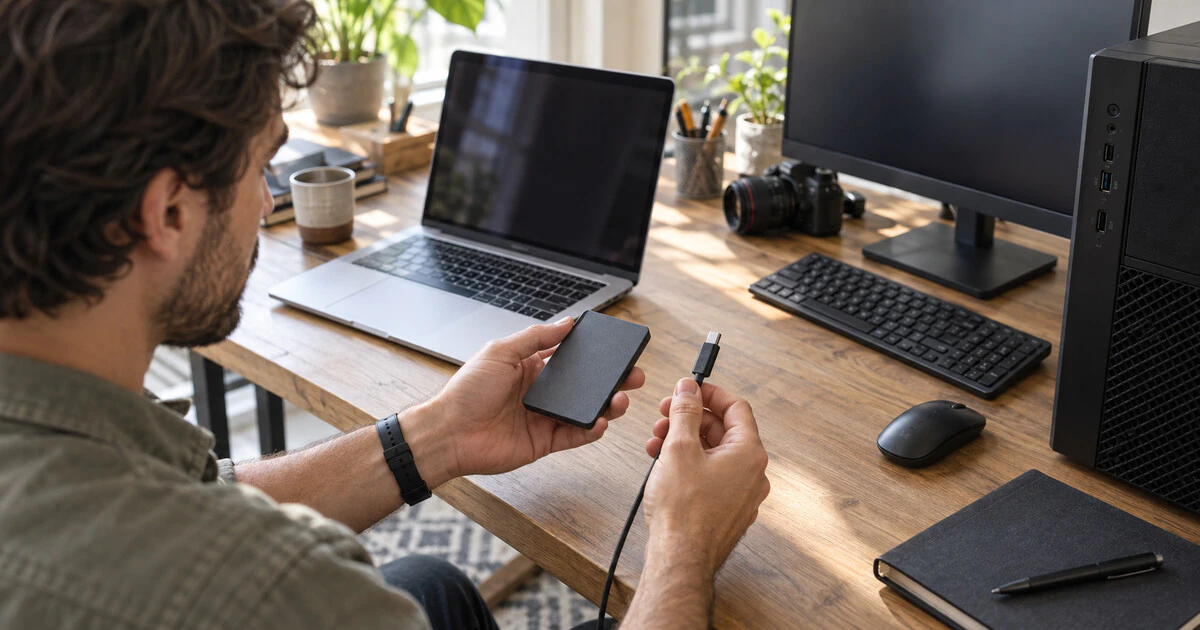
A portable SSD or USB hard drive can move files between a Mac and a Windows PC. The simplest format for that job is usually exFAT, which both operating systems can read and write without extra software.
The risky part is not choosing exFAT. It is formatting the wrong drive or assuming a backup exists when it does not. Formatting erases the selected volume, so slow down before you click anything.
Decide whether exFAT fits the job
Use exFAT when the drive will carry ordinary files between reasonably current Macs and Windows PCs. It supports files larger than 4 GB, unlike the older FAT32 format, and is designed for removable storage.
Choose something else when the drive has a platform-specific job:
- Mac-only work: APFS is the normal choice for a modern Mac drive and is required for some Apple features.
- Windows-only work: NTFS supports Windows permissions and features that exFAT does not.
- Time Machine: Follow macOS prompts and Apple's recommended format rather than treating the backup drive as general shared storage.
- Old cameras, televisions or game consoles: Check the device manual. Some hardware expects FAT32, a particular partition scheme or a size limit.
Cross-platform convenience also brings a trade-off. exFAT is a simple exchange format, not a complete backup strategy. Keep another copy of anything important.
Back up and identify the drive first
Copy every needed file somewhere else and open a few of those copies. Do not rely on seeing filenames alone. A failed or incomplete copy can look convincing until you try to use it.
Disconnect other removable drives if you can. Note the target drive's brand, capacity and current name. Those details help you select the right device when several disks appear with generic labels.
Format the drive on a Mac
- Connect the drive directly to the Mac if possible.
- Open Disk Utility from Applications > Utilities.
- Choose View > Show All Devices.
- Select the external physical device, not the Mac's internal drive.
- Click Erase.
- Choose a clear name and select exFAT as the format.
- For current Macs and PCs, choose GUID Partition Map unless a specific older device requires something else.
- Confirm only after checking the drive name and capacity again.
Apple's Disk Utility guide is explicit that erasing a storage device removes everything on it. Its format guidance recommends exFAT for Windows-compatible volumes larger than 32 GB.
Format the drive in Windows
- Connect the drive and make sure your verified copy is elsewhere.
- Right-click Start and open Disk Management. You can also run diskmgmt.msc.
- Find the external drive by capacity and label. Do not select the Windows system disk.
- If it already has a usable volume, right-click that volume and choose Format.
- Set the file system to exFAT, give the volume a useful name and complete the format.
If the disk is new and unallocated, Windows may ask you to initialize it and create a new simple volume first. Microsoft's Disk Management instructions cover both cases and warn that formatting destroys data on the volume.
Test it before moving the only copy
Create a folder on the Mac, copy in a small file and a file larger than 4 GB, then eject the drive properly. Connect it to the Windows PC, open both files, rename one and copy another file back. Repeat the check on the Mac.
This short round trip catches cable, port, permission and compatibility problems before the drive is carrying something irreplaceable.
Common problems after formatting
The drive does not appear: Try a different cable and port, connect without a hub and check Disk Utility or Disk Management. Some USB-C cables provide power but have limited or no data support.
The drive is read-only: Confirm that it is actually exFAT. A Mac can normally read NTFS but does not write to it by default.
The television or console rejects it: That device may require FAT32, MBR or a smaller partition. Follow its documentation rather than repeatedly reformatting the only copy of your files.
Files keep getting damaged: Replace the cable, stop unplugging without ejecting and check the drive's health. A shared format cannot rescue failing hardware.
Once the drive passes the two-computer test, it is ready for transfers. Keep important files in at least one other place, because a portable drive is easy to drop, lose or accidentally erase.
Tags: External Storage, macOS, Windows, exFAT, Backup