Find the App Using Your Phone's Camera or Microphone
Matthew Leo · Published August 15, 2026 · Guides
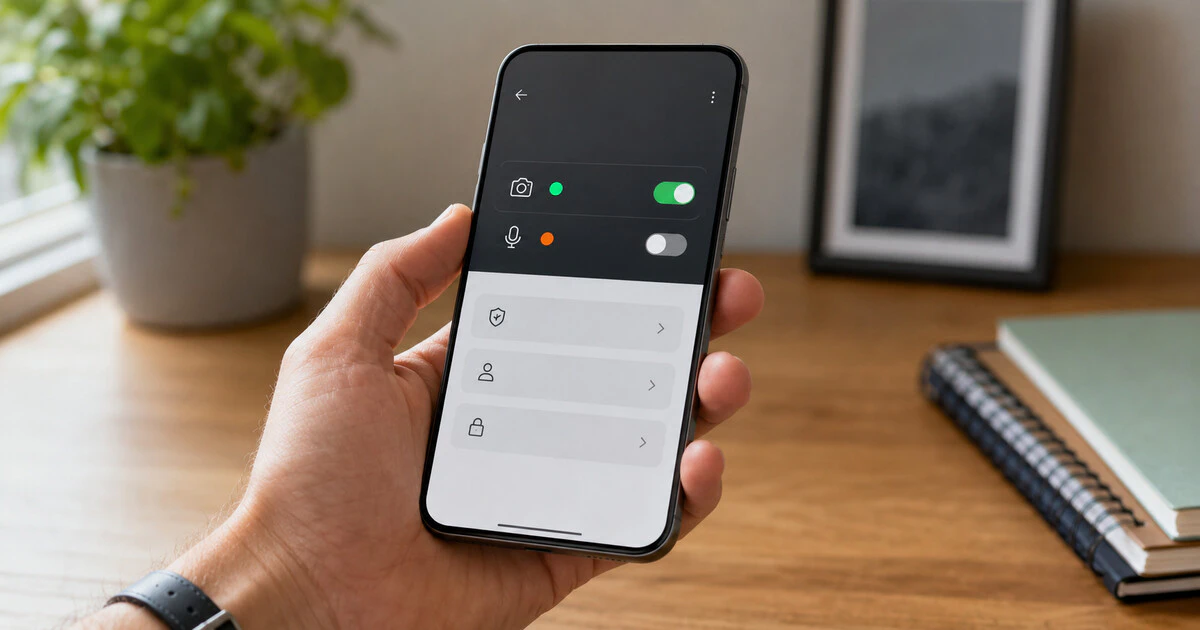
An unexpected camera or microphone indicator means a sensor was used; it does not, by itself, mean your phone has been hacked.
Both iPhone and Android now show when an application accesses these sensors and provide a history that can identify the likely source. Start with that evidence before deleting apps or resetting the phone.
The instructions below cover iOS and iPadOS 15.2 or later for Apple's detailed App Privacy Report, plus Android 12 or later for Google's Privacy Dashboard. Older devices still provide app permission lists, but may not show the same history.
Use the live indicator first
On an iPhone, an orange indicator means the microphone is in use; green means the camera, or camera and microphone, is active. Open Control Centre while the indicator is showing to see which app recently used the sensor.
On recent Android versions, a green indicator appears near the top-right corner. Swipe down and tap the indicator to see the app or service using the camera or microphone. Manufacturer interfaces differ slightly, so search Settings for “privacy dashboard” if the shortcut is not obvious.
The name may be perfectly explainable: Camera, a telephone or video-call app, a voice recorder, a browser tab using a meeting service, or a social app after you opened its camera. Concern rises when the access occurs while the app is idle, repeats without a clear action or belongs to software you do not recognize.
Check seven days of iPhone activity
Apple's App Privacy Report records access to the camera, microphone, location and other protected data over the previous seven days. It requires iOS 15.2 or later.
- Open Settings.
- Tap Privacy & Security.
- Scroll to App Privacy Report.
- Turn it on if it is disabled, then use the phone normally while it gathers data.
- Open Data & Sensor Access and select Camera or Microphone.
The report starts collecting only after you enable it. An empty screen immediately after activation is expected, not proof that nothing happened earlier. Apple says the report is encrypted and stored on the device; turning the feature off also clears its data.
To revoke access, return to Settings, Privacy & Security, then Camera or Microphone. Turn off the switch beside the app. The change is reversible, but features such as video calls, document scanning, voice notes and identity checks may stop working until permission is restored.
Use Android's Privacy Dashboard
Google's Privacy Dashboard shows permission activity for the previous 24 hours on Android 12 and the previous seven days on Android 13 or later.
- Open Settings.
- Tap Security & privacy or Privacy.
- Tap Privacy Dashboard; on some phones, tap Privacy a second time.
- Select Camera or Microphone.
- Tap an app in the timeline to change its permission.
You can also open Settings, Apps, select the app and tap Permissions. Android may offer Allow only while using the app, Ask every time or Don't allow. Choose the narrowest option that still lets the feature you want function.
For an immediate stop, Android provides device-wide Camera access and Microphone access switches under Security & privacy, Privacy, Privacy controls. Those switches affect every app, including emergency calls, video meetings and the camera itself, so treat them as a temporary cutoff while investigating.
Browsers need a second permission check
If Safari, Chrome or another browser appears in the history, the browser may be only the container. A website opened inside it could have requested the sensor.
Close active tabs, then review the browser's site permissions for camera and microphone access. Remove permissions for sites you no longer use. During a web meeting, revoking the phone-level browser permission will block every site, while changing the site permission can target the actual service.
Investigate access that keeps returning
Close the named app and restart the phone. If the indicator returns before you reopen it, check for app and operating-system updates, then revoke the permission. A legitimate app may have a bug; repeated unexplained access still deserves attention.
- Remove applications you do not recognize or no longer need.
- On Android, keep Google Play Protect enabled and scan installed apps.
- On iPhone, check Settings, General, VPN & Device Management for an unknown management profile.
- Review accessibility and device-administrator privileges on Android for unfamiliar services.
- Change important passwords from a trusted device if other signs of compromise appear.
Other warning signs include applications installed without your knowledge, unexplained account sign-ins, a management profile you did not accept, or a sensor indicator that survives removal of the identified app. Battery drain alone is weak evidence because many ordinary problems cause it.
Reset only after preserving what matters
A factory reset is the final recovery step, not the first diagnostic tool. Back up photographs, contacts and documents, preserve screenshots of suspicious activity, and confirm that you can sign back into your Apple or Google account.
After resetting, install current system updates and add apps selectively from the official store. Restoring every obscure application and configuration at once can bring the original uncertainty back with the backup.
The privacy dot is useful because it turns invisible sensor access into something you can investigate. Read the history, identify the app and narrow its permission. Panic does less work than the dashboard.
Tags: iPhone privacy, Android privacy, camera permissions, microphone permissions, smartphone security