Find Your BitLocker Key Before Resetting a Locked PC
Matthew Leo · Published September 13, 2026 · Guides
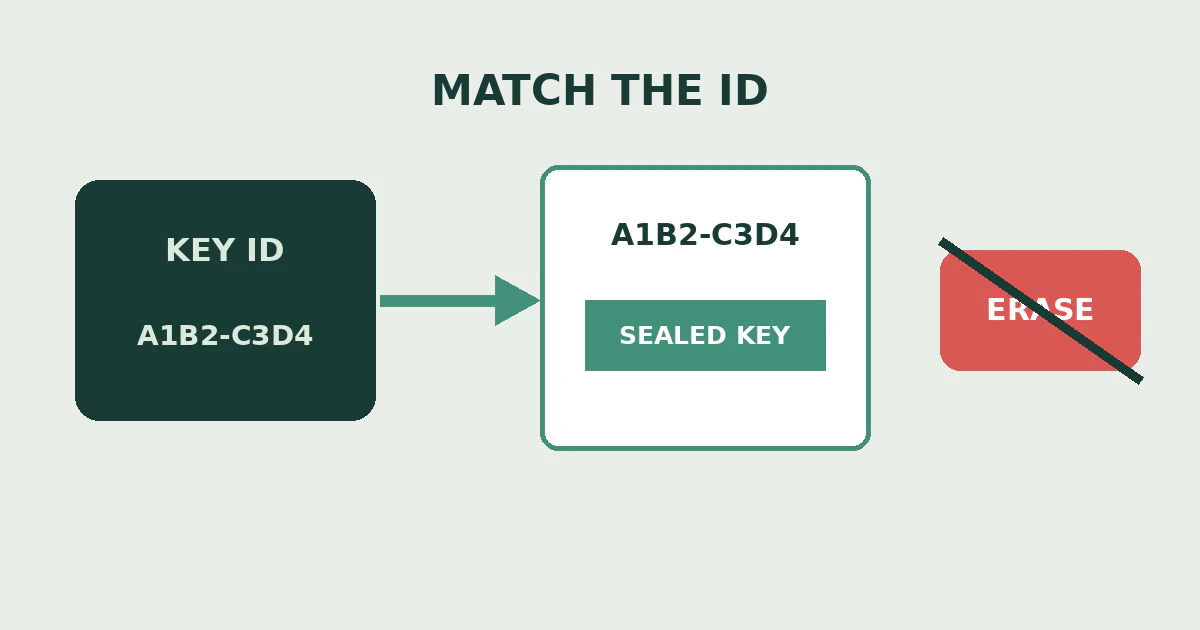
When Windows asks for a BitLocker recovery key, stop before choosing a reset. You may still have a route back to the existing files. Erasing the computer is a different operation, not a shortcut to finding the key.
The immediate job is to locate the recovery record that matches this drive. This guide covers Windows recovery-key lookup, not bypassing encryption or repairing a failing storage device.
Identify the thing you actually need
Microsoft's recovery guidance distinguishes the 48-digit recovery key from the key ID displayed on the locked computer. Record the first eight characters of that ID, then match it against the stored record. The ID identifies a key; it does not unlock the drive.
A Windows sign-in PIN, Microsoft account password and recovery key serve different purposes. Trying your everyday password repeatedly will not turn it into an encryption recovery key.
Use another trusted device for the search. Do not post a full recovery key in a forum, send it to an unsolicited support caller or photograph it into a public album. Someone who obtains it and the encrypted drive may be able to access the data.
Check the account that set up the computer
Microsoft directs personal-account users to their account's recovery-key page. Sign in and compare the saved key ID with the locked drive. If another person configured encryption, check with them: the backup may be in their account.
For a work or school device, use your organisation's device account or contact IT. Printed records and USB-stored key files are other possible locations. Starting with Windows 11 version 24H2, the recovery screen can show an account hint.
Do not treat the first familiar device name as a match. A household may have reused a laptop name, and one account may hold several records. Write down which ID you matched before entering the associated number.
On a company laptop, let IT handle retrieval if the self-service option is unavailable. A missing button is not a reason to remove the organisation account or improvise a firmware change. Keep the asset number and recovery ID ready, but share secrets only through the organisation's approved channel.
Preserve options while you search
A useful pause checklist separates identification from action:
- Computer: Confirm you are recovering the intended machine, not a removable drive attached to it.
- Key record: Match the displayed identifier rather than guessing from the account's device list.
- Recent change: Note any repair or hardware change immediately before the prompt. Give that information to the technician rather than experimenting with additional changes.
- Files: List the documents that exist only on this drive. Check any separate backup from another device without modifying the original.
- Ownership: If this is a used or borrowed computer, involve the owner or seller. An encryption lock is not evidence that a seller can recover your files.
A repair shop's ability to reinstall Windows is not proof it can decrypt the existing files. Ask which outcome it is proposing before authorising work. “Working computer” and “recovered data” need to be separate lines on the conversation.
If the key is missing
Microsoft cannot recreate a lost recovery key. Its documented last resort, when the key cannot be found and the triggering change cannot be undone, is a reset that removes the files. Treat that warning literally.
If the files are irreplaceable, stop and discuss the specific situation with a qualified technician before accepting destructive recovery. Do not buy a supposed universal unlock key. A promise is not a technical explanation of how encrypted data will be recovered.
Once access is restored, verify the important files, make a separate backup and confirm where the current recovery key is stored. Keep its identifier with the computer's records so the next search starts with a match rather than a panic.
Plan the next repair around data access
Before authorising another repair, ask whether the work may change hardware or security settings and whether you should have the recovery record available. Give the technician a clear instruction not to erase the drive without separate permission.
Keep a short inventory of what is backed up and where. An account full of device records is not itself a file backup. Check a representative document from the separate backup, including an older file that matters, rather than relying only on a folder name or a successful sign-in.
If a family member manages the computer, agree on how you will contact them when the PC is inaccessible. Do not solve that availability problem by leaving the full key visibly attached to a laptop that travels with you.
The recovery plan needs two things: a retrievable key for the encrypted drive, and a separate copy of the files you cannot afford to lose. Neither replaces the other.
Tags: Guide