Fix “Connected, No Internet” on Windows 11
Matthew Leo · Published August 11, 2026 · Guides
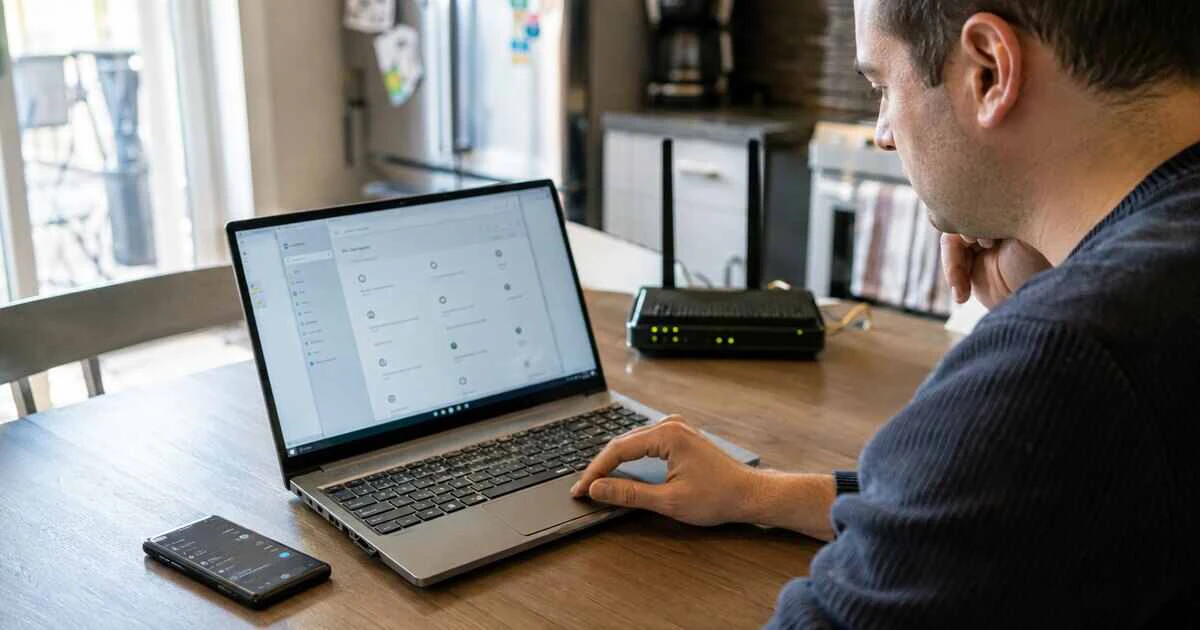
“Connected, no Internet” means Windows has joined the local Wi-Fi network, but that connection has not produced a working route to the wider Internet.
The fault may be the laptop, router, Internet provider, sign-in page or Domain Name System service that translates website names into network addresses. Test them in that order before using a network reset, because the reset can remove adapters and settings you may need to recreate.
This guide applies to current Windows 11 systems. Menu names can vary slightly by release and computer manufacturer, and work or school devices may be controlled by an administrator.
Find out whether the laptop or network is failing
Connect another phone or computer to the same Wi-Fi and turn off its mobile data. If that device also has no Internet, the router or provider is the more likely cause. If everything else works, concentrate on the Windows laptop.
Then connect the laptop to a trusted phone hotspot if one is available and your mobile plan permits tethering. A laptop that works on the hotspot but not home Wi-Fi has functioning wireless hardware; the problem is likely specific to the home network, its address assignment or its DNS settings.
Avoid running large updates during this test. Mobile data can be expensive, and Windows may treat the hotspot differently depending on whether the connection is marked as metered.
Check for an outage and restart safely
Look at the modem or gateway lights and check the provider’s official outage page using mobile data. A Wi-Fi symbol only confirms the local radio link. It does not prove that the provider’s connection is active.
When no outage is reported, restart the laptop. For separate modem and router equipment, unplug both, wait about 30 seconds, then power the modem first. Wait until its connection lights stabilize before powering the router. This order allows the router to request a fresh connection from the modem.
Do not press the recessed factory-reset button. A restart preserves the network name and provider configuration; a factory reset can erase them.
Open a captive portal
Hotels, airports, hospitals and guest networks often require a browser sign-in or acceptance page. Windows can join the Wi-Fi before that page has authorized Internet access.
Open a browser and visit a plain HTTP address such as neverssl.com. The network may redirect it to the sign-in page. Disable a VPN temporarily if the portal will not appear, then reconnect the VPN after access is established.
Do not enter sensitive passwords into a page whose network name or branding is suspicious. Confirm the correct guest network with staff.
Forget and rejoin the Wi-Fi network
Open Settings, Network & Internet, Wi-Fi, then Manage known networks. Select the affected network and choose Forget. Reconnect from the Wi-Fi list using the correct password.
This removes the saved profile for that network, including its password and some connection preferences. It does not erase other networks. Have the Wi-Fi password available before proceeding.
If the router recently changed from WPA2 to WPA3, or its network name was reused after replacement, recreating the profile can clear an incompatible saved configuration.
Check the address Windows received
Open Terminal and run:
ipconfig /allFind the active Wi-Fi adapter. A normal home connection usually shows an IPv4 address, default gateway and DNS servers. An address beginning with 169.254 often means Windows assigned itself a local address because it did not receive one from the router.
When that happens, reconnect to Wi-Fi and restart the router. You can also run these commands in Terminal:
ipconfig /release
ipconfig /renew
These release and request an IPv4 lease. They do not repair a router whose address service has failed, but they can refresh a stale lease.
Separate DNS trouble from a complete outage
If applications report that websites cannot be found while the network otherwise appears active, DNS may be failing. In Terminal, try:
nslookup mapletechie.comIf the lookup fails, run:
ipconfig /flushdnsThis clears Windows’ local DNS cache. Reconnect and test again. A manually configured DNS server can also become unavailable, so open the Wi-Fi network’s hardware properties and confirm that DNS is set as intended.
Do not change DNS merely because a random troubleshooting page recommends a particular provider. DNS operators can observe lookup information, and work devices may require organizational servers.
Disable VPNs, proxies and security filters temporarily
A damaged VPN route, stale proxy setting or filtering application can block traffic while Wi-Fi remains connected. Disconnect the VPN and check Settings, Network & Internet, Proxy for an unexpected manual configuration.
Pause third-party network filtering only long enough to test, and keep Windows Security active. If Internet access returns, update or reinstall the responsible product rather than leaving protection disabled.
Re-enable or update the wireless adapter
Open Settings, Network & Internet, Advanced network settings. Disable the Wi-Fi adapter, wait several seconds and enable it again.
For a driver problem, open Device Manager, expand Network adapters and identify the wireless device. Use Windows Update and the computer manufacturer’s support page for a current driver. Avoid generic driver-download websites.
If the problem began immediately after a driver update, the adapter’s Properties page may offer Roll Back Driver. Record the existing version before changing it so the decision can be reversed.
Use Network reset last
Microsoft places Network reset near the end of its troubleshooting process. In Windows 11, open Settings, Network & Internet, Advanced network settings, Network reset, then select Reset now.
The computer restarts, removes installed network adapters and reinstalls them with default settings. You may need to recreate VPN software, virtual switches, static addresses and trusted network classifications afterward.
Save work, record custom settings and obtain administrator support before doing this on a managed device.
Know when the provider or hardware needs attention
Contact the Internet provider when every device fails, the modem shows no service, or the connection drops repeatedly after a proper restart. Contact the laptop manufacturer when Wi-Fi disappears entirely from Device Manager, the adapter reports a persistent error, or the problem follows the laptop across several known-good networks.
The fastest fix comes from identifying the boundary first. Wi-Fi can be connected while the Internet is not; once you know which side of the router is failing, you can repair the right system without erasing everything else.
Tags: Windows 11, Wi-Fi, networking, troubleshooting, home internet