Fix iPhone Battery Drain Before Replacing the Battery
Matthew Leo · Published August 12, 2026 · Guides
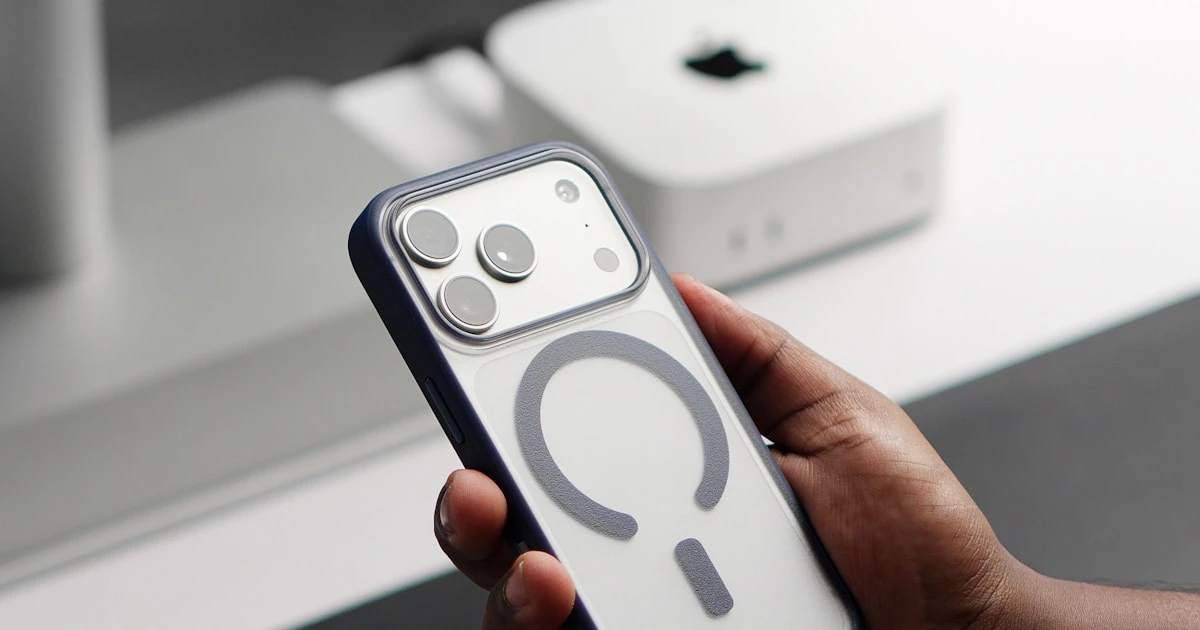
An iPhone that suddenly feels like it is bleeding battery does not automatically need a new battery.
Before paying for service, check the Battery screen, background activity, display behaviour, cellular use and charging settings. On iOS 26 and later, Apple gives you more useful battery information than older versions did, including Daily Usage, battery suggestions and Adaptive Power on supported models.
The goal is to work out whether the problem is heavy usage, a misbehaving app, poor signal, display settings, heat or actual battery wear.
Start with Settings > Battery
Open Settings > Battery and look at the Daily Usage chart.
Apple’s current battery-drain guidance recommends checking the suggestions and Insights shown above the chart on iOS 26 or later. These can flag settings such as Auto-Brightness or Auto-Lock when they are contributing to unnecessary drain.
Then look at which apps are using the most battery.
Do not assume the app at the top is the problem just because it has the highest percentage. If you spent three hours watching video, the video app should be high. The suspicious pattern is an app using a lot of power despite little screen time or an app showing heavy background activity when you barely used it.
Check screen-on time before blaming the battery
The display is one of the biggest power consumers on any phone.
If Auto-Lock is disabled or set very long, the phone can sit awake on a desk for far longer than necessary. That is especially noticeable on a large bright display.
Always-On Display is designed to use much less power than a fully active screen, but it is not free. If battery life is already marginal, turning it off for a day is a useful test.
Brightness also matters. Auto-Brightness usually makes more sense than manually leaving the screen near maximum brightness all day.
Low Power Mode can make a Pro iPhone feel slower
Low Power Mode extends battery life by reducing or disabling several features. Apple says it can reduce display brightness, pause background activity, stop automatic downloads and limit the display refresh rate to 60 Hz on iPhone and iPad models with ProMotion.
That last part explains why a Pro iPhone can suddenly feel less smooth in Low Power Mode. If you are used to a 120 Hz display, the difference is visible.
So Low Power Mode is useful when you need endurance, but it is not a free battery boost. You are trading some performance and background activity for longer runtime.
On iPhone 15 and later, go to Settings > Battery > Power Mode. On older supported models, Low Power Mode remains directly in Battery settings.
Use Adaptive Power if your iPhone supports it
On supported iPhones running iOS 26 or later, Adaptive Power can make smaller performance adjustments automatically when the phone detects higher-than-usual battery use.
Apple currently lists support for iPhone 17 models, iPhone Air, iPhone 16 models, iPhone 15 Pro and iPhone 15 Pro Max.
This is different from leaving Low Power Mode on all day. Adaptive Power is meant to react dynamically rather than applying the full set of Low Power restrictions constantly.
If your phone supports it, it is worth trying before permanently accepting 60 Hz and reduced background behaviour.
Poor cellular signal can quietly drain the battery
A phone working hard to maintain a weak cellular connection can use more power than the same phone sitting on strong Wi-Fi.
If the drain is much worse at work, in a basement, on a highway route or in a building with poor reception, signal quality may be part of the problem.
Compare battery behaviour on a day spent mostly on stable Wi-Fi with a day spent in the location where the problem is worst.
If the difference is large, replacing the battery will not fix the underlying radio conditions.
Check Battery Health, not just today’s percentage
On iPhone 15 and later, go to Settings > Battery > Battery Health. On iPhone 14 and earlier, go to Settings > Battery > Battery Health & Charging.
Apple says rechargeable batteries are consumable components and lose capacity as they chemically age. On iPhone 15 and later, you can also see information such as cycle count on supported software.
If Battery Health shows a service recommendation, replacement becomes a much stronger possibility.
If maximum capacity is still healthy and the drain started suddenly after an app, update or settings change, troubleshoot first.
Do not obsess over charging to exactly 80%
On iPhone 15 and later, Apple lets you choose a Charge Limit between 80% and 100% in 5% increments.
A lower limit can reduce the time the battery spends at a high state of charge, which can help long-term battery lifespan. It is most useful for people who regularly have access to a charger and do not need the full battery every day.
It is not a rule that everyone must use 80%.
If you routinely finish the day near empty, forcing yourself to start at 80% may make the phone less useful without solving your immediate battery-life problem. Apple may also recommend a limit based on your charging habits.
Choose a limit that fits your actual day.
Do not panic when the iPhone occasionally charges to 100%
Apple says an iPhone with a lower Charge Limit may occasionally charge to 100% to maintain accurate battery state-of-charge estimates.
That is expected behaviour, not evidence that the limit failed.
Optimized Battery Charging works differently. When the limit is set to 100%, the phone can learn your routine and delay charging past 80% until closer to when it expects you to unplug.
Heat matters more than most charging myths
High temperature is hard on lithium-ion batteries.
Apple can slow or pause charging when an iPhone becomes too hot or too cold. It recommends charging in an environment between 0°C and 35°C.
If the phone regularly becomes hot while charging, remove an unusually insulating case, move it away from direct sunlight and avoid leaving it in a hot vehicle.
A battery that spends months cooking on a dashboard has a bigger problem than whether it was charged from 79% to 84%.
Give updates time to settle
Battery drain can temporarily increase after a major software update while the phone performs background work such as indexing, photo processing and app updates.
If the problem began immediately after an update, monitor it for a reasonable period before assuming permanent damage.
At the same time, make sure the phone is running the latest stable iOS version because Apple regularly fixes power and performance issues through software updates.
When a battery replacement actually makes sense
Replacement is reasonable when Battery Health recommends service, maximum capacity has fallen significantly and real-world runtime is poor, or the phone shuts down unexpectedly under normal use.
A worn battery can also contribute to reduced peak performance. Apple explains that iPhones manage performance automatically as batteries age to reduce unexpected shutdowns.
If the battery is physically swollen, stop using the device and seek service rather than continuing to charge it.
A simple one-day battery test
Before booking a repair, try one controlled day:
Update to the latest stable iOS release.
Restart the phone.
Use Auto-Brightness and a normal Auto-Lock time.
Leave Always-On Display off for the test if your model has it.
Use stable Wi-Fi where possible.
Keep Low Power Mode off initially so you can observe normal behaviour.
At the end of the day, compare screen-on time, app usage and background activity in Settings > Battery.
If one app or setting stands out, you have somewhere useful to investigate.
If nothing unusual appears and the battery health is clearly degraded, hardware becomes the more likely answer.
Do not replace a battery to fix a settings problem
An iPhone battery problem is easier to solve when you first identify which kind of problem it is.
Heavy screen use needs different treatment from poor cellular signal. A background app needs different treatment from a chemically aged battery. Low Power Mode making a ProMotion display feel slower is expected behaviour, not mysterious lag.
Use the information the phone already gives you before spending money.
Sometimes the battery really is worn out. Just make it prove its case first.
Tags: Guides, iPhone, Battery Life, iOS 26, Apple