Fix an iPhone That Drains Battery While Sitting Idle
Matthew Leo · Published August 9, 2026 · Guides
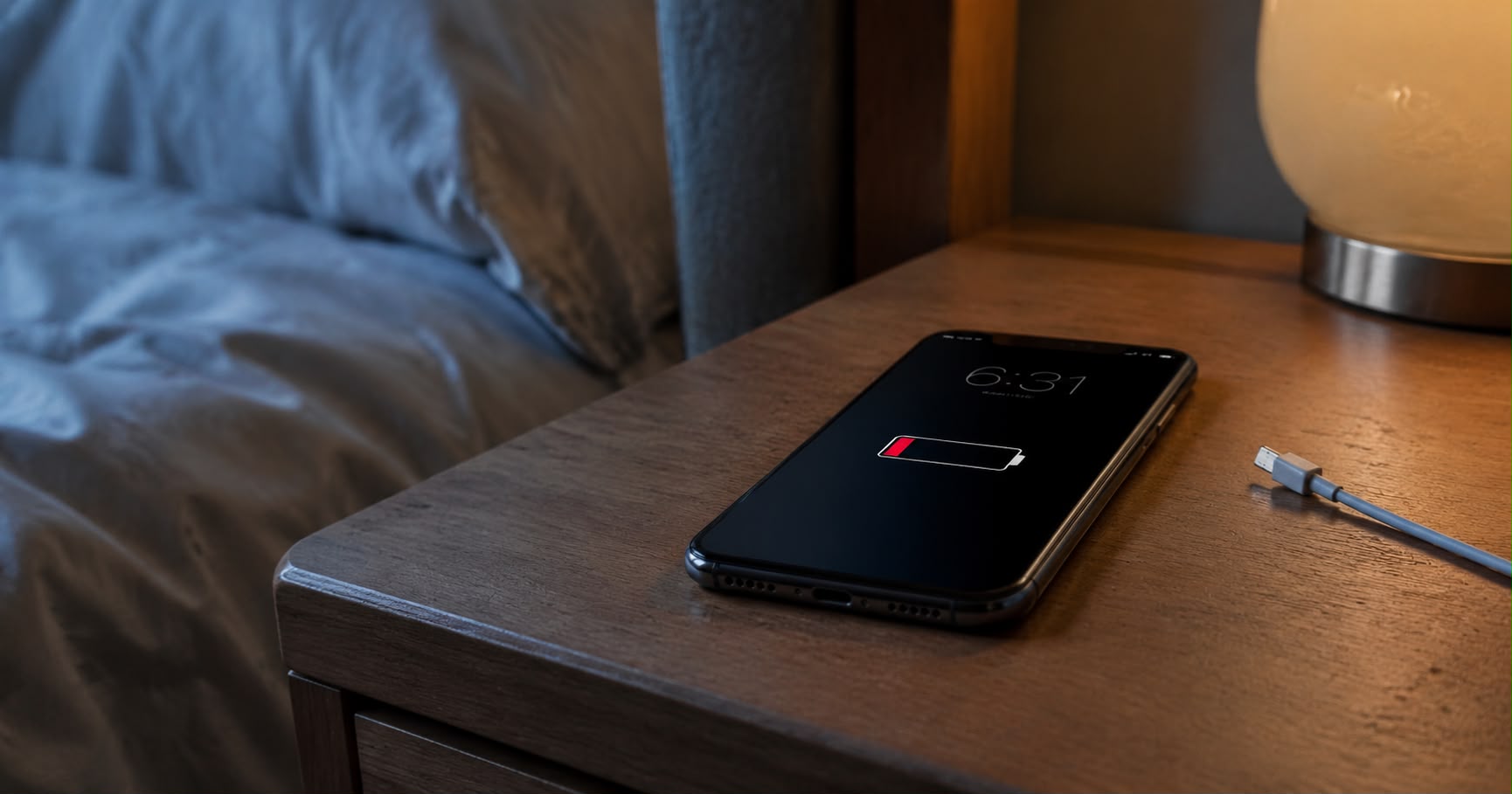
An iPhone that loses a large amount of charge overnight is usually doing more than displaying a dim clock.
The always-on display consumes some energy on supported models, but weak cellular coverage, background applications, notifications and battery wear can produce a much larger loss. The Battery screen can usually reveal which category deserves attention.
This guide applies to current supported iPhones and iOS versions. Menu labels and Adaptive Power availability vary by model.
Measure one ordinary night first
Begin with evidence rather than switching off every useful feature. Charge the phone normally, note the percentage before bed and leave it unplugged for a consistent period.
Place it face down so the always-on display turns off automatically. Do not stream audio, install an update or leave an active navigation session running during the test.
In the morning, record the remaining percentage and open Settings, Battery. Tap View All Battery Usage and inspect the same hours.
Apple’s Battery screen can identify applications and system conditions associated with energy use. Look for these labels:
- Background Activity: The application worked while it was not visible.
- No Mobile Coverage and Low Signal: The phone spent energy searching for or maintaining service.
- Notifications: Repeated alerts woke the phone or display.
- Screen On or Screen Idle: The display remained active longer than expected.
Separate a display problem from a signal problem
If the screen accounts for most of the overnight activity, review the always-on display, notifications and applications permitted to show live information.
On supported iPhones, open Settings, Display & Brightness, Always On Display. Turn it off for one night and repeat the test. A substantially smaller loss shows that the display and its visible updates contributed meaningfully.
If the Battery screen instead reports poor coverage, the phone may have spent the night increasing radio power or searching between networks. This commonly happens in basements, rural areas, concrete buildings and rooms near the edge of indoor coverage.
When it is safe to be unreachable, run one comparison night in Airplane Mode. Re-enable Wi-Fi only if needed. Do not use this test when emergency calls, family contact, medical alerts or work availability are required.
A large improvement in Airplane Mode points toward the cellular connection rather than a damaged battery.
Find background applications that do not need to run
Background use is legitimate for some applications. Navigation, audio, uploads and communication services may continue after leaving the screen.
An application deserves attention when it consumes substantial power during hours when its work was neither expected nor useful. Open the application first and check for a stalled upload, location session or media connection.
Then review Settings, General, Background App Refresh. Disable background refresh for applications that do not need current information before being opened.
Do this selectively. Turning it off for messaging, backup or authentication tools may delay the work they were installed to perform.
Do not routinely force-close every application. iOS normally suspends inactive applications, and reopening everything from scratch does not provide a reliable battery benefit.
Check location and notification activity
Open Settings, Privacy & Security, Location Services. Applications that do not require continuous tracking should generally use While Using the App rather than Always.
A blue location indicator or repeated navigation banner can reveal an application that never finished its session. End the task inside the application before changing permissions.
Next, review Settings, Notifications. Remove lock-screen alerts from applications whose updates can wait. A few messages are not a crisis, but dozens of promotional notifications can repeatedly wake the display.
Keep emergency, banking, security and authentication alerts enabled where they serve an important purpose.
Use Low Power Mode as a diagnostic and temporary fix
Low Power Mode reduces background activity, visual effects, automatic downloads and several other sources of energy demand. On supported ProMotion displays, it also limits the refresh rate to 60Hz.
Open Settings, Battery and turn on Low Power Mode. Repeat the overnight test.
If the loss becomes much smaller, software activity is likely involved. That does not identify the exact application, but it narrows the investigation and provides a temporary workaround.
Low Power Mode turns off automatically after charging beyond a certain level, so verify its state before relying on it for another test.
Understand Adaptive Power
Adaptive Power can make small performance and brightness adjustments when iPhone use is higher than usual. It may also enable Low Power Mode at 20 per cent.
Apple says the feature needs about seven days to learn usage patterns. It is enabled by default on newer iPhone 17-family devices but may be off by default on supported iPhone 16 models and the iPhone 15 Pro family.
Open Settings, Battery, Power Mode to check availability. Adaptive Power is intended for changing daily demand; it should not conceal a severe overnight drain caused by poor signal, a malfunctioning application or worn hardware.
Check battery condition and recent changes
Open Settings, Battery, then Battery Health. A service warning or significantly reduced maximum capacity indicates physical wear.
Apple explains that rechargeable batteries lose capacity as they chemically age. No setting can restore capacity that the battery can no longer store.
Also consider what changed before the drain began:
- A major iOS update may trigger temporary indexing and synchronization.
- A newly restored phone may download photographs and applications.
- A recently installed application may be stuck processing data.
- A new carrier, SIM or travel location may provide weaker coverage.
- A failing accessory may repeatedly connect and disconnect.
Apple recommends allowing some time after updates because background work can temporarily affect battery life and temperature.
Restart, update and retest
Restart the iPhone, install the latest supported iOS update and update the application identified in Battery usage. Then repeat the same overnight test.
Change one major variable at a time. If you simultaneously disable cellular service, location, notifications and the always-on display, the result cannot reveal which change mattered.
Consider Apple or an authorized service provider when the phone becomes unusually hot while idle, shuts down unexpectedly, reports a battery-service condition or continues losing substantial charge with Airplane Mode and Low Power Mode enabled.
Record the overnight percentages and Battery screenshots before service. A repeatable result is more useful than saying the battery sometimes feels worse.
The goal is not to make the iPhone consume nothing while idle. It is to find the radio, application, display or worn battery responsible for an unreasonable loss—and fix that cause without turning a modern phone into an expensive alarm clock.
Tags: iPhone, battery drain, iOS, troubleshooting, battery health