Fix a Laptop That Won’t Charge Over USB-C
Matthew Leo · Published August 21, 2026 · Guides
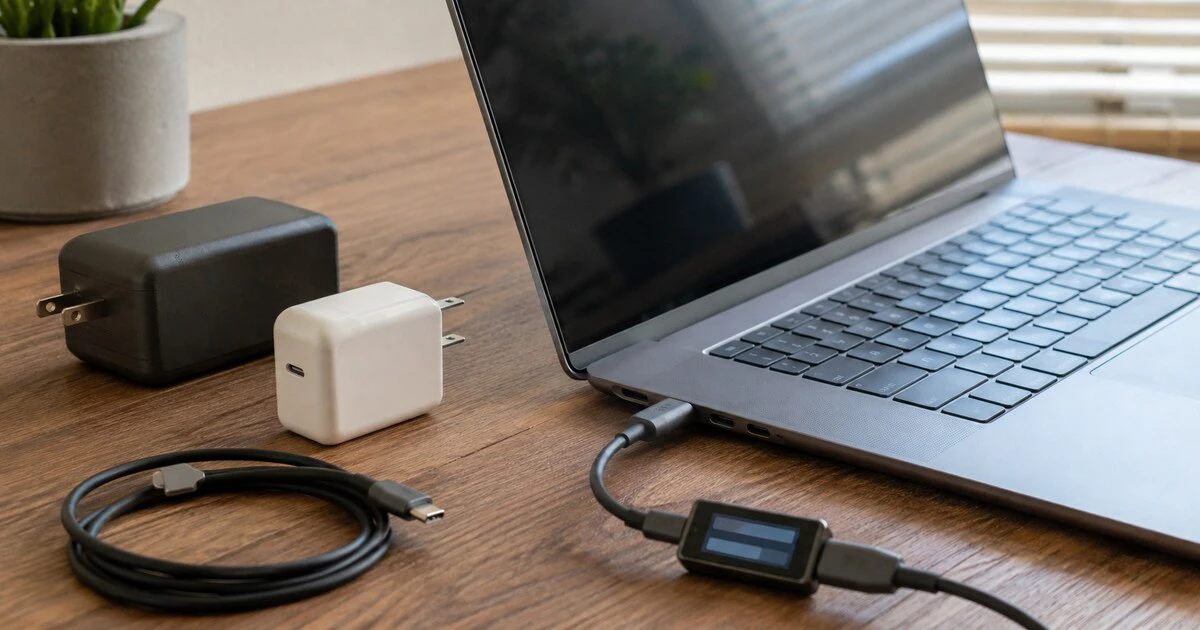
A USB-C connector can fit perfectly and still deliver too little power to charge a laptop.
The shape of the plug tells you almost nothing about the charger’s wattage, the cable’s power rating or whether a particular laptop port accepts power. Before replacing a battery, test the charging chain from the wall to the computer. The sequence below applies to Windows laptops and MacBooks designed to charge over USB-C.
Stop first if anything looks unsafe
Disconnect the charger if the adapter or cable is scorched, swollen, cracked, unusually hot, sparking or smelling burnt. Do not keep wiggling a loose connector to make it work; movement can worsen damage at the cable or port.
When buying a replacement in Canada, Health Canada says plug-in electrical products should carry a recognized Canadian certification mark, such as CSA, cUL or cETL. The mark should appear on the product itself, not only in an online listing.
Test the simplest parts without changing software
- Prove the outlet works. Plug in a lamp or another known-good device. If you are using a power bar, remove it from the test and connect the charger directly to the wall.
- Reset the charger. Unplug it from both the wall and laptop for 30 seconds, then reconnect it. Protective circuits can latch off after heat, noise or a power event.
- Connect directly. Remove docks, hubs, monitors and extension cables. Plug the charger into the laptop itself.
- Try every charging-capable port. Some laptops have several USB-C ports but accept power through only one or two. Look for a charging or Thunderbolt symbol and check the model’s manual.
- Shut the laptop down. Leave it connected for 20 minutes. A weak charger may add power while the computer is off but lose ground while it is running.
Apple’s current Mac charging guidance follows a similar order: verify the outlet, restart, test another charging-capable cable, inspect ports and install relevant updates. Microsoft likewise advises a direct connection and the charger and cable supplied with the PC where possible.
Match wattage, protocol and cable
USB Power Delivery, usually shortened to USB PD, is the negotiation that lets a charger and laptop agree on a higher voltage and power level. A phone charger may support USB-C but top out at 20 or 30 watts. Many laptops need 45, 65, 100 watts or more.
| Symptom | Likely explanation | Next test |
|---|---|---|
| No charging icon | Wrong port, failed cable, incompatible charger or damaged hardware | Use the original charger directly in another supported port |
| “Slow charger” warning | Charger or cable cannot supply the recommended wattage | Compare ratings printed on the charger and laptop specifications |
| Charges while asleep only | Input power is below the laptop’s active demand | Test a higher-rated USB PD charger approved for the model |
| Starts and stops | Loose port, damaged cable, overheating or unstable power | Stop using damaged parts; test a known-good certified set |
| One port works | Not every USB-C port accepts power, or one port is damaged | Confirm the port map in the manufacturer’s manual |
Read the output label on the adapter. Wattage is volts multiplied by amps, though reputable USB PD chargers usually print the total wattage. The charger may safely offer more power than the laptop needs because the devices negotiate the amount; the more common problem is an adapter that offers too little.
The cable matters independently. Some USB-C cables are intended mainly for data or low-power charging. For higher-wattage laptops, use a cable rated for the required USB PD level. If another known-good cable fixes the problem, retire the failing cable rather than marking it with tape and returning it to the drawer.
Inspect and clean the port carefully
Shut down and unplug the laptop. Use bright light to look for lint, bent metal, corrosion or a connector that sits visibly crooked. Do not insert a pin, knife or other metal object.
Microsoft recommends compressed air for debris in a USB-C port. Keep the can upright, use brief bursts and allow any cold condensation to disappear before reconnecting power. If the port is loose or damaged, stop and arrange service.
Separate battery management from a real failure
A laptop may pause charging near 80 per cent to protect battery health. That is different from a machine that cannot accept power at a low charge. Check the battery or charging settings for an optimization or conservation mode before assuming a fault.
If the laptop boots, install operating-system, firmware and BIOS updates from the manufacturer. Charging behaviour can depend on firmware that manages the USB-C controller and battery. Keep the machine on reliable power during firmware updates; do not begin one if the connection is cutting out.
On Windows, open Settings, System, Power & battery to review battery status. Manufacturer diagnostic tools can often test the adapter and battery. On a Mac, open System Settings, Battery and review Battery Health. A service warning is evidence to arrange repair, not a reason to buy the first battery found online.
Use substitution to find the failed link
The safest decisive test is a complete known-good charging set that meets the laptop’s requirements: adapter plus cable. Borrow one from the same model or use a certified USB PD set with sufficient wattage.
- If the known-good set works, test its cable with the old adapter, then its adapter with the old cable.
- If neither set works in any supported port, the laptop’s port, charging controller or battery may need service.
- If charging works directly but not through a dock, troubleshoot the dock’s own power supply, firmware and cable.
- If the percentage falls under heavy load while plugged in, close demanding apps and compare the charger wattage with the manufacturer’s recommendation.
Microsoft notes that a lower-wattage USB-C charger can charge a Surface slowly or not at all. That distinction is useful across brands: “connected” does not prove that enough power is arriving.
Know when to stop
Arrange professional service if the port is physically loose, the case or battery is swollen, multiple correct chargers fail, liquid entered the machine, or charging cuts in and out when the plug moves. Back up important files before service if the laptop still starts.
Once you identify the failed part, reverse any temporary changes: reconnect the usual dock, restore battery-conservation settings if you disabled them, and label or recycle the defective cable so nobody uses it again.
Last verified August 21, 2026. Charging requirements vary by model; confirm the supported ports and recommended wattage in the manufacturer’s manual.
Tags: USB-C, laptops, charging, troubleshooting, battery