Fix a Phone Hotspot That Other Devices Can't Join
Matthew Mbaka · September 18, 2026 · Guides
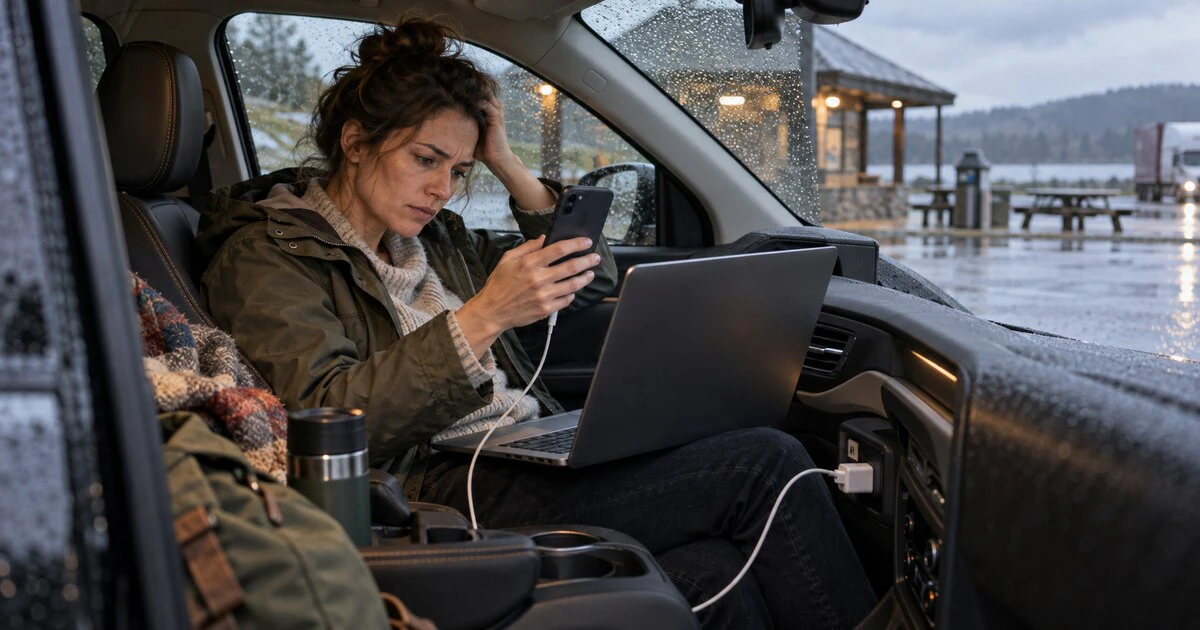
A phone hotspot can fail in three different places: the phone may have no usable cellular data, the other device may not join its Wi-Fi network, or the Wi-Fi connection may work without carrying internet traffic.
Those failures look similar, but they need different fixes. Start with the smallest test and leave network resets until the end.
Check whether the phone itself has internet access
Turn off Wi-Fi on the phone that will provide the hotspot. Open two unrelated websites or apps over cellular data.
If the phone cannot load them, the hotspot is not the first problem. Check signal strength, Airplane Mode, the carrier's outage page and whether the plan has usable data left. Roaming settings also matter when travelling. Some Canadian plans include domestic tethering but restrict roaming, throttle data after a threshold or charge for use outside Canada.
Both Apple's Personal Hotspot instructions and Google's Android tethering guide say carrier support can affect availability. If the Hotspot setting is missing or cannot be enabled, check the plan before changing the phone.
Identify the exact failure
Use one other device and note what happens.
- The hotspot name never appears: focus on hotspot visibility, compatibility and the phone's Wi-Fi broadcast.
- The name appears but the password fails: forget the saved network, verify the current password and rejoin.
- The device connects but says there is no internet: return to cellular data, VPN and carrier checks.
- One device connects and another does not: the phone and carrier are probably working. Focus on the failing device.
This same habit helps with home internet problems. Mapletechie's router, provider and device checklist uses the same one-device-versus-every-device test.
Make the hotspot visible again
On an iPhone
Open Settings, choose Personal Hotspot and turn on Allow Others to Join. Leave that screen open while the other device searches for Wi-Fi. Apple specifically recommends staying on the Personal Hotspot screen until the connection completes.
On supported iPhones, Maximize Compatibility can help older devices see or join the hotspot. It may reduce performance and Wi-Fi security, so use it only when compatibility is the likely problem rather than switching it on automatically.
On Android
Open the quick settings panel, touch and hold Hotspot, then confirm that the Wi-Fi hotspot is on. Names vary by manufacturer. Pixel, Samsung and other phones may place band, security and automatic shut-off controls on different screens.
If the phone turns the hotspot off when no device is connected, temporarily disable that automatic setting while testing. Some models also let you choose a compatibility band. A 2.4 GHz option is slower but can work with older laptops, car systems and small devices that do not support newer bands.
Fix a password loop cleanly
Read the hotspot password from the phone rather than relying on an old note. On the connecting device, forget the saved Wi-Fi network, search again and enter the password from scratch.
Avoid sharing a screenshot that reveals the password in a chat or photo backup. If you changed it for troubleshooting, use a long unique password and reconnect only the devices that still need access.
If the hotspot name matches another saved network, rename the phone or hotspot. Duplicate names can make a laptop reconnect to an old profile with the wrong credentials.
If it connects but has no internet
Turn off any VPN, private DNS or filtering app on the phone briefly, then test again. If service returns, inspect that app's settings before leaving protection disabled.
Also check whether the phone is switching between weak 5G and LTE. Moving a few metres, toggling Airplane Mode once or choosing LTE temporarily can reveal a poor cellular link. Do not treat one successful test as proof that 5G itself is broken.
Restart both devices after each ordinary setting check. Restarting clears a stuck radio state without erasing saved networks.
Try another tethering method
USB tethering is useful when Wi-Fi is the problem and it also keeps the phone powered. Use a cable that carries data, not a charge-only cable. Google's current Android guidance notes that Macs cannot use Android USB tethering through the standard Android method.
Bluetooth tethering is slower but can confirm that cellular sharing works when Wi-Fi does not. It is better as a diagnostic or low-bandwidth fallback than a first choice for large downloads.
Reset only after recording what it will erase
On iPhone, Reset Network Settings removes saved Wi-Fi networks and passwords, cellular settings, VPN settings and APN details. Apple recommends it after simpler hotspot checks. Android reset wording and scope vary by manufacturer, so read the confirmation screen carefully.
Before resetting, save:
- important Wi-Fi passwords;
- work or school VPN settings;
- custom APN details supplied by a carrier;
- the exact error and time it occurred;
- whether another device could connect.
If the hotspot worked before a carrier or operating-system update and still fails after a restart, contact the carrier with those details. Ask whether tethering is enabled on the line and whether the network can see a provisioning error. That is more useful than saying only that the hotspot is broken.
Tags: mobile hotspot, iPhone, Android, tethering