USB Flash Drive vs Portable SSD: Which Should You Buy?
Matthew Leo · Published August 18, 2026 · Gadgets
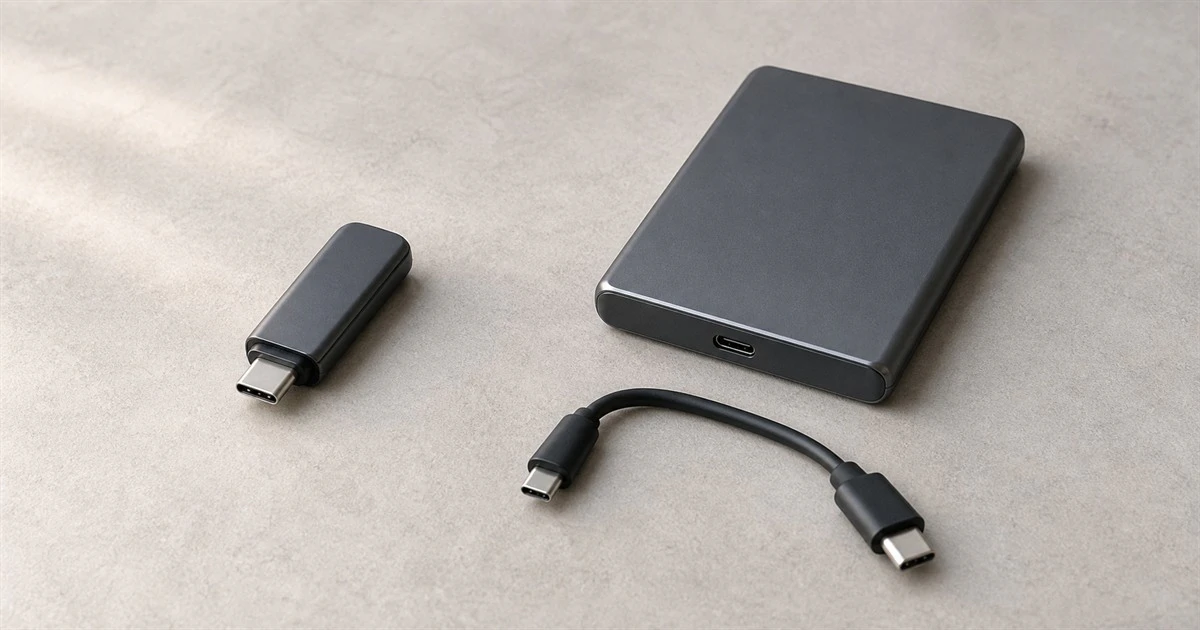
A USB flash drive and a portable SSD can use the same port, but they are built for very different amounts of work.
A small flash drive is excellent for moving a presentation, a document bundle or a few recovery files. A portable solid-state drive is usually the better tool for large photo libraries, video projects, games and repeated backups. The right choice depends less on the connector and more on capacity, sustained speed, workload, security and the cost of replacing lost data.
Neither device should hold the only copy of an important file. Portable storage can be lost, damaged, corrupted or erased. Buy for the job, then build the copy into a wider backup plan.
The simple answer
Match the drive to the job
Carry a few documents: Start with a USB flash drive because it is small, inexpensive and easy to share.
Move hundreds of gigabytes: Start with a portable SSD for higher sustained performance and capacity.
Edit photos or video from the drive: Choose a portable SSD for faster repeated reads and writes.
Keep an offline backup: Choose a portable SSD or external hard drive. Capacity and backup software matter more than pocket size.
Store one sensitive file set: Choose an encrypted drive of either type. Encryption and the recovery process are the deciding features.
A flash drive can be fast, and a cheap portable SSD can be disappointing. These are categories, not guarantees. Compare the exact model's independent reviews, warranty and sustained transfer behaviour rather than assuming every product matches the label.
Both use flash memory, but the design differs
Most USB thumb drives and portable SSDs store data in NAND flash memory with no moving parts. A portable SSD normally includes a controller, several memory channels, a larger enclosure and thermal management designed for heavier work. That architecture can maintain much higher speed during long transfers.
A low-cost flash drive is optimized for convenience and price. Its small body has little room to spread heat. Some drives write quickly for a short burst and then slow sharply once a cache fills or temperature rises. A product page's "up to" number may describe a best-case read, not the sustained write speed you will see while copying a 200 GB photo library.
Manufacturers also sell premium flash drives with SSD-like controllers and encrypted business models with their own security hardware. That is why price, exact model and independent testing matter more than the shape.
The port can limit either drive
USB-C describes the connector, not a guaranteed speed. A drive, cable and computer port must share a fast enough USB mode. A high-performance portable SSD connected through an older 5 Gbps port or a charge-only cable will not reach the number on its box.
Some portable SSDs include a short USB-C cable and an adapter. Keep the tested cable with the drive. If you replace it, Mapletechie's gadget guides explain why identical USB-C plugs can support different data rates.
Read the specification without over-trusting it
USB 5, 10 or 20 Gbps: This is the maximum interface signalling rate, not a promise of real file-copy speed.
"Up to" read speed: This describes the best claimed reading condition, not sustained write speed when the drive is nearly full.
Drop or water rating: This describes tested physical protection under stated conditions, not protection from loss, theft or file corruption.
Hardware encryption: This is a security feature when properly implemented, not a backup if the password or device is lost.
Capacity changes the value calculation
Flash drives are easy to justify at small capacities when convenience matters most. As the file set grows, a portable SSD often offers a better mix of capacity, speed and warranty. Canadian prices move frequently, so compare the final cost per usable gigabyte, including the cable or adapter you actually need.
Leave free space instead of buying a drive that will be full on day one. Backups grow, camera files get larger and operating systems may need working room. A drive used for recurring backup should have enough capacity for several versions, not only today's data.
For a large archive that rarely moves, an external hard drive may still cost less per terabyte than either option. It adds moving parts and is more vulnerable to shock while operating, but it can be sensible for a desk-based backup. The comparison here is about pocketable flash storage, not every storage device.
Security needs more than a password-labelled folder
Anyone who finds an ordinary unencrypted drive can usually read its files. For personal records, client work or health information, use trusted full-drive encryption supported by your operating system or a properly documented hardware-encrypted product.
Do not trust a hidden partition or bundled "vault" without understanding how it encrypts data and how recovery works. Keep the recovery key somewhere separate from the drive. If a workplace supplies storage, follow its policy instead of using a personal device.
Before donating or recycling a drive, follow an appropriate sanitization process. Deleting files or quick-formatting a drive may only remove references to the data. Highly sensitive media may require secure erase or physical destruction under an organization's policy.
A portable drive is not a backup by itself
Canada's Cyber Centre recommends the 3-2-1 approach: three copies of important information, on two media types, with one copy off site. It also recommends testing recovery and keeping backups separate from the computer.
Keep the working copy on the computer or primary storage.
Use the portable drive for a separate local copy.
Keep another encrypted copy off site or in a protected cloud service.
Disconnect the portable drive after the backup so ransomware cannot easily reach it.
Restore a sample folder regularly to prove the backup works.
The Cyber Centre's backup guidance is written for organizations, but those basic controls also make sense for a household photo archive or a student project.
Format for the devices you actually use
A new drive's file system affects compatibility and maximum file size. ExFAT is widely supported by current Windows and macOS systems and can hold files larger than 4 GB. NTFS is a natural Windows choice but may be read-only on some Mac setups without extra software. APFS is designed for Apple systems and is not a general cross-platform format.
Formatting erases the drive, so choose before copying important files and verify device support first. Game consoles, cameras, phones and televisions may require a specific format or partition scheme. Do not assume that a USB-C port means the device accepts every file system.
When a transfer finishes, eject the drive through the operating system before unplugging it. Microsoft recommends safe removal to avoid data loss. macOS and Linux offer their own eject controls.
What to check before buying
Measure the file set and estimate how much it will grow.
Check the computer's port speed and the included cable.
Look for sustained write tests of the exact capacity, not only headline read speed.
Compare warranty, encryption, physical rating and vendor support.
Plan the second and third copies before treating the purchase as a backup.
Choose a USB flash drive for small, occasional transfers where size and low cost win. Choose a portable SSD when large files, repeated work and waiting time matter. Then assume either one can fail, because storage becomes dependable only when another verified copy exists.