Free Phone Storage Without Accidentally Deleting Your Photos
Matthew Leo · Published September 5, 2026 · Guides
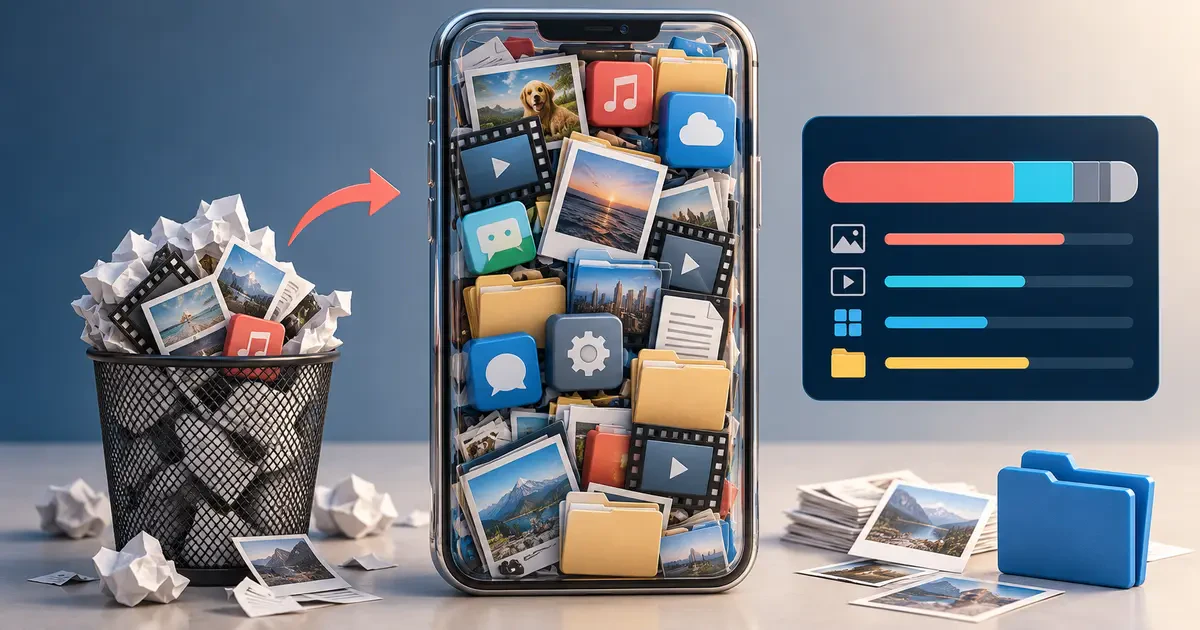
A phone can stay full after you delete a pile of files because the space is not always released immediately, the files moved to trash, or you cleared cloud storage instead of device storage. The fix is not to start tapping every red button.
Use a measured order: identify the largest category, protect anything irreplaceable, remove local copies through the correct tool, then deal with apps and downloads. That sequence frees useful space without turning a storage warning into a photo-recovery emergency.
First, separate three things people call storage
- Device storage is the fixed space inside the phone. This is what blocks an app update or camera recording when it is full.
- Cloud storage belongs to iCloud, Google or another online service. Buying more cloud space does not physically enlarge the phone.
- Memory, or RAM, is temporary working space used while apps run. Closing apps affects memory, not the permanent storage occupied by photos and downloads.
On iPhone, open Settings, General, then iPhone Storage. On Android, open Settings, then Storage. Wait for the category list to finish calculating before deciding what to remove.
Use the largest category, not guesswork
If videos use 70 GB, deleting a few small apps is theatre. If one social app holds 15 GB of downloads and cache, attacking the photo library creates risk without fixing the main problem.
Start with the top two categories. Common space hogs include:
- downloaded Netflix, YouTube, Spotify or podcast media;
- large videos and duplicate photos;
- message attachments and group-chat media;
- offline maps;
- files in Downloads or "On My iPhone";
- an app's cache, documents or offline projects;
- recently deleted items that still occupy space.
Protect photos before removing local copies
Open the cloud service you actually use and confirm that backup or sync has finished. Do not accept a generic cloud icon as proof. Check the account name, look for a completed-backup status and open a recent photo from another device or the service's website.
Only then use the service's purpose-built space-saving option.
On iPhone with iCloud Photos
Go to Settings, tap your name, choose iCloud, then Photos. With Sync this iPhone enabled, select Optimize iPhone Storage. Apple keeps full-resolution originals in iCloud and stores smaller device copies when space is needed.
This requires enough iCloud capacity and time for syncing. It is not an instant promise that every original has uploaded. Also remember that iCloud Photos is a synced library: deleting a photo in the Photos app is not the same as removing only a local copy.
On Android with Google Photos
In Google Photos, verify backup, tap the profile picture and choose Free up space on this device. Google says this removes device copies that are already backed up. The photos remain visible in Google Photos and at photos.google.com, but they may not appear in the phone manufacturer's gallery and will not be available offline until downloaded.
Do not confuse Free up space with deleting items from the Google Photos library. One removes backed-up device copies; the other can remove the cloud copy too.
Clear the safe, reversible categories next
- Offline media: Remove downloads from the app that created them. A streaming download can often be downloaded again later.
- Unused apps: On iPhone, Offload App removes the app but keeps its documents and data. On Android, app archiving can remove the app package while preserving personal data for a later reinstall.
- Downloads: Review the Files app, browser downloads, email attachments saved locally and offline maps.
- Large attachments: Delete only after confirming the original exists elsewhere. Messaging apps may have their own storage manager.
- Trash: Recently deleted folders delay permanent removal so mistakes can be reversed. Empty them only after backup verification.
Google distinguishes Clear cache from Clear storage. Cache removes temporary data. Clear storage permanently deletes the app's data on the device. If an app contains offline projects, recordings or unsynced messages, that difference is enormous.
Why the number may not drop immediately
Storage totals can lag while the phone reindexes files or recalculates categories. Cloud photo optimization also works gradually. Give the device time on power and Wi-Fi, then restart it and check again.
On iPhone, "System Data" includes caches, logs and other working files. Apple says the system removes temporary and cached files when it needs space. There is no useful reason to install a suspicious cleaner that promises to delete hidden system files with one tap.
If one app's size keeps growing, open its internal download or storage settings. Deleting and reinstalling the app may help, but only after confirming its important data is synced and recoverable.
A safe 15-minute cleanup order
- Open the device-storage breakdown.
- Write down the two largest categories.
- Verify photo and file backups from another device or website.
- Remove streaming downloads and offline maps.
- Use Optimize iPhone Storage or Google Photos' Free up space tool where appropriate.
- Offload or archive unused apps.
- Review large message attachments and the Downloads folder.
- Empty trash only after checking the backup.
- Restart and confirm several gigabytes remain free.
If the phone is still nearly full after the real large items are gone, back it up before attempting a reset. For a long-term plan, compare cloud backup with an external drive rather than treating deletion as your only storage strategy.
Sources
- Apple: check and optimize iPhone or iPad storage
- Apple: manage photo and video storage
- Google: free up storage on Android
- Google Photos: remove backed-up device copies
Tags: Guide, Phone storage, iPhone, Android, Photos