Move Your Authenticator App Before Replacing Your Phone
Matthew Leo · Published August 16, 2026 · Guides
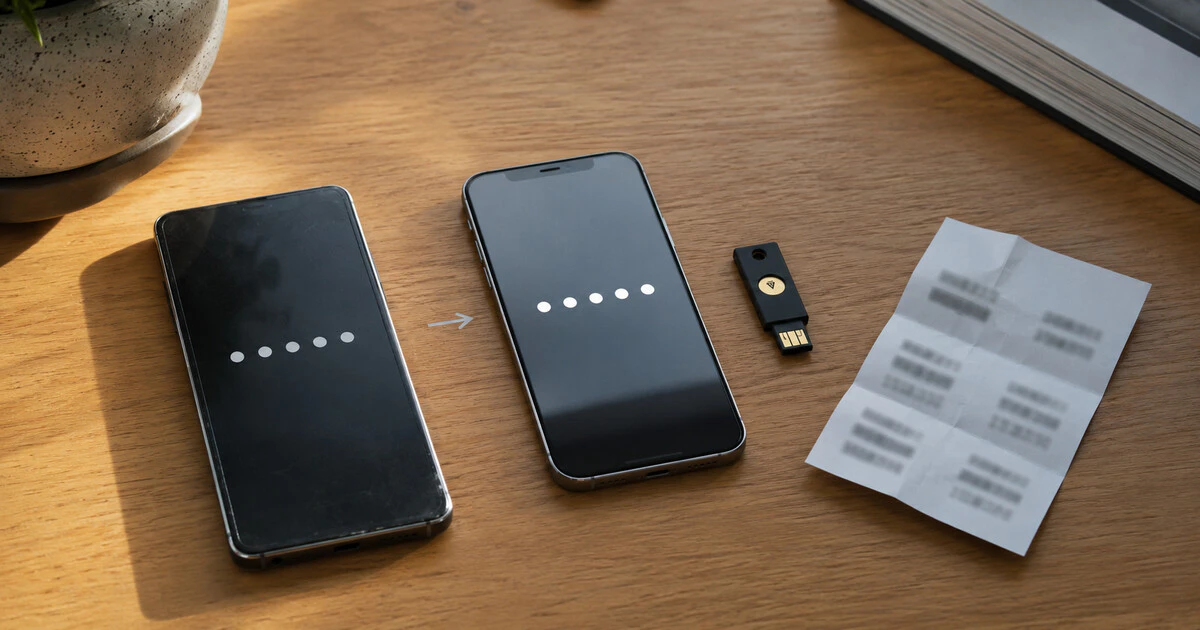
Move your authenticator before wiping the old phone; discovering a missing code at the first login is already too late.
An authenticator app stores or receives the second factor used after a password. Copying photographs and applications to a new device does not guarantee those credentials will follow, especially for work accounts and passwordless sign-ins.
This guide covers current Google Authenticator and Microsoft Authenticator on iPhone and Android. Employer-managed accounts may require an administrator, so do the transfer before returning a work phone.
Prepare a recovery route first
Do not begin by deleting the app or removing the old device from account settings. For each important account, confirm at least one independent recovery method: a saved backup code, a security key, a second authenticator, a verified recovery email or an administrator who can reset multifactor authentication.
Prioritize email, banking, password managers, government services, cloud storage and work accounts. If the email account needed to recover everything else is available only through the same authenticator, fix that dependency first.
- Charge both phones and connect them to trusted Wi-Fi.
- Update each authenticator from the official app store.
- Set automatic date and time on both phones.
- Keep a computer signed into the accounts being moved.
- Store new recovery codes somewhere outside both phones.
Transfer Google Authenticator directly
Google Authenticator supports an account-transfer process. On the old phone, open the menu, choose Transfer accounts and then Export accounts. Unlock the device, select the entries and display the transfer QR code.
On the new phone, install Google Authenticator from the official store. Choose Transfer accounts, then Import accounts, and scan the code shown on the old device.
A QR transfer contains secrets that can generate future codes. Do it privately, do not photograph the code and do not send it through email or messaging. Anyone who captures it may be able to duplicate the second factor.
If Authenticator is signed into a Google Account and synchronization is enabled, entries may appear after sign-in. Verify them rather than assuming every service arrived. Accounts can have similar names, and an old entry may generate codes that no longer match the service.
Microsoft Authenticator backup has limits
Microsoft says backup and restore must stay on the same device type: an iOS backup cannot be restored to Android, or the reverse.
On Android, open Authenticator settings, enable Cloud Backup and select the personal Microsoft account that will hold it. On iPhone, Microsoft requires the relevant iCloud services and Authenticator backup to be enabled.
On the new phone, choose Restore from backup or Begin recovery before adding accounts. Sign in with the same recovery account. If that option has disappeared because accounts were already added, Microsoft's guidance may require signing out or reinstalling the app before recovery.
Restoration is not complete merely because names appear. Microsoft personal accounts using ordinary 30-second codes can restore those codes. Passwordless sign-in restores only the account name and requires registration again. Work and school accounts also restore the name but normally need another sign-in and verification.
Verify every account while both phones work
Create a simple checklist and perform a real sign-in for each high-value account. Use a private browser window so an existing session does not hide a broken second factor.
| Check | Expected result |
|---|---|
| Time-based code | The new phone's code is accepted. |
| Push approval | The notification reaches the new phone. |
| Recovery code | A current set exists outside the device. |
| Device list | The new phone is registered with a recognizable name. |
| Alternative method | A second route works without the old phone. |
Push notifications can continue going to the old Microsoft Authenticator even after entries appear on the new one. Open the account's security settings, register the new device properly and remove the old registration only after the test succeeds.
Cross-platform moves require more manual work
Moving from iPhone to Android or Android to iPhone can break provider-specific backup. Google Authenticator's direct export may bridge the platforms when the old phone works. Microsoft Authenticator backup does not.
For accounts that cannot transfer, sign into the service, add a new authenticator method and scan its newly issued QR code. Confirm a code from the new phone before removing the old method. A workplace may require its IT administrator to issue a Temporary Access Pass or reset security information.
If the old phone is already dead
Use the recovery method for each account rather than installing unofficial “recovery” software. Google notes that account recovery can take several business days when no other second step is available. Microsoft support cannot recreate an Authenticator backup when the recovery account itself is inaccessible.
Start with the primary email and password manager, then use them to recover other services. Contact the employer or financial institution through a known official channel. Never pay a stranger who claims to extract authenticator secrets remotely.
Erase the old phone only after a cooling-off period
Keep the old phone powered off but intact for several days if the trade-in deadline permits. Use the new phone for ordinary work and sign into accounts that are not used every day.
Once satisfied, remove the old device from account security pages, sign out of Apple or Google services, disable Find My or equivalent activation protection as required, and factory-reset it. Confirm that the setup screen appears before handing it over.
The safest authenticator migration is deliberately uneventful. Two working phones, tested accounts and recovery codes turn a risky afternoon into routine maintenance.
Tags: authenticator apps, account security, two-factor authentication, Google Authenticator, Microsoft Authenticator