Move Your Authenticator Codes Before Replacing Your Phone
Matthew Mbaka · September 21, 2026 · Guides
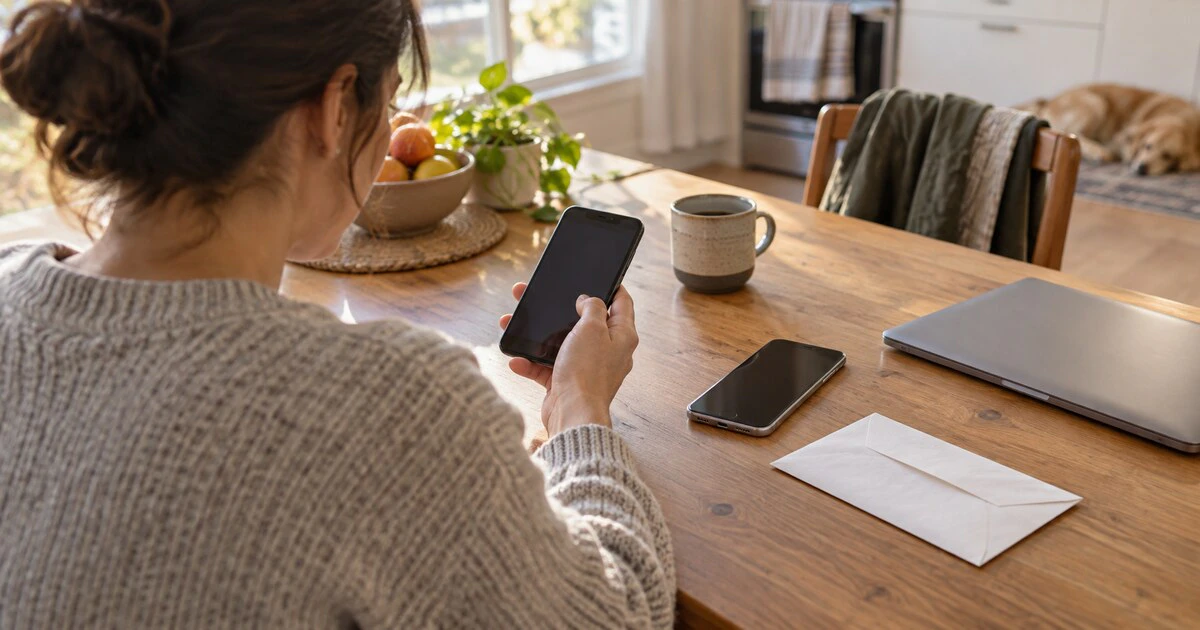
A phone-to-phone transfer can move your photos and apps while leaving the most important part unfinished. Your authenticator may look normal on the new phone, yet some accounts can still demand a fresh sign-in or new registration.
Do this before you erase, trade in or hand over the old phone. The safe moment to test account recovery is while both devices still work.
Start with recovery, not the transfer button
Sign in to the email account and password manager you would need if the transfer failed. Check that their recovery phone numbers and email addresses are current. Download fresh backup codes for your most important accounts and store them somewhere separate from the phone.
This is also a good time to build or update an account recovery kit. A second factor is useful because it is separate from your password. Keeping the only recovery copy on the same phone weakens that separation.
Move Google Authenticator codes
Google Authenticator can synchronize verification codes across devices when you sign in with a Google Account. On the new phone, install the current app and sign in with the same account. Your saved codes should appear automatically.
If you use Authenticator without a Google Account, Google provides a manual transfer:
Install Google Authenticator on the new phone.
On the old phone, open the menu, choose Transfer accounts, then Export accounts.
Select the accounts and unlock the old phone.
On the new phone, choose Transfer accounts, then Import accounts.
Scan the QR code shown on the old phone.
The QR code contains the secrets needed to generate valid sign-in codes. Do not screenshot it, email it or leave it visible. Google's current Authenticator instructions also recommend turning on Privacy Screen and keeping another sign-in method available.
Microsoft Authenticator restores different accounts differently
In Microsoft Authenticator, open Settings and make sure cloud backup is enabled before changing phones. Microsoft's backup documentation says a backup can only be restored to the same device type. An iPhone backup cannot be restored to Android, or the other way around.
On Android, the current backup uses a personal Microsoft account. Microsoft says that will change in January 2027, when Android backup will move to Google One. On iPhone, Authenticator backup depends on iCloud settings.
The largest trap is work or school access. Microsoft says only the account name is restored for those accounts. You still need to sign in or re-register the device with your employer or school. Passwordless personal Microsoft accounts may also require another sign-in after restore.
Test before you erase the old phone
Open the new authenticator and sign in to each account that matters. Do not just check that a six-digit number is visible. Complete a real login and confirm the code or approval works.
Test these first:
Your primary email account.
Your password manager.
Banking and payment accounts.
Government services.
Work or school accounts.
Developer, hosting and domain accounts.
Keep the old phone powered off but available for a few days if the trade-in deadline allows it. Once everything works, remove the old device from account security pages, sign out where appropriate and erase it using the manufacturer's instructions.
If the old phone is already gone
Cloud synchronization may restore some codes, but it will not solve every case. Use a backup code, a security key, another trusted device or the service's recovery process. For a managed work or school account, contact the administrator who controls sign-in methods.
Avoid anyone offering to bypass two-factor authentication for a fee. Legitimate recovery goes through the account provider or your organization, not a third party asking for remote access.
Tags: authenticator apps, two-factor authentication, account security, Google Authenticator, Microsoft Authenticator