Move iPhone Photos to Windows Without iCloud
Matthew Leo · Published August 2, 2026 · Guides
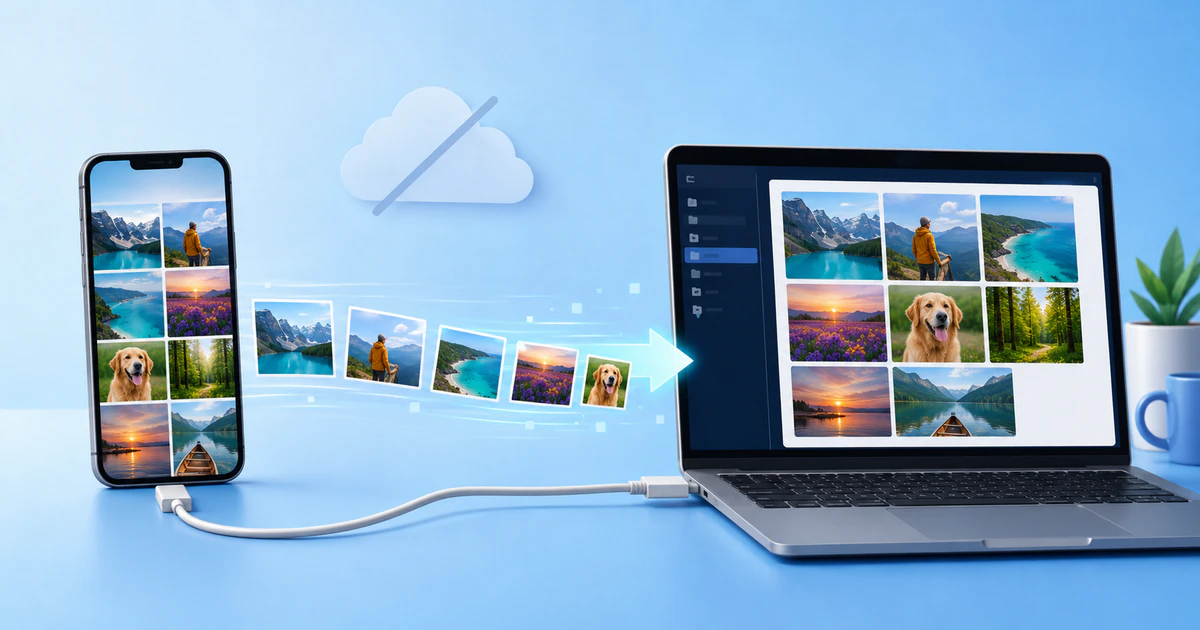
You can move iPhone photos directly to a Windows computer without paying for iCloud storage, but the cable must carry data and the original files must actually be on the phone.
Those two details explain most failed transfers. Some USB cables provide power without a reliable data connection, while iCloud Photos can leave smaller optimized copies on the iPhone and store the full originals online.
This guide applies to current iPhones and Windows 10 or Windows 11 using Microsoft Photos. The exact wording of prompts can vary slightly by software version.
Prepare the computer and iPhone
Apple’s current Windows instructions begin with installing the Apple Devices application from the Microsoft Store. This provides the software Windows needs to recognize and manage the connected iPhone.
Before importing, gather:
- A USB cable capable of transferring data
- Enough free space on the Windows drive
- The iPhone passcode
- Several minutes in which the phone can remain connected and unlocked
If the computer belongs to an employer, school or another person, consider where the imported files will be stored and who can access them. Trusting the computer permits it to communicate with the iPhone until that trust is removed.
Import through Microsoft Photos
- Install and open Apple Devices on the PC.
- Connect the iPhone using a data-capable USB cable.
- Unlock the iPhone.
- Tap Trust or Allow when the iPhone asks whether to trust the computer.
- Open Microsoft Photos from the Start menu.
- Select Import, then choose the connected iPhone.
- Select the photos and videos to copy.
- Choose the destination folder and begin the import.
Microsoft says the phone must remain turned on and unlocked for Windows to find it. Detection is not always immediate, especially with a large photo library.
Leave the cable connected until Photos reports that the transfer has finished. Copying a large 4K video can take considerably longer than moving several ordinary pictures.
Why some photos do not appear
When iCloud Photos and Optimize iPhone Storage are enabled, the Photos application can show an image whose full-resolution original is stored in iCloud rather than locally on the phone.
Apple warns that those originals must be downloaded before a direct PC import. Connect the iPhone to Wi-Fi and power, then open:
- Settings
- Your Apple Account name
- iCloud
- Photos
- Download and Keep Originals
The phone needs enough free storage to hold those files. If the complete library will not fit, download selected items through iCloud.com or iCloud for Windows instead of trying to force every original back onto the phone.
That alternative technically uses iCloud, but it explains why a cable-only import can fail when the original no longer resides on the device.
Fix a phone that does not appear in Windows
Start with the physical connection. A cable can charge the iPhone while still failing to carry data.
Try these steps in order:
- Unlock the iPhone and reconnect it.
- Accept any Trust or Allow prompt.
- Try another USB port on the computer.
- Remove an unpowered USB hub or dock from the connection.
- Try a known data-capable cable.
- Restart the iPhone and Windows computer.
- Update Apple Devices, Windows and iOS.
If the Trust prompt was previously rejected, disconnect and reconnect the cable after unlocking the phone. Persistent trust problems can be reset from the iPhone’s privacy settings, but doing so also resets permissions granted to other trusted computers.
Choose formats Windows can use
Recent iPhones commonly store photographs as HEIF or HEIC and video as HEVC. These formats preserve quality efficiently, but an older Windows application may not open them without compatible software.
For future captures, Apple provides a compatibility setting:
- Open Settings on the iPhone.
- Tap Camera.
- Tap Formats.
- Select Most Compatible.
This makes future photos use JPEG and videos use H.264. It does not convert the files already in the library, and the more compatible formats can consume more storage.
A successful import and a successful preview are separate questions. If the file copied but will not open in one application, preserve the original and test it in Microsoft Photos before assuming the transfer failed.
Do not delete anything until the copy is verified
Open several imported photographs, including older and recent images. Play complete videos rather than relying on their thumbnails.
Check:
- The number of imported files
- Whether full-resolution images open
- Whether videos contain sound and play to the end
- Whether dates and folder organization are acceptable
- Whether the destination drive has enough remaining space
Then create another copy of anything irreplaceable. A folder on one Windows drive is a transfer, not a complete backup.
Mapletechie’s 3-2-1 backup guide recommends keeping three copies on two forms of storage with one copy off-site. The Windows copy can become one part of that plan.
Remember how iCloud deletion works
If iCloud Photos remains enabled, deleting a photograph from the iPhone also removes it from iCloud and other devices using the synchronized library. The Windows folder you imported manually is separate, but verify it before making any deletion.
Do not switch iCloud Photos off or erase the phone merely to test whether the computer received the files. Confirm the import first, make a second backup and only then decide what can be removed.
The reliable transfer process
Use a real data cable, keep the iPhone unlocked and import through Microsoft Photos. If items are missing, check whether iCloud optimization moved the originals off the phone.
Most importantly, treat transfer and deletion as separate jobs. The copy is finished when the files open on Windows; the cleanup is safe only when another copy exists somewhere else.
Tags: iPhone, Windows, photo transfer, Apple Devices, backups