Move WhatsApp Chats Between iPhone and Android Safely
Matthew Leo · Published September 5, 2026 · Guides
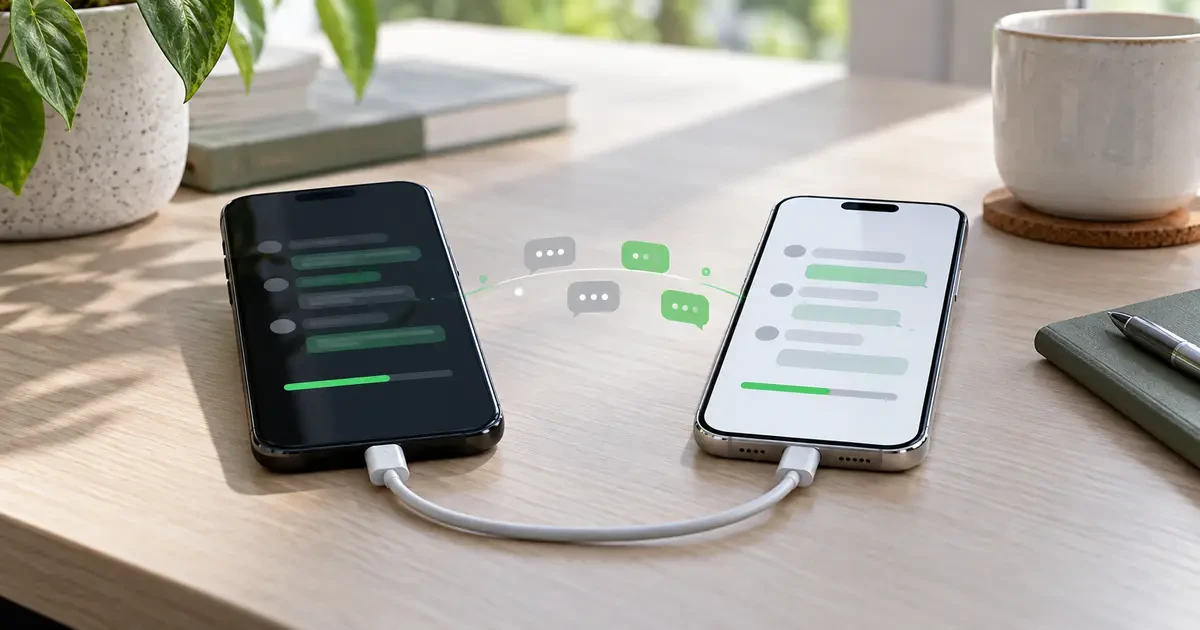
Moving WhatsApp between iPhone and Android is possible, but it is not a normal cloud-restore job. The official cross-platform process is designed to run while the destination phone is being set up. If you tap through setup first and start chatting, the clean transfer window can close.
That is the trap. People move their SIM, sign into WhatsApp on the new phone and only then look for the old history. By that point, the remedy may involve erasing the destination phone and starting again.
The safer sequence is simple: prepare both phones, confirm the destination has enough space, transfer during setup, verify the history, and keep the old phone untouched until the result is proven.
Before moving anything
- Update WhatsApp on the old phone.
- Charge both devices and keep them connected to power during a long transfer.
- Confirm the new phone has enough free storage for the chat database and media.
- Keep the old phone and its WhatsApp data intact.
- Plan the SIM or eSIM move separately. Chat transfer and mobile-service activation can happen in the same setup session, but they are different systems.
- Do not delete the app, erase the old phone or trade it in until messages, photos, videos and voice notes have been checked on the destination.
If you are also changing platforms and moving an eSIM, Mapletechie's Android-to-iPhone eSIM guide for Canada explains the carrier side of the move.
Android to iPhone
Apple's supported route uses the Move to iOS process. It transfers WhatsApp messages and media along with other selected data.
- Start with a new or factory-reset iPhone. On the Transfer Your Apps & Data screen, choose From Android.
- On most Android phones, install and open Apple's Move to iOS app. Compatible Android 17 devices may also offer an app-free transfer route during iPhone setup.
- Connect both phones to power. Use the temporary Wi-Fi connection created by the iPhone, or connect the phones directly with a USB-C cable when supported.
- Enter the code shown by the iPhone on the Android device.
- Select the data to move, including WhatsApp messages and media, and start the transfer.
- Leave both phones alone until the progress bar on the iPhone finishes. An Android screen may appear finished sooner; the iPhone's bar is the one that matters.
- Complete iPhone setup, install or open WhatsApp, and follow WhatsApp's prompts to import the transferred history.
- Open several old chats and inspect media before erasing the Android phone.
Apple warns that using another Android app or receiving a call during the transfer can interrupt it. If the process repeatedly fails, restart both phones, turn off cellular data on Android and temporarily disable Wi-Fi switching features that may abandon the iPhone's temporary network.
iPhone to Android
WhatsApp also supports moving history from iPhone to Android. The exact setup screens vary by Android manufacturer, but the transfer still belongs at the start of device setup.
- Start the new or reset Android phone and choose the option to copy data from another device.
- Connect the iPhone when the setup process asks for it. A cable is commonly used because it keeps the transfer local and stable.
- On the iPhone, open WhatsApp and go to the chat-transfer option when prompted. WhatsApp's current path uses Chats, Transfer chat history and Transfer to Android.
- Allow WhatsApp to prepare the history, then continue the Android setup.
- Open WhatsApp on Android and complete the import before creating a new set of destination chats.
- Verify dates, group histories and a sample of older media.
Manufacturer setup tools can add their own instructions. Follow the destination phone's prompts rather than improvising with an unofficial desktop converter.
The non-merging limit is the big one
WhatsApp says new chats on the destination cannot be merged with an older history brought from the other platform. That is why "I will use the new phone for a few days and transfer later" is a bad plan.
The official route moves a history into a fresh destination state. It is not a database-merging tool. Exporting a chat creates a readable archive for reference, but it does not produce a backup that can be imported into the WhatsApp conversation list.
If the transfer fails
- No transfer option appears: Check that the destination is still in initial setup. If setup is complete, the supported solution may require a factory reset.
- The process stalls: Restart both phones, update WhatsApp, reconnect power and try a cable where the setup supports one.
- The destination fills up: Remove unneeded content from the destination or choose a device with enough capacity, then restart the transfer.
- Only some content arrives: Keep the old phone unchanged and repeat the official process. Do not erase your only complete copy.
- You already created new destination chats: Decide which history matters most before resetting. The two histories cannot simply be combined.
Verify before the trade-in
A successful progress bar is not enough. Open chats from different years, search for a known message, play a voice note, open a photo and check a group conversation. Confirm that WhatsApp can send and receive only after the old history is visible.
Then make a fresh backup using the destination platform's normal backup system. Keep your old phone for at least a day if the trade-in deadline allows it. Ten extra minutes of verification beats discovering at the store that five years of family media never crossed the cable.
Sources
- WhatsApp: move chats from Android to iPhone
- WhatsApp: move chats from iPhone to Android
- WhatsApp: troubleshoot Android-to-iPhone transfers
- Apple: move from Android to iPhone or iPad
Tags: Guide, WhatsApp, iPhone, Android, data transfer