Build a Password Manager Emergency Kit Before Lockout
Matthew Leo · Published August 14, 2026 · Software & Apps
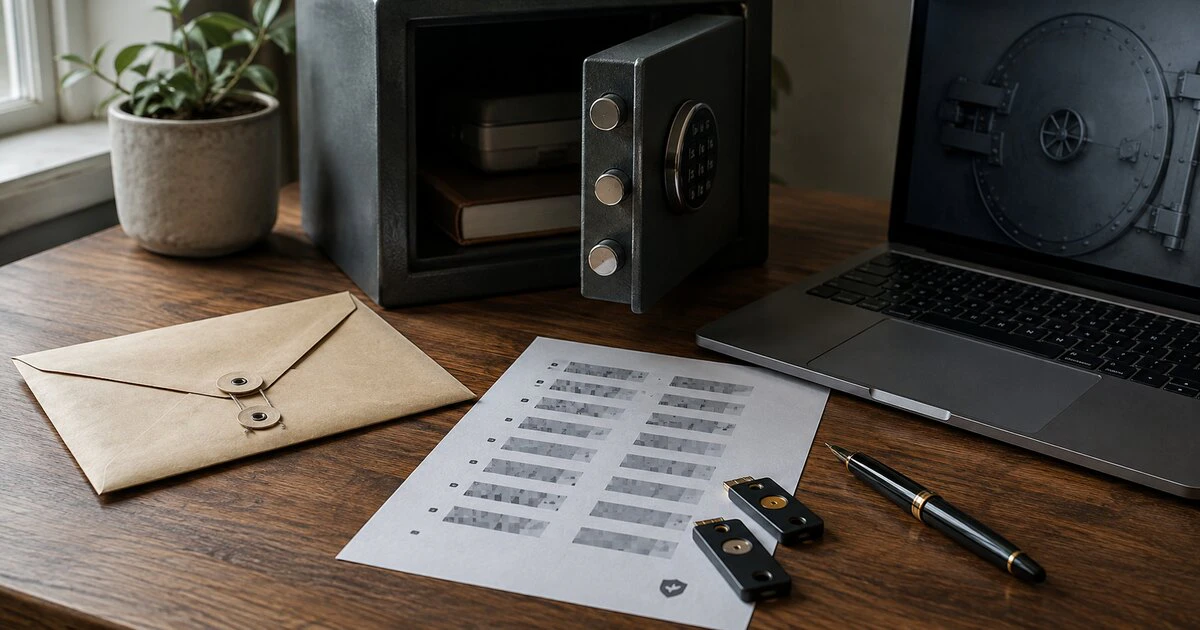
A password manager can protect hundreds of accounts and still leave its owner one broken phone away from a very long day.
The fix is not weakening the vault password or storing it in an ordinary note. Build an emergency kit that can restore access when the usual device, authenticator or memory fails, and test it before travel or a real emergency.
This guide is provider-neutral, with current examples from 1Password and Bitwarden. Recovery features vary by plan and account type, so verify the exact option in your own service.
Map the chain that unlocks the vault
Write down every dependency involved in signing in from a new device. That may include the account email, vault password, secret key, two-factor code, recovery code, security key and approval from an already signed-in device.
Then look for circular dependencies. If the email password exists only inside the vault, the email’s recovery code exists only in that inbox and the vault requires email verification, one lost device can close the loop.
| Failure | Recovery item needed elsewhere |
|---|---|
| Phone is lost | Backup authenticator, security key or one-time codes |
| Vault password is forgotten | Provider recovery code or authorized family/admin recovery |
| Email is locked | Email recovery code and current recovery contact |
| Device is destroyed | Sign-in address, account identifier and second factor |
| Owner is unavailable | Documented trusted contact or estate process |
The kit should break those loops without placing every secret in one easy-to-steal envelope.
Create the provider’s recovery material now
1Password individual and family accounts can generate a recovery code. 1Password says the code can be used to regain access on its website, but the process also requires access to the account email. Recovery creates a new Secret Key and account password while preserving the vault’s data.
Store the code somewhere safe and accessible outside the vault. 1Password warns against testing a newly created code immediately; a recovery attempt after a recent sign-in can be blocked and make the code temporarily unusable.
1Password also provides an Emergency Kit containing the sign-in address, email, Secret Key and a place for the account password. A printed copy can be kept with other important documents. If you record the password on it, the storage location becomes highly sensitive.
Bitwarden uses a different model for its premium emergency-access feature. The account holder appoints a trusted contact who can request either view access or takeover access. The owner can approve or reject the request; otherwise access can be granted after a preselected waiting period.
Takeover is powerful. Bitwarden says it replaces the master password and removes existing two-step login methods. Choose the access level and trusted person with that consequence in mind.
Keep two copies in different failure zones
One printed copy can live in a home safe or locked document box. A second may belong in a safe-deposit box or with a trusted person under clear instructions. Do not put both copies in the laptop bag that also contains the phone and hardware key.
A digital copy can be encrypted and stored separately, but confirm that its decryption key is not available only inside the password manager. Ordinary cloud storage may be convenient, yet it can reproduce the same email and two-factor dependencies you are trying to escape.
A useful emergency record can include:
- Password-manager name and official sign-in address
- Account email and billing contact
- Recovery or emergency-kit code
- Location of hardware security keys
- Provider support address
- Trusted-contact name and instructions
- Date the kit was last tested
Do not include every account password. The goal is to restore the protected vault, not create an unencrypted copy of it.
Prepare the email and second factor
The primary email account deserves its own recovery plan because it often verifies a vault reset. Save the email provider’s backup codes outside both the inbox and password manager. Confirm that recovery phone numbers and addresses are current.
If an authenticator app synchronizes through the same Apple or Google account used on the missing phone, understand how it restores on a replacement. Keep at least one independent second factor for the vault, such as a spare security key stored safely.
Two security keys are more resilient than one. Register both, carry one when appropriate and store the other away from the daily device. Label it without writing the account password on the tag.
Use trusted access deliberately
A spouse, executor or business partner should know that the emergency process exists and when it may be used. They do not necessarily need immediate access to the vault.
For family accounts, identify more than one capable organizer where the provider allows it. A sole organizer can become the same single point of failure the plan was meant to remove. 1Password family organizers can help recover another family member’s account, while individual recovery codes provide a separate route.
For a business, do not use a personal emergency-access feature as the entire continuity plan. Administrators need documented ownership, offboarding, audit and account-recovery procedures. Shared business credentials belong in controlled organizational vaults, not one employee’s private collection.
Test without creating a new emergency
Do not sign out every device at once. Use a spare browser profile or secondary device and confirm that the official sign-in address, account email, Secret Key and second factor are correct.
Verify that the trusted contact accepted the invitation and understands the waiting period. Check that printed codes are legible and that sealed hardware keys still work. Do not consume single-use recovery codes merely to prove they exist; follow the provider’s testing guidance.
After a successful recovery test, update any code or document the provider replaces. Record the date and the change in the kit.
Review it twice a year and after major changes
Update the kit when changing email addresses, phones, authenticators, account plans, family organizers or security keys. Review it after a move, separation, death or business ownership change.
Mapletechie’s lost-laptop preparation guide applies the same principle to encryption keys and device recovery: a protection is only useful when its owner can still reach the recovery route.
A strong vault password should be difficult for an attacker to guess. It should not make the legitimate owner’s recovery depend on luck. Build the emergency route while the password manager is open, the email works and nobody is under pressure.
Last verified August 14, 2026. Recovery features and plan requirements may change; confirm them in the provider’s current documentation.
Tags: password managers, account recovery, 1Password, Bitwarden, digital estate