How to Use a Phone Hotspot Without Burning Your Data
Matthew Leo · Published August 13, 2026 · Guides
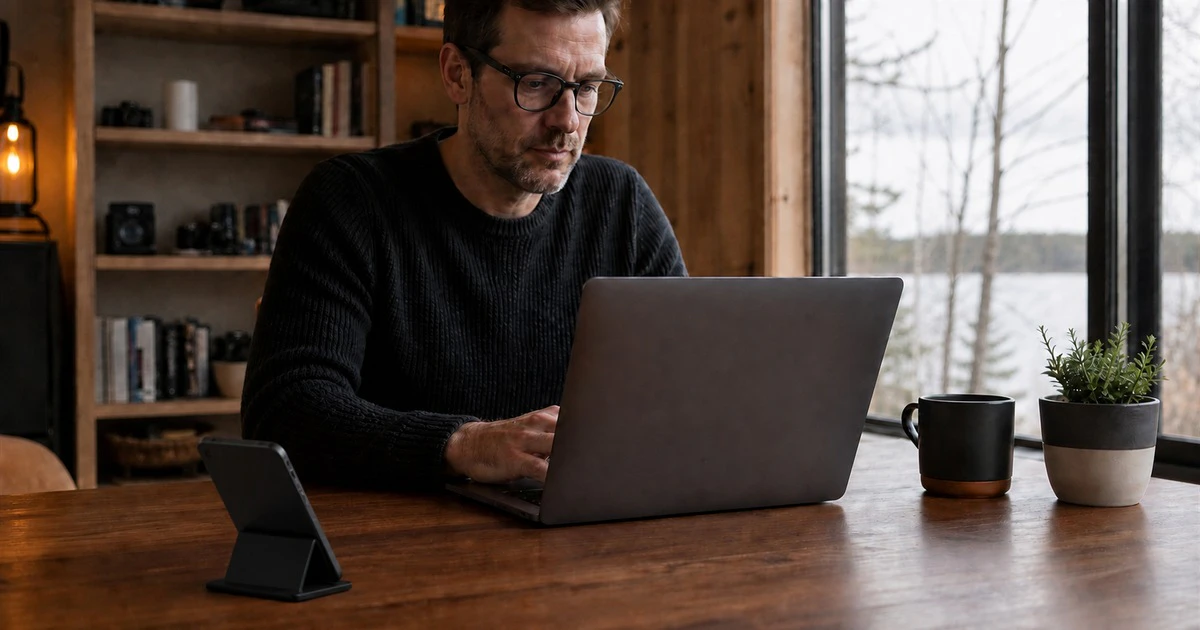
A phone hotspot can rescue a workday and quietly consume a month of mobile data before lunch.
The phone is not usually the problem. A connected laptop sees Wi-Fi and behaves as if it has a home internet connection. It may sync cloud folders, download operating-system updates, refresh email attachments and stream high-resolution video in the background.
Canadian users can keep the convenience without inviting bill shock. The key is to limit the connected device before turning on the hotspot, then watch the carrier’s own usage meter while you work.
Know what your plan counts
A hotspot shares the phone’s mobile connection. The laptop, tablet or second phone uses data from the same cellular allowance unless the carrier or plan says otherwise. Some carriers limit tethering or treat it differently, so check the current plan terms before relying on it.
The CRTC says Canadian providers cannot charge more than $50 in domestic data overage fees during one billing cycle unless the account holder or an authorized user expressly agrees to pay more. That cap prevents an unlimited surprise; it does not make overage free. A shared plan can also reach the threshold faster because several devices draw from one account.
Carrier apps and account portals are the best source for billable use. A phone’s internal counter is useful, but its measurement period may not match the carrier’s billing cycle and it may not update on the same schedule.
Set the laptop connection as metered first
On Windows 11, connect to the phone’s Wi-Fi hotspot, then open Settings > Network & internet > Wi-Fi. Select the connected network and turn on Metered connection. Microsoft says this can limit background activity, pause some Store downloads and restrict non-priority updates.
You can also open Settings > Network & internet > Advanced network settings > Data usage to see which apps are using the connection and set a data limit. Menu wording can change between Windows builds, but “metered” and “data usage” are the settings to search for.
On a Mac, open System Settings > Wi-Fi, select Details beside the hotspot and turn on Low Data Mode if available. Pause large iCloud Drive or Photos synchronization jobs, automatic downloads and software updates until you return to ordinary Wi-Fi.
Metered mode reduces some automatic traffic. It is not a hard firewall. A browser tab, game update, video meeting or cloud app can still use significant data when you ask it to.
Turn on the phone’s data-saving controls
On iPhone, go to Settings > Cellular, choose Cellular Data Options and select Low Data Mode under Data Mode. Apple says it pauses automatic updates and background tasks that use cellular data. The exact path varies on dual-SIM devices because you first select the line used for data.
On Android, search Settings for Data Saver. It can reduce background mobile use by apps on the phone, although Google notes that Pixel’s Wi-Fi tethering may require Data Saver to be turned off. The connected laptop therefore still needs its own metered setting.
Use a strong hotspot password and change the default if it has been shared widely. Turn off automatic family sharing or automatic joining when you do not need it. A forgotten tablet in a bag can reconnect and start syncing.
The activities that use data fastest
Data use varies with resolution, app and compression, but the order is predictable.
- Operating-system and game updates: a single download can be several gigabytes or tens of gigabytes.
- Cloud backup and photo sync: a folder of phone video or camera files can upload continuously without a visible window.
- High-resolution streaming: video is usually much heavier than text, music or ordinary web browsing.
- Video meetings: hours of two-way video add up quickly, especially in HD.
- Remote desktop and file transfer: usage depends on image quality and the files moved.
Email, messaging and document editing are generally lighter, but large attachments and browser-based media can change that. Do not assume a work app is efficient simply because it looks like text.
A practical low-data setup
- Check the carrier app and write down the data remaining.
- Close game launchers, cloud-sync apps and software updaters on the laptop.
- Turn on metered or low-data mode on both the phone and connected computer.
- Lower video-meeting quality or turn off your camera when video is not needed.
- Use standard-definition streaming and disable autoplay.
- Download essential files once instead of opening them repeatedly from the cloud.
- Check usage again after 15 minutes to estimate the pace.
That short test is more useful than guessing. If 15 minutes of normal work uses 250 MB, four similar hours could approach 4 GB.
Wi-Fi, USB and Bluetooth tethering are not equal
Wi-Fi is the easiest option and supports several devices, but it broadcasts a network and can use more phone battery. USB tethering is a good choice for one computer because it is stable, does not expose a Wi-Fi network name and can charge the phone while connected. Charging can also create heat, so keep the phone uncovered and out of direct sun.
Bluetooth tethering is slower and can be useful for light tasks, but compatibility and setup are less straightforward. It is not a magic data saver. Sending the same file over a slower link still uses roughly the same mobile data.
On iPhone, Personal Hotspot can share only the cellular connection; it cannot receive ordinary Wi-Fi and rebroadcast it. Google says Pixel 3 and later can share a Wi-Fi connection on supported setups, which can be useful when one device has completed a hotel or venue sign-in.
Roaming makes every mistake more expensive
Do not assume a hotspot is included in a daily roaming feature. Read the carrier’s current rules for tethering, high-speed limits and destination coverage before leaving Canada.
The Wireless Code caps data-roaming charges at $100 per billing cycle unless the authorized person agrees to more, and the CRTC has clarified that the cap also applies to plans marketed as roaming like home. New notification requirements adopted in 2026 take effect on April 13, 2027; until then, treat the carrier’s app and travel text as essential but not infallible.
If the trip is long, a local SIM or travel eSIM may be cheaper and clearer than repeatedly using a Canadian roaming day pass. Confirm that tethering is permitted before purchase.
Turn the hotspot off when the job is done
Disconnect the laptop, disable the hotspot and resume paused updates only on a trusted, ordinary internet connection. Then check the carrier meter one final time. Some providers do not display usage instantly, so leave a buffer rather than spending the allowance to the last megabyte.
Mapletechie’s technology guides are built around small settings that prevent larger problems. In this case, one metered-network switch can be worth more than any complicated hotspot trick.
A hotspot is best treated like emergency power. It is reliable, portable and finite. Make the computer respect that limit before giving it the password.