Use Your Phone Hotspot Without Wasting Mobile Data
Matthew Leo · Published August 4, 2026 · Guides
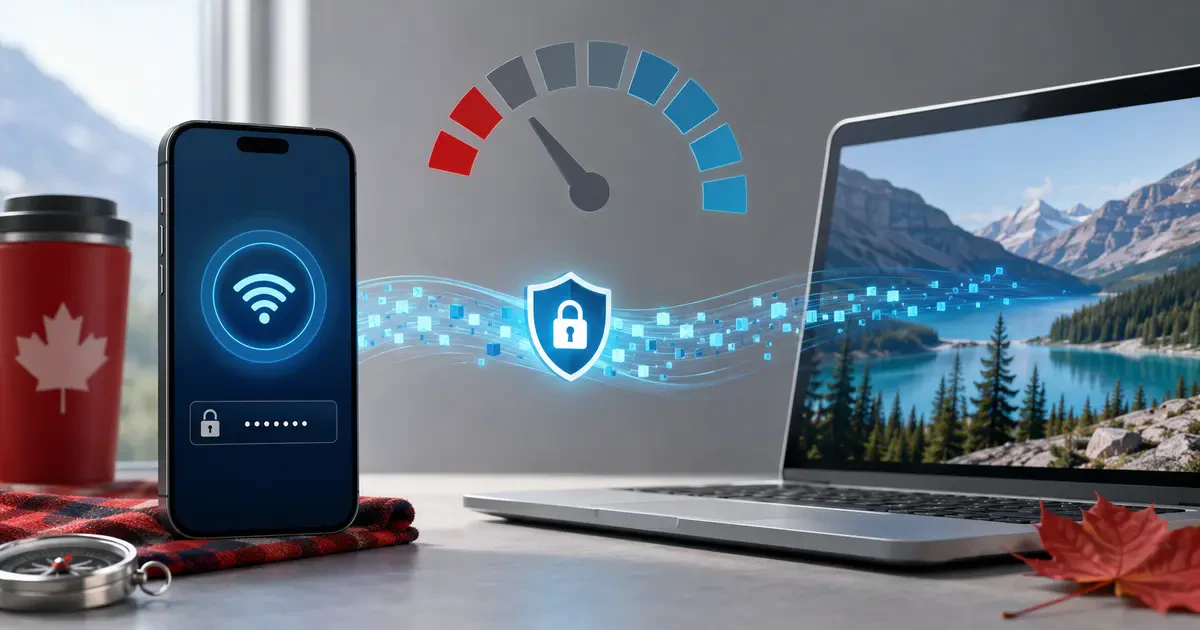
A laptop connected to your phone does not suddenly learn that every gigabyte is precious.
Once the hotspot appears as Wi-Fi, the computer may begin downloading system updates, synchronizing cloud folders, refreshing email attachments and backing up photographs. A connection that felt harmless during web browsing can consume several gigabytes before anyone notices.
The solution is not avoiding hotspots. It is securing the connection, telling the laptop that data is limited and watching the plan rather than the signal bars.
Know what your Canadian plan allows
A phone hotspot uses the mobile data attached to the phone’s cellular line. Bell explicitly states that data consumed by connected devices is attributed to the mobile plan. Other Canadian carriers generally follow the same principle, although speed limits, roaming treatment and tethering eligibility can differ by plan.
Before relying on a hotspot, check:
- The high-speed data remaining in the billing period
- Whether the plan slows service or charges overages after the allowance
- Whether tethering is included
- How hotspot use is treated while roaming
- Whether several lines share one data pool
Do not assume that a plan advertised as “unlimited” provides unlimited full-speed hotspot data. Rogers, for example, says some current plans continue at reduced speeds after the high-speed bucket is used. Read the terms of the exact plan rather than applying one carrier’s rules to another.
Create a secure hotspot on iPhone
On a current iPhone:
- Open Settings.
- Tap Personal Hotspot, or Cellular and then Personal Hotspot.
- Turn on Allow Others to Join.
- Open Wi-Fi Password and create a strong password.
- Connect the laptop using the hotspot name and password shown.
Apple also supports USB and Bluetooth connections. USB can provide a stable link while charging the phone, but Windows requires current Apple Devices software or iTunes for the connection.
On iPhone 12 and newer models, Maximize Compatibility can help older devices find the hotspot. Apple warns that the setting may reduce performance because it favours broader compatibility over the faster connection normally available.
Create a secure hotspot on Android
On standard Android:
- Swipe down from the top of the screen.
- Touch and hold Hotspot.
- Open the hotspot settings.
- Set the network name, security and password.
- Turn on Wi-Fi hotspot.
Google documents Wi-Fi, Bluetooth and USB tethering. Manufacturer menus can instead use names such as Mobile Hotspot, Hotspot & tethering or Connections.
Do not select an open network with no password merely because the option exists. Anyone within range could connect and consume data, inspect exposed local services or use the connection for activity traced back to the phone’s account.
Tell Windows the connection is metered
Windows 11 can treat the hotspot as a metered connection:
- Open Settings.
- Select Network & internet.
- Select Wi-Fi, then the connected hotspot.
- Turn on Metered connection.
This tells Windows and supported applications to reduce background data. It may delay non-essential updates and synchronization, but it does not create a hard data ceiling. An application can still download a large file when asked.
Pause OneDrive, Dropbox, Google Drive and other synchronization tools when the folders contain large videos or project files. Resume them after returning to ordinary Wi-Fi so recent changes are not left unsynchronized indefinitely.
Tell a Mac to use Low Data Mode
On a current Mac:
- Open System Settings.
- Select Wi-Fi.
- Click Details beside the phone’s hotspot.
- Turn on Low Data Mode when available.
The setting reduces background network use by compatible Apple services. Third-party applications may still follow their own update and synchronization rules, so review them separately.
Video can consume the allowance quickly
Streaming quality matters more than the number of browser tabs. High-resolution video, game downloads and cloud backups can each consume several gigabytes.
While tethered:
- Lower streaming quality to standard definition.
- Disable automatic video playback.
- Postpone operating-system and game updates.
- Avoid uploading complete photo libraries.
- Download maps, films and documents before leaving regular Wi-Fi.
- Close remote-desktop sessions when they are no longer needed.
A video call also sends data, which means both upload and download traffic count. Turning off the camera when it is unnecessary can reduce consumption and improve stability on a weak cellular connection.
Monitor usage from both sides
Carrier applications provide the billing view that ultimately matters. Phone counters are useful for diagnosis, but they may reset on a different date or classify traffic differently from the carrier.
On iPhone, Settings, Cellular shows application and system-service data use. Apple allows the statistics to be reset manually, so reset them at the start of a hotspot session if you want a rough measurement.
On Android, open Settings, Network & internet or Connections, then Data usage. Some phones allow a warning or limit to be set for the billing cycle.
Compare these figures with the carrier account before a long session. A five-minute delay in the carrier’s usage display is still possible, so do not treat an unchanged meter as proof that a download was free.
Fix a slow or unreliable hotspot
If the laptop cannot connect:
- Confirm that mobile data works directly on the phone.
- Turn the hotspot off and on.
- Forget the network on the laptop and reconnect.
- Check the password carefully.
- Move the phone where its cellular signal is stronger.
- Try Maximize Compatibility on a supported iPhone.
- Try USB tethering with a data-capable cable.
- Restart both devices.
Hotspot use creates heat and drains the phone quickly. Keep it out of direct sunlight and use a safe charger when possible. Stop if the phone displays a temperature warning.
Disconnect when the work is finished
Turn off Allow Others to Join on iPhone or Wi-Fi hotspot on Android when the connection is no longer needed. Also disconnect the laptop, since some devices can automatically rejoin a remembered hotspot later.
A phone hotspot is excellent temporary Internet. Treat it like a limited utility rather than ordinary home Wi-Fi: secure it, meter it and make the computer wait until cheaper data returns.
Tags: mobile hotspots, iPhone, Android, mobile data, Canadian carriers