Protect Your Phone Before Sending It for Repair
Matthew Leo · Published August 17, 2026 · Guides
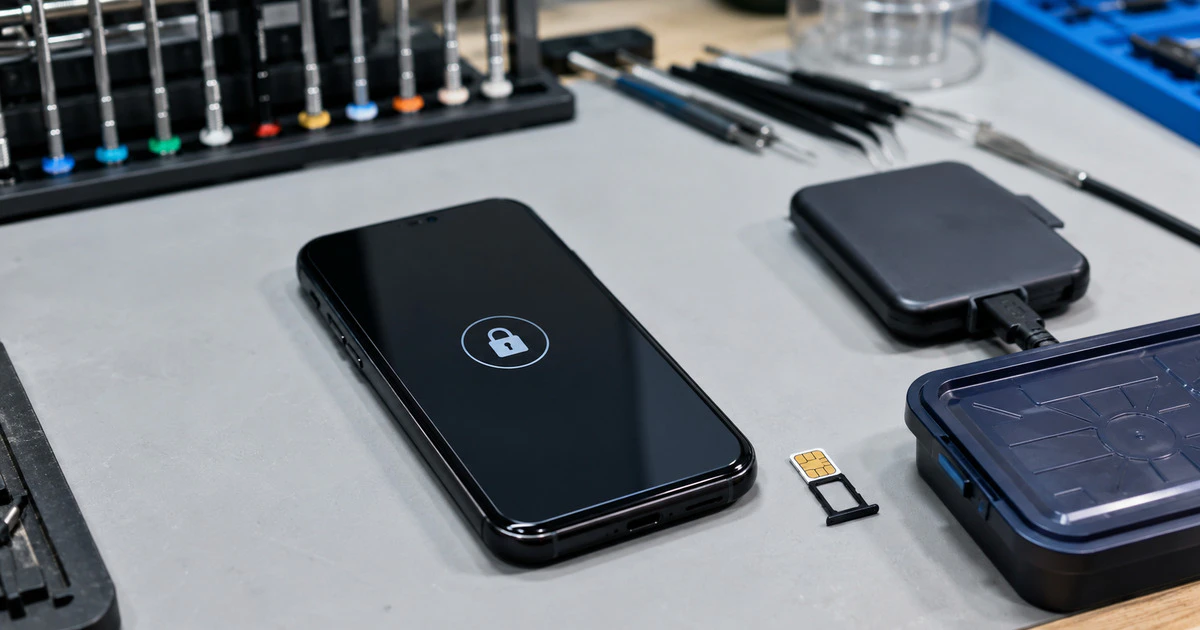
A repair technician may need to test your phone, but that does not mean they need your email, photos, payment cards or account password.
Back up the device, finish cloud syncing, remove the SIM where practical and use the manufacturer’s repair-protection feature. If the phone lacks one, erase it after verifying the backup rather than handing over an unlocked copy of your life.
This guide covers current iPhones and iPads, Pixel phones running the Android 14 December 2023 update or later with at least 2 GB free, and supported Samsung Galaxy devices with Maintenance Mode. Repair requirements vary by provider, damage and warranty route.
Start with the repair provider
Use the manufacturer’s official repair locator or a provider you can independently verify. Confirm whether the appointment is walk-in or mail-in, what data access is required, whether the device may be erased and which accessories should accompany it.
Ask for an estimate and authorization limit before work begins. Photograph the device’s condition, note the serial number or IMEI and keep the intake receipt. In Canada, warranty and consumer-remedy rules vary by province, and accidental damage is usually treated differently from a manufacturing defect.
Do not rely on a promise that “your data should be fine.” Repair can involve a replacement logic board, storage component or entire handset. Prepare as if the phone may return empty.
Make a backup you can actually restore
Run a fresh cloud or computer backup, then confirm its date and size. Check that photos, contacts, messages and authenticator data are included or syncing separately.
Some applications deliberately exclude sensitive information from ordinary backups. Banking apps may require a fresh sign-in, transit cards may need to be transferred and authenticator apps may need their own export or cloud-sync process. Save recovery codes before surrendering the only device that can receive them.
Open several recently synced photos or files from another device. A green backup status is useful, but a small restore test is stronger evidence that the information exists somewhere else.
Choose the right privacy path
| Device | Preferred preparation | Key limitation |
|---|---|---|
| iPhone or iPad | Back up, remove Wallet items as directed, turn off Find My when required; erase for mail-in or replacement when instructed | Apple does not offer the same general repair partition described by Pixel and Samsung |
| Eligible Pixel | Use Repair Mode after backup and SIM removal | Requires Android 14 December 2023 update or later and at least 2 GB free |
| Supported Samsung Galaxy | Use Maintenance Mode after backup | Availability depends on model and software version |
Prepare an iPhone or iPad
Apple’s Canadian service instructions say never to give anyone your Apple Account password, device passcode or account-security details. For software support that requires entry, remain present while the technician has access.
Apple instructs customers to back up, confirm iCloud features have finished syncing, remove cards and passes from Wallet, and turn off Find My when required for service. The exact sequence differs for an in-person appointment, mail-in repair and Express Replacement.
Removing Find My weakens theft protection, so do it only when the verified repair process requires it and as close to handoff as practical. For a mail-in or replacement return, follow Apple’s explicit erasure instructions after the backup is confirmed.
Do not share the passcode on a sticky note. If an in-person diagnostic genuinely requires an unlocked phone, enter the code yourself and stay with the device.
Use Repair Mode on an eligible Pixel
Google says eligible Pixel phones can use Repair Mode for walk-in or mail-in service. The feature starts a clean Android environment in a separate protected area so technicians can run supported diagnostics without browsing ordinary personal data.
Open Settings, System, Repair Mode and follow the prompts. Enter the existing screen-lock credential to start it, but do not give that PIN, password or pattern to the technician. Remove the physical SIM before handoff.
Google still recommends a backup because repair can require a reset or replacement. If the phone is ineligible for Repair Mode, Google’s guidance is to back up and factory-reset it before service.
After repair, exit through Settings, System, Repair Mode and enter the screen-lock credential. The phone restarts, and changes made inside Repair Mode are removed.
Use Maintenance Mode on a Samsung Galaxy
Samsung’s Canadian Maintenance Mode guide directs users to Settings, Battery and device care, Maintenance mode. Back up first, then turn the mode on and allow the device to restart.
Maintenance Mode hides personal photos, messages, contacts and applications behind the normal lock while exposing a separate environment for service. Samsung notes that apps or data created inside the mode are removed when it exits.
When the phone returns, open the same menu, tap Exit and Restart, then authenticate. If the repair erased the device despite the mode, restore from the verified Samsung, Google or external-storage backup.
Remove access that the repair does not need
- Remove a physical SIM and store it securely; confirm the repair provider’s eSIM instructions before deleting one.
- Remove payment cards or transit passes when the manufacturer requires it.
- Disconnect work profiles if the employer’s policy requires managed data to be removed.
- Unpair wearables only when the repair or replacement path calls for it.
- Do not include a password list, recovery codes or unrelated storage cards.
A case and screen protector may hide existing damage, but do not send accessories unless requested. Keep the SIM tool, spare stylus and charging equipment at home unless they are part of the fault being diagnosed.
Check the phone before leaving the counter
Inspect the screen, frame, cameras, buttons, charging port and SIM tray. Confirm the serial number if the device was replaced. Test calls, texts, mobile data, Wi-Fi, Bluetooth, cameras, microphones, speakers, charging and biometric unlock.
Re-enable Find My or the equivalent location service, re-add payment cards and verify account-security settings. Remove any temporary repair account and install outstanding security updates.
If the phone was erased, restore from the backup before creating lots of new data. On some platforms, a later restore can require another erasure and may overwrite newer cloud backups.
The safest repair handoff is boring: the data exists elsewhere, the technician gets only the access required, and the owner has enough documentation to prove which device went in and what condition came back.
Tags: phone repair, privacy, iPhone, Google Pixel, Samsung Galaxy