Remove a Bad Browser Extension and Recover Safely
Matthew Leo · Published August 14, 2026 · Guides
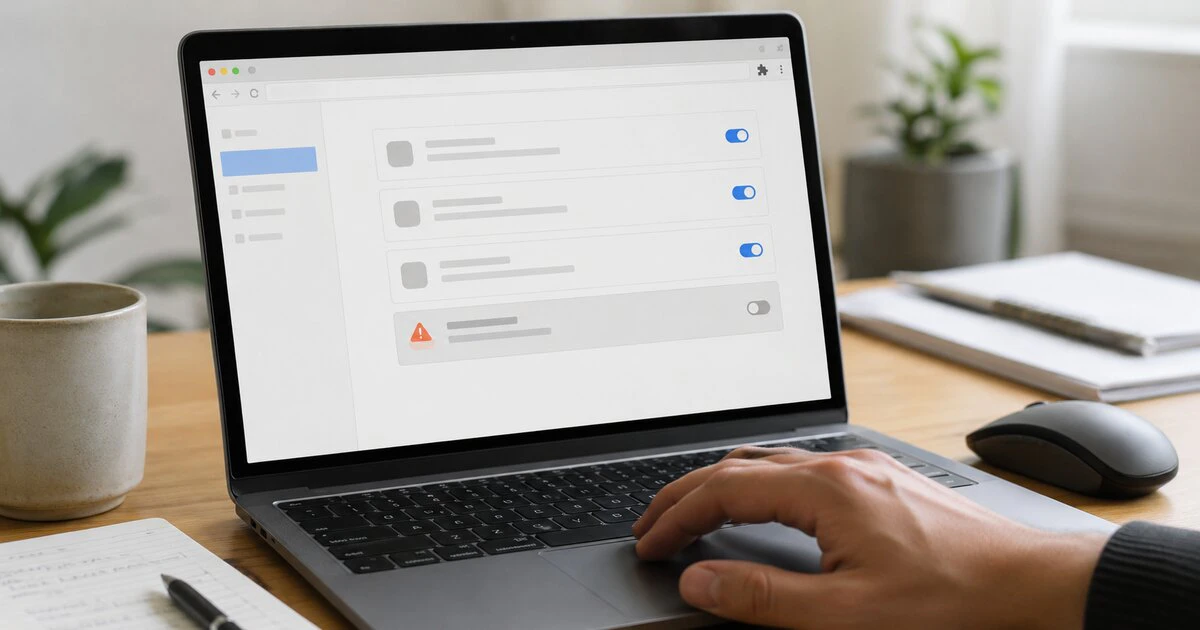
Removing a malicious browser extension stops future access, but it cannot take back passwords, cookies or page contents the extension may already have seen.
That is why the recovery has two parts: remove the add-on and then secure the accounts and settings within its reach. This guide applies to current desktop versions of Chrome, Microsoft Edge and Firefox on Windows, macOS and Linux. Organization-managed browsers may require an administrator.
Disconnect first when the browser is actively misbehaving
If tabs are opening by themselves, searches are being redirected or a security tool reports active credential theft, disconnect Wi-Fi or Ethernet before investigating. Do not use the affected browser to change important passwords yet.
Take a photograph or screenshot of the extension name, identifier, permissions and installation source if you can do so safely. That record helps an employer, security provider or marketplace abuse team understand what was installed.
Use another trusted device for banking, primary email and password changes until the affected computer has been scanned. A password changed through an actively compromised browser may be stolen again immediately.
Remove the extension from Chrome
- Open Chrome and enter
chrome://extensionsin the address bar. - Find the extension you do not recognize or no longer trust.
- Select Details and record its permissions if an investigation may be needed.
- Select Remove, then confirm.
- Restart Chrome and return to the extensions page to confirm it is gone.
If pop-ups or redirects remain, Google recommends removing untrusted programs and resetting Chrome settings. Open Settings, choose Reset settings, then Restore settings to their original defaults.
A reset changes the home page, search engine, pinned tabs and some permissions. It does not erase bookmarks or saved passwords, but review sync carefully: an unwanted extension associated with the same Chrome profile can return on another computer if it remains installed there.
Remove the extension from Microsoft Edge
- Open Edge and enter
edge://extensions. - Choose Details for the suspicious extension and note its site access.
- Select Remove and confirm.
- Restart Edge and verify that the extension did not return.
Microsoft also allows removal from the Extensions menu beside the address bar. If the extension is legitimate but overpowered, Edge can restrict it to specific sites. Do not use that compromise for something you suspect is malicious; remove it.
When Edge says an extension is managed by your organization on a personal computer, check edge://policy. Unexpected policies can indicate unwanted software installed at the operating-system level. Do not delete registry or configuration entries from a random online script. Run a reputable security scan or get qualified help.
Use Firefox Troubleshoot Mode when needed
- Open the Firefox menu, select Add-ons and themes, then Extensions.
- Open the menu beside the unwanted extension.
- Select Remove and confirm.
- Restart Firefox.
If the add-on blocks access to settings, start Firefox in Troubleshoot Mode from Help. Mozilla says this temporarily disables extensions and other customizations. If the problem disappears there, a disabled item is a likely cause.
Mozilla documents removing stubborn add-ons from Troubleshoot Mode. Exiting the mode restores other disabled customizations, so confirm the bad extension was actually removed rather than merely switched off temporarily.
Find out what the extension could reach
Permissions describe potential access, not proof of theft. An extension allowed to “read and change all your data on all websites” may have been able to view pages, alter forms and observe information entered into sites. Narrow permissions such as access to one domain create a smaller but still meaningful scope.
The UK National Cyber Security Centre warns that browser extensions can read or change data on visited sites, including sensitive information. Microsoft’s extension inventory guidance similarly treats requested permissions as a security-risk signal.
| Permission or behaviour | Recovery priority |
|---|---|
| All websites | Primary email, password manager, banking and work sessions |
| Clipboard | Passwords, recovery codes and cryptocurrency addresses copied while installed |
| Downloads | Files opened, replaced or added without permission |
| Search or new-tab changes | Restore search engine and inspect redirected login pages |
| Proxy or network settings | Remove unauthorized proxy/VPN settings and scan the device |
Close the routes back into your accounts
From a clean device, change the password for the primary email account first. That inbox can reset many other services. Enable multi-factor authentication, replace exposed recovery codes and review forwarding rules, recovery addresses and recent sign-ins.
Next, sign out other sessions for sensitive accounts. Changing a password does not always revoke every existing cookie or application token. Review connected applications and remove anything you do not recognize.
If the extension interacted with a password manager, follow that provider’s incident guidance. Change the vault password if it may have been captured, rotate high-value credentials and inspect the vault’s session list. Do not try to rotate hundreds of passwords randomly before securing the email and vault that control them.
Scan the computer and review browser sync
Run the built-in security scan on Windows or a reputable endpoint product on macOS or Linux. Update the operating system and browser first when it is safe to reconnect.
Check installed applications for software added at the same time as the extension. Browser hijackers often arrive as part of a larger bundle. If the extension returns after removal, an operating-system program, management policy or synced profile may be reinstalling it.
Review every synced browser profile and device. Remove the extension from each one, then confirm that settings such as the search engine, home page, DNS and proxy have not been changed.
Know when a full rebuild is reasonable
A reset is justified when a security tool confirms credential-stealing malware, unauthorized administrator policies persist, or the machine handles sensitive business data and the scope cannot be established. Back up documents rather than executable files, then reinstall from trusted media or use the organization’s managed recovery process.
For an ordinary unwanted extension with no evidence of wider compromise, removal, account review and a clean scan may be sufficient. Preserve the evidence and make the choice based on what the extension could do, not how harmless its toolbar icon looked.
Last verified August 14, 2026. Browser labels can change; managed devices may intentionally prevent removal.
Tags: browser security, Chrome, Edge, Firefox, malware