Remove a Photo's Location Before You Share It
Matthew Leo · Published September 13, 2026 · Guides
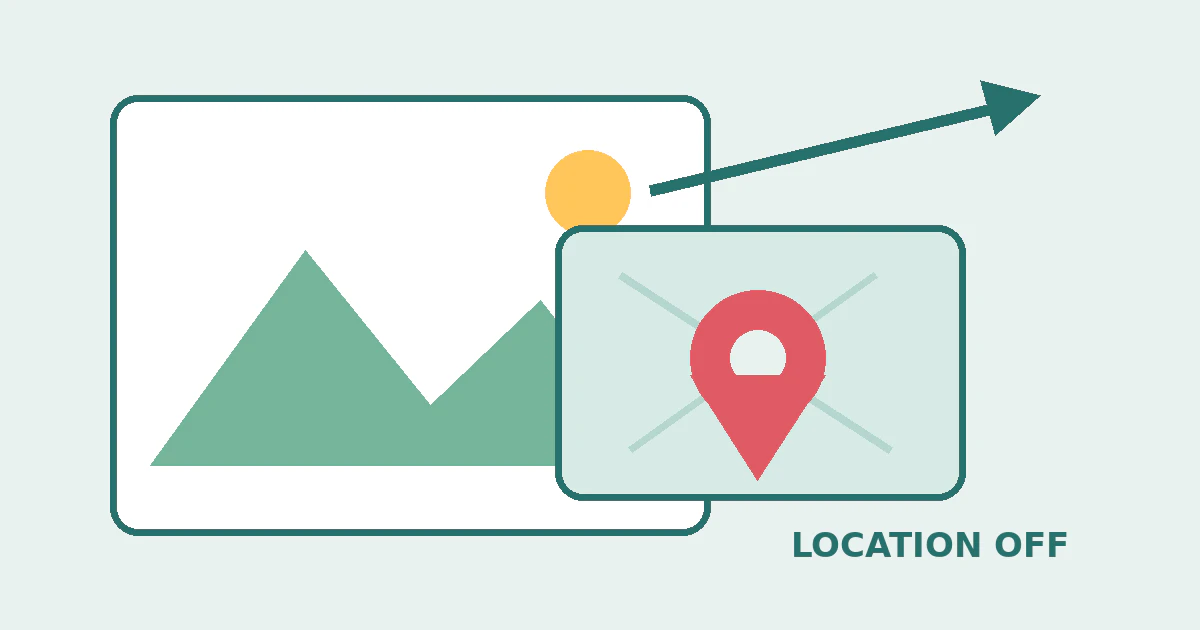
A photo can reveal a place without showing a street sign. When the Camera app has location access, an iPhone can embed coordinates in the photo or video file. Depending on how the file is shared, the recipient may be able to inspect that metadata.
This is separate from what appears in the picture itself. Removing coordinates will not hide a house number, school logo, reflection or recognisable landmark. Use both a metadata check and a visual check.
Inspect the location attached to one photo
In Photos on an iPhone or iPad, open the photo or video, then swipe up or tap the Info button. If location data is present, Photos can display it on a map. The Collections view also has a Map collection for items with embedded location information.
Apple's location-metadata guide says the coordinates can be derived from cellular, Wi-Fi, GPS and Bluetooth information when Camera has Location Services access.
Do this inspection on the actual item you plan to send. A screenshot, exported copy and edited version may not carry the same metadata as the original.
Choose between three different privacy actions
Remove the saved location from the item: Open the photo, tap More, then Adjust Location and No Location. This changes the location associated with that item in Photos.
Hide the location for one share: Select the photos, tap Share, then Options. Turn off Location, tap Done and continue sharing. This is useful when you want to keep your private library organised by place but do not want that share to include coordinates.
Stop future Camera collection: Open Settings, Privacy & Security, Location Services, Camera, then choose Never. Future Camera photos should no longer receive location coordinates from that permission, but the change does not clean older items.
These controls solve different problems. Do not disable future collection and assume yesterday's files were changed. Do not remove a location from one photo and assume Camera stopped collecting it.
Verify with a harmless test
Use a non-sensitive photo for the first test. Check its Info panel, share a copy with Location turned off, then inspect the received copy on another trusted device. The receiving app may handle metadata differently, which is why a workflow test is more useful than a settings screenshot.
If the recipient must receive the original file for work, journalism, insurance or evidence, coordinate before removing data. Location and capture information may have legitimate evidentiary value. Keep an unchanged original in a protected location and create a separate sharing copy when appropriate.
Do not use a public metadata website for a sensitive image merely to inspect it. The upload itself can create a new disclosure. Built-in inspection or a trusted local tool is the safer starting point.
Look beyond the coordinate field
- Visible clues: Crop or obscure addresses, badges, licence plates, documents and reflections where sharing them is unnecessary.
- File name and album context: Check the text accompanying the upload. A caption can reveal the place after the coordinates are removed.
- Live Photo content: Review the motion and sound around the selected frame, not just the still image.
- Shared albums and links: Inspect who already has access. Removing data from a later copy does not recall an earlier file.
- Cloud copies: Understand whether you changed the library item or only one exported copy before deleting anything.
If the privacy concern involves ongoing live location sharing rather than a photo's coordinates, review Find My, Google Maps and app permissions separately. Removing photo metadata does not end a live location share.
Make the choice deliberate
Location metadata is useful for searching a private library and remembering where an image was taken. The goal is not automatically to erase it from every photo. It is to decide when a recipient needs it.
For sensitive places such as a home, shelter, medical appointment or child's routine, make the one-share check part of the sending process. A few seconds in Share Options can preserve the private library feature without giving the same location data to the recipient.
Tags: photo privacy, iPhone, location metadata, personal safety