How to Remove Location Data Before Sharing Photos
Matthew Leo · Published August 14, 2026 · Guides
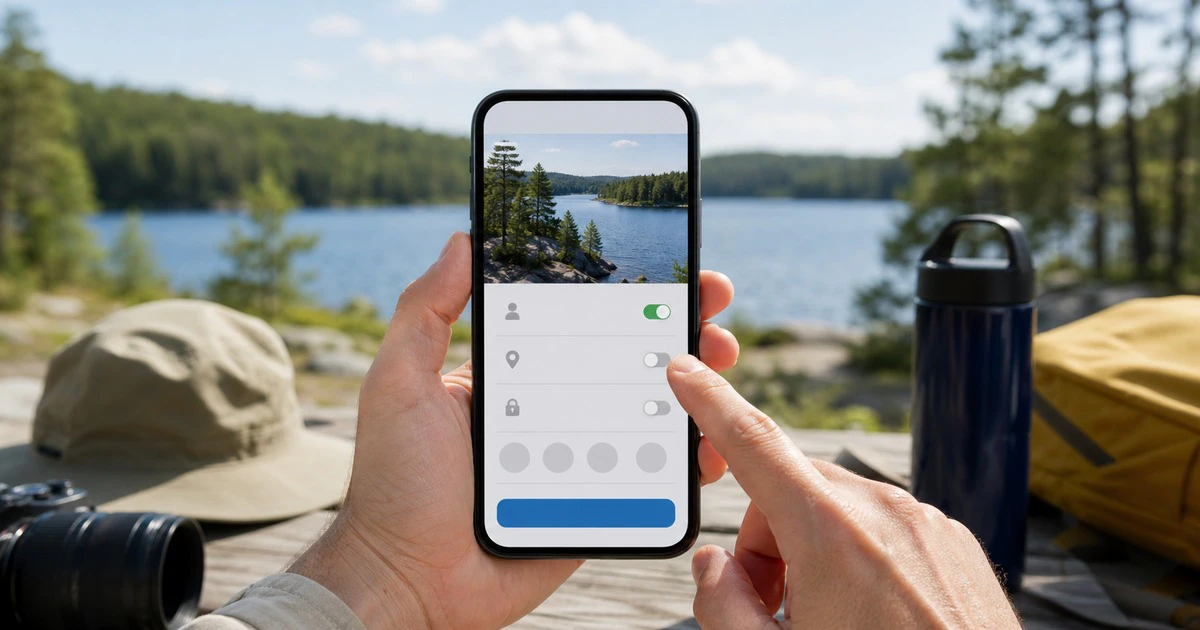
A photo of your front door can carry its location even when the street sign is outside the frame.
Phones can save coordinates, date, time and device details inside an image file. That information is useful for searching a private library, but it deserves a check before you send an original photo to a buyer, a public group or someone you do not know well.
The fix is simple on an iPhone. Android sharing varies by camera, gallery and destination, so the safe approach is to understand both the file and the service carrying it.
What photo metadata can reveal
JPEG and other image files can contain EXIF metadata. A phone may record the camera model, exposure settings, capture time and GPS coordinates. A map-capable app can turn those coordinates into a very precise place.
Metadata is not the only location clue. A school crest, house number, trail marker, reflection or familiar skyline can reveal where a picture was taken even after the GPS field is removed. Google Photos explicitly warns that people may infer a place from landmarks.
Think of location removal as one privacy layer, not an invisibility tool.
Remove location while sharing from an iPhone
Apple provides a per-share control in Photos:
Open the photo or video in Photos.
Tap Share.
Tap Options at the top of the share sheet.
Turn Location off.
Tap Done, then choose the app or person.
That share operation excludes location. It does not erase the location from the copy in your library, so the photo can remain searchable by place for you.
Keep “All Photos Data” off when privacy is the goal. Apple says that option can include the original file, edit history and metadata when sharing through supported methods such as AirDrop and iCloud links.
If you want to change the library item itself, open the photo, swipe up or tap the information button, tap Adjust beside the location and choose No Location. Menu wording can vary slightly by iOS release.
Android depends on the app doing the sharing
There is no single Android gallery used on every phone. Google Photos keeps location private by default for many new links, albums and conversations, unless you choose to include it. Partner Sharing is different: shared photos can include location details.
A crucial limit is easy to miss. Google Photos can edit or remove locations that it estimated or that you added manually. It cannot remove a location written into the original file by the camera. The sharing control can withhold that location in a Google Photos share, but another app receiving the original file may behave differently.
For a sensitive image, use this checklist:
Open the photo’s information panel and see whether a map or place appears.
Check the sharing settings of the gallery or album you will use.
Avoid Partner Sharing for pictures whose locations should remain private.
If sending the original file through email, Quick Share, a marketplace or a chat app, inspect a copied file after sharing or remove its EXIF location with a trusted offline tool first.
A screenshot often omits the original camera EXIF, but it is a rough workaround. It can reduce image quality, preserve visible notifications or expose other screen details. Do not rely on it without inspecting the result.
Stop the camera from saving future locations
On iPhone, go to Settings > Privacy & Security > Location Services > Camera and choose Never if you never want camera locations recorded. Choosing a less precise location does not provide the same guarantee as turning Camera access off.
On Android, open Settings > Security & privacy > Privacy > Permissions > Location, then review the Camera app. The exact path varies by manufacturer. Many camera apps also have a Save location or Location tags switch inside their own settings.
Turning this off removes useful features. Your gallery may no longer group a road trip by place, and searching for “Thunder Bay” will not find new photos through GPS. A balanced approach is to leave location on for a private library and remove it during sensitive shares.
Know when location matters most
Check metadata before sharing:
photos of children, a school or a regular route;
marketplace listings photographed at home;
documents, keys, medication or expensive equipment;
pictures from a shelter, workplace or private event;
travel posts while the home is empty.
Location can also be valuable. An insurance claim, field report or safety record may need an accurate time and place. Preserve an untouched private original before making a stripped sharing copy.
Verify the shared copy
Do not stop at flipping a switch. Send the picture to another account or device using the intended method. Download the received file, open its information panel and look for a map or GPS fields.
This test matters because social platforms often process uploads, while email and direct file-transfer tools may preserve originals. A setting in one app does not control every other app.
Mapletechie’s privacy and technology guides favour checks that can be verified. With a private photo, the proof is the received file—not the promise implied by a share button.
Keep the rich, searchable original when it helps you. Share a copy with only the information the recipient needs.