How to Check Whether Your Wi-Fi Router Is Still Secure
Matthew Leo · Published August 18, 2026 · Guides
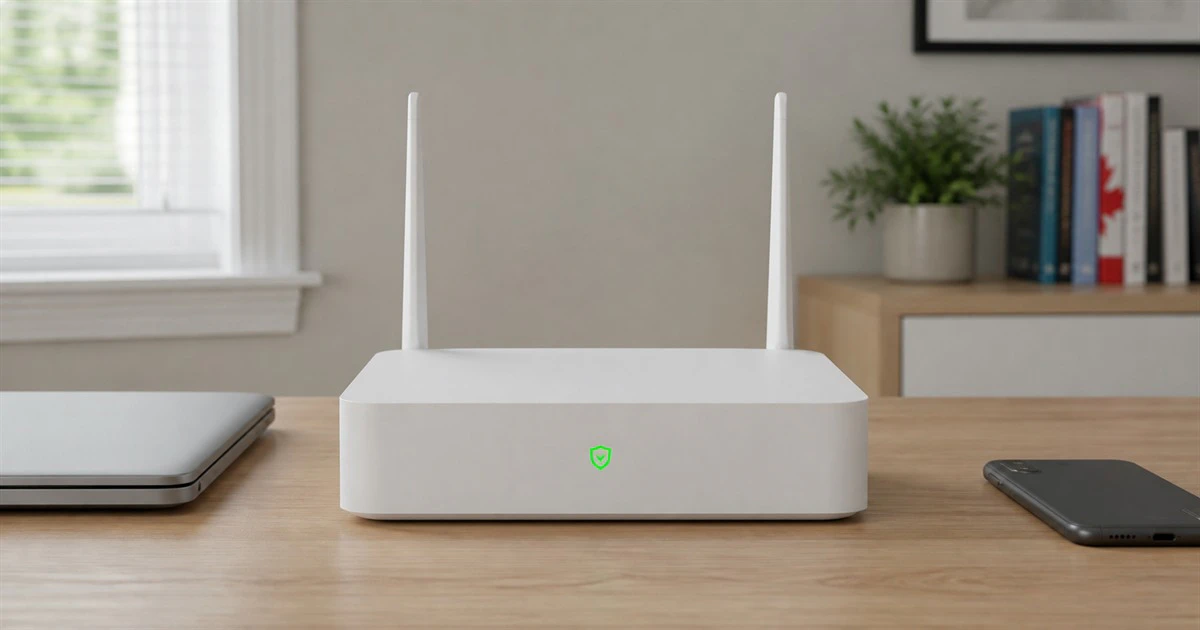
Your Wi-Fi can feel fast and reliable while the router behind it has quietly stopped receiving security fixes.
That small box sits between every connected device in your home and the internet. Phones, laptops, cameras, televisions and smart plugs trust it to send traffic to the right place. If its firmware is old, its support has ended or remote access is exposed, a strong Wi-Fi password cannot fix the whole problem.
Canada's Cyber Centre joined international partners in July 2026 to urge organizations to improve router hygiene after Russian state-sponsored actors exploited vulnerable and poorly configured network devices. The specific campaign focused on business and critical-infrastructure equipment, not ordinary Canadian homes. The basic lesson still travels well: know the model, keep it supported, update it and turn off services you do not need.
Start by identifying the exact equipment
Many internet providers supply a single gateway that combines a modem, router and Wi-Fi access point. Other homes have a provider modem plus a separately purchased router or mesh system. Before changing anything, write down the manufacturer, exact model number and hardware revision from the label or management app.
Do not confuse the Wi-Fi network name with the model. A custom name such as "LakeHouse" tells you nothing about the hardware. The support page must match the exact revision because two products with similar names can receive different firmware.
If the provider owns the gateway, ask whether updates install automatically and whether the model is still supported on its network. If you own the router, find the manufacturer's Canadian support page by typing its known domain, not by following a sponsored search result.
Five router health checks
Support status: A healthy model still receives security updates. If it does not, plan a supported replacement.
Firmware: Automatic updates are on or the current version is installed. If not, use the official app or local admin page to update.
Administrator access: The router has a unique password and remote management is off. Change the credentials and disable internet-side access if either check fails.
Wi-Fi security: The network uses WPA2 or WPA3 with a unique passphrase. Change the mode and reconnect devices if needed.
Guest or IoT network: Untrusted devices are separated where supported. Create a separate network and test isolation if they are not.
Check support before chasing settings
A router can keep working after its manufacturer ends support. That is the problem: the lights stay on, so there is no obvious sign that new vulnerabilities will remain unpatched.
The Cyber Centre's July 2026 guidance on obsolete products lists internet-facing routers and access points as a priority risk. Replacement is the preferred response once a product is unsupported. Temporary settings cannot recreate updates that no longer exist.
Search the manufacturer's support or end-of-life list for the exact model and revision. Look for a clear support date or recent security release. A download page that only contains a years-old manual is not proof of current support. If the status is unclear, contact the vendor or your internet provider with the model number.
Update firmware through a trusted path
Use the router's official app or local administration page. Never install a firmware file from a forum, file-sharing site or third-party driver page. Back up the configuration if the router offers that option, but remember that restoring a compromised or obsolete setup can also restore risky settings.
Turn on automatic security updates when available. If updates are manual, set a recurring reminder every three months and subscribe to the vendor's notices. Recheck after a provider replaces the gateway or a factory reset returns settings to defaults.
The Cyber Centre's router best-practices guide recommends current firmware and checking whether the router is end of life. Its newer international notice says the Russian campaign exploited vulnerable or poorly configured devices and urges owners and network defenders to apply mitigations.
Secure the two passwords that people mix up
Your Wi-Fi passphrase lets devices join the wireless network. The router administrator password controls settings. They should be different, strong and unique.
Replace any factory administrator password, even if the setup app says the device is only locally reachable.
Use WPA3 when all important devices support it, or WPA2-AES for broader compatibility.
Choose a long Wi-Fi passphrase that is not reused for email, banking or another router.
Turn off WPS push-button or PIN setup when you do not need it.
Disable remote administration from the internet unless a real support requirement exists.
Do not hide the network name and assume that makes it secure. The important controls are encryption, strong credentials, current firmware and restricted management. A hidden name can also make connections more awkward without providing meaningful protection against a capable nearby observer.
Separate guests and less-trusted devices
A guest network can keep visitors and some smart-home devices away from laptops or storage on the main network. The Cyber Centre recommends guest networks at home, but the feature must actually isolate clients rather than simply create a second network name.
After setup, connect a spare device to the guest network. Confirm that it reaches the internet but cannot open the router's admin page, a shared printer or another device on the main network. If an essential smart-home hub requires local access, document the exception instead of moving every device back.
Mapletechie's gadget coverage treats better coverage and better security as separate buying questions. A stronger signal does not make unsupported hardware safe.
Know when replacement is the fix
Replace a router when support has ended, security updates cannot be installed, modern WPA2 or WPA3 is unavailable, the admin interface is exposed without a safe way to disable it, or the device behaves strangely after a reset and update.
Do not buy only by the biggest speed number on the box. Check the promised support period, automatic-update policy, WPA3 support, guest-network isolation and whether important controls work without a permanent paid subscription. Keep the receipt and record the exact model in a simple home-device list.
Before recycling an old router, factory-reset it and remove it from the vendor or provider account. A reset clears stored Wi-Fi names, passwords and provider details on normal consumer models. Follow the manufacturer's disposal instructions and use a recognized electronics recycling program.
A ten-minute check is worth repeating
Router security is not a one-time setup job. Check the support page and firmware version now, then repeat after major outages, provider changes and at least a few times a year.
The goal is not to turn a household into a security operations centre. It is to keep the internet's front door supported, updated and no more open than it needs to be.