Speed Up a Slow Windows 11 Laptop Without Cleaner Apps
Matthew Leo · Published July 31, 2026 · Guides
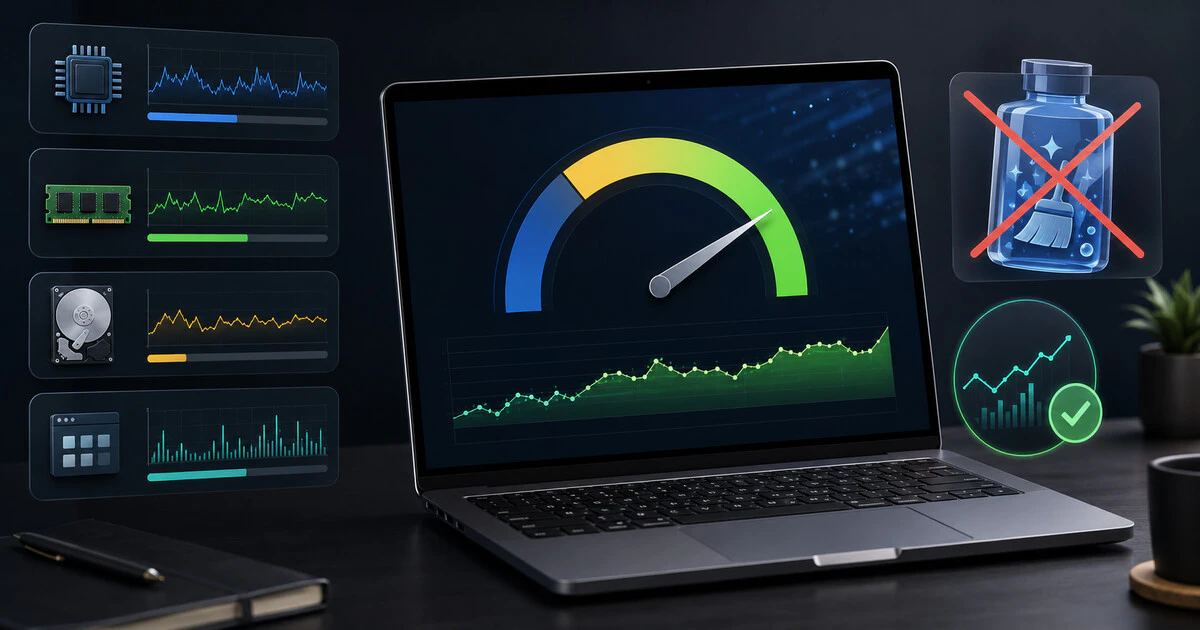
A slow Windows laptop needs a diagnosis, not a brightly coloured application promising to fix everything with one enormous button.
Windows 11 already includes tools for finding demanding applications, controlling startup software, clearing temporary files, scanning for malware and isolating software conflicts.
Use those tools in a reversible order before paying for an optimizer or deleting system files.
Before changing anything
Save current work and back up important documents.
If the slowdown began after a recent application, driver or system change, create a restore point before continuing. Microsoft documents System Restore as a way to reverse system changes without removing personal files.
Do not begin by:
- Editing the registry
- Deleting unknown system folders
- Installing random driver-update utilities
- Disabling every background service
- Running several antivirus products simultaneously
Those actions complicate troubleshooting because they change several variables at once.
Restart before diagnosing
Use Start, Power and Restart.
Restart is different from closing the laptop lid. It ends active processes and reloads Windows.
After restarting, open only the application that normally feels slow. If performance improves, excessive background software or a process that failed to close may be responsible.
Find the bottleneck in Task Manager
Press Ctrl + Shift + Esc to open Task Manager.
Open the Processes tab and review:
- CPU: processing demand
- Memory: active use of RAM
- Disk: storage activity
- Network: Internet or local-network use
Click a column heading to sort by usage.
Microsoft recommends using Task Manager to identify heavy processes. Do not end an unfamiliar Windows process merely because it appears near the top.
Instead, record its name, wait several minutes and see whether demand remains high. Temporary spikes during updates, application launches and antivirus scans are normal.
What the Task Manager numbers usually mean
Memory remains near capacity
Close unused browser tabs and applications. If ordinary use repeatedly consumes nearly all available memory, the computer may not have enough RAM for the workload.
Some laptops allow memory upgrades; many thin models do not.
Disk remains at 100 per cent
Check which process is responsible. Windows Update, indexing, cloud synchronization and antivirus scans can create temporary activity.
An aging hard drive can also become a permanent bottleneck. Replacing a mechanical drive with a solid-state drive often makes a larger difference than optimization software, but hardware work should be completed by someone comfortable backing up and reinstalling the system.
CPU remains heavily used
Close the demanding application and check for updates. Video editing, games, video calls and software development can legitimately use the processor heavily.
High CPU use while the computer is otherwise idle deserves further investigation.
Install Windows and driver updates
Open:
- Settings
- Windows Update
- Check for updates
Install available security and quality updates, then restart when prompted.
For optional drivers, open Windows Update, Advanced options and Optional updates. Install a driver only when it applies to the computer or addresses a relevant problem.
Use Windows Update or the computer manufacturer’s official support page. A generic utility claiming that 37 drivers are dangerously outdated is usually creating a sales opportunity before it creates a technical solution.
Disable unnecessary startup applications
Open Task Manager and select Startup apps.
Windows shows which applications launch after sign-in and may display their startup impact.
Microsoft’s startup documentation allows applications to be disabled without uninstalling them.
Reasonable candidates include launchers, meeting tools, game clients and update assistants that do not need to run constantly.
Keep essential security, accessibility, audio, touchpad and hardware-control utilities unless their function is understood.
If something stops working, return to Startup apps and enable it again. This is why disabling is safer than immediately uninstalling.
Free storage carefully
Open Settings, System and Storage.
Review temporary files before removing them. Check Downloads manually; Windows cannot decide which downloaded documents remain important.
Storage Sense can automatically remove temporary files and manage Recycle Bin contents.
Be cautious with previous Windows installation files. Removing Windows.old can recover substantial space, but it also removes the ordinary option to return to the previous Windows version.
Start with:
- Temporary application files
- Old Recycle Bin contents
- Unused downloaded videos
- Unneeded installation files
- Applications or games no longer used
Do not delete personal folders simply because they are large. Back them up or move them intentionally.
Run a Windows Security scan
Open Settings, Privacy & security, Windows Security and Virus & threat protection.
Select Quick scan.
Microsoft’s Windows Security documentation also provides full and offline scan options for deeper investigation.
Malware is not the explanation for every slow computer. It should be checked when performance changes suddenly, unknown applications appear, the browser redirects unexpectedly or resource use remains high while the computer is idle.
Avoid running two real-time antivirus suites together. Their overlapping scans can consume resources and create conflicts.
Test a different power mode
Open Settings, System, Power & battery and Power mode.
Select Best performance temporarily while connected to power.
Microsoft warns that this setting consumes more energy, drains the battery faster and can make a laptop run warmer.
If performance improves substantially, the existing power mode may have been limiting the processor. Return to Balanced when battery life matters.
A laptop that becomes extremely hot, shuts down or runs its fans constantly may need physical cleaning or repair. Do not block ventilation or use it on bedding while testing.
Reduce visual effects only when necessary
Search Windows for Adjust the appearance and performance of Windows.
Select Adjust for best performance, or disable individual animations and effects.
This can make an older system feel more responsive. It will not fix inadequate memory, failing storage or an overloaded processor.
Return to the same menu and restore the default appearance if the improvement is not worth the visual trade-off.
Use a clean boot to identify conflicts
If Windows becomes slow only after startup and no obvious process explains it, a clean boot can isolate third-party services.
Microsoft provides a detailed clean-boot procedure using System Configuration and Task Manager.
Follow it carefully. Hide Microsoft services before disabling third-party services, and record what was changed.
If performance returns, re-enable services in groups until the responsible application is found.
A clean boot is a diagnostic state—not a permanent configuration. Restore normal startup after testing.
Know when software cannot fix the machine
Optimization reaches a limit when:
- The laptop has too little RAM for ordinary applications
- A mechanical drive is permanently saturated
- The battery or cooling system is failing
- The processor cannot meet the workload
- The manufacturer no longer provides current drivers
- The device cannot run a supported version of Windows securely
Microsoft ended ordinary Windows 10 support on October 14, 2025. A computer that cannot properly move to Windows 11 needs a realistic security plan, not another cleanup application.
The useful troubleshooting order
- Restart.
- Use Task Manager to identify the bottleneck.
- Install official Windows and driver updates.
- Disable unnecessary startup applications.
- Remove temporary and replaceable files.
- Run a Windows Security scan.
- Test power and visual settings.
- Use a clean boot if a software conflict remains likely.
- Evaluate hardware only after the evidence points there.
Change one group of settings at a time and test after each change.
The goal is not to make Windows feel faster for ten minutes. It is to learn what made it slow—and avoid installing another program whose main contribution is running in the background.
Tags: Windows 11, laptop performance, troubleshooting, Microsoft, PC maintenance