Stop Sharing Your Phone’s Location With Old Contacts
Matthew Leo · Published August 18, 2026 · Guides
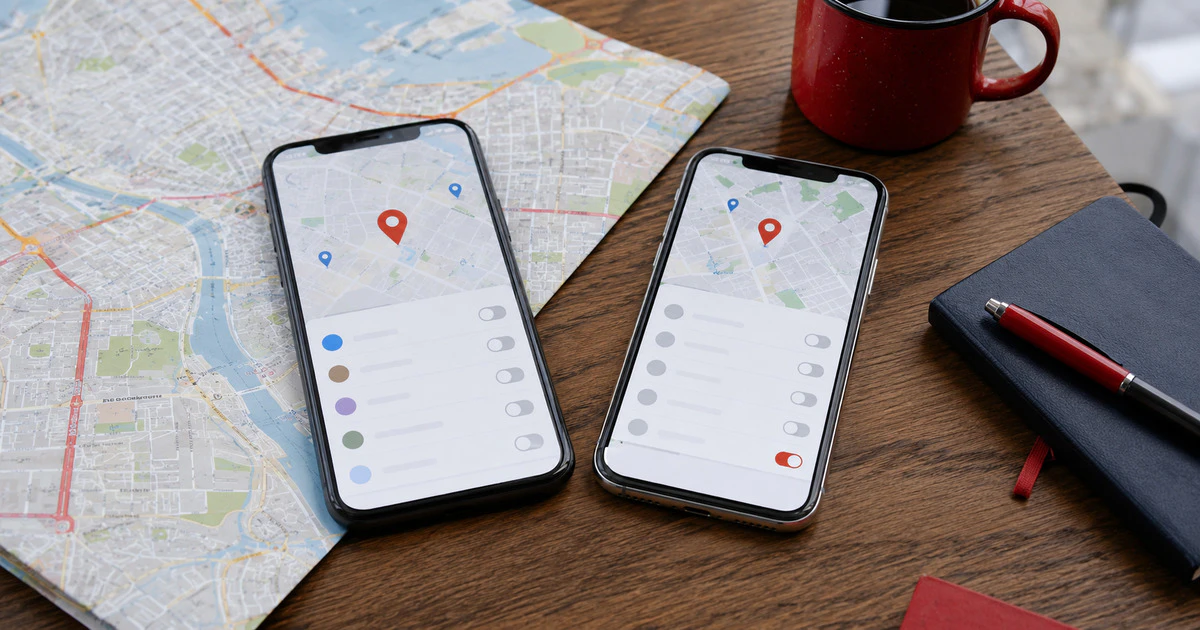
Turning off one location toggle rarely ends every form of sharing. Your phone may be sharing through Apple Find My, Google Maps, a family account, a messaging app and individual app permissions at the same time.
The safest audit separates people from apps and account devices. That lets you remove an old contact without accidentally disabling maps, emergency location or the ability to find a lost phone.
If another person may react dangerously when access disappears, plan the change from a safe device and location. Call 911 in Canada for immediate danger, and consider support from a local shelter or victim-services organization.
Start with the people who can see you
On an iPhone, open Find My, tap People, select a person and choose Stop Sharing My Location. Apple says the person is not notified when sharing stops, although they can notice that your location is no longer available.
Also open Messages and inspect conversations where live location may have been shared. Check Maps favourites for automatic ETA sharing, which is separate from continuous Find My access.
On Google Maps, tap your profile picture, choose Location sharing and open each person’s profile. Tap Stop for anyone who should no longer have access. Location Sharing can remain active even when Google Maps Timeline is off, so deleting history is not a substitute.
Google’s current guide explains that you control who can see you and for how long. Review link-based sharing too: a link can reach people who were never individually invited.
Use iPhone Safety Check for a complete review
On an iPhone with iOS 16 or later, go to Settings, Privacy & Security, then Safety Check. You need to be signed into an Apple Account protected by two-factor authentication.
- Manage Sharing & Access reviews individual people, apps and account devices.
- Emergency Reset immediately stops sharing with all people and apps, then helps secure the account.
Use the managed review when there is no immediate threat and you want to preserve trusted connections. Emergency Reset is designed for urgent situations. It does not erase photos or messages, but it can disrupt shared albums, calendars, Home access and other collaboration.
Safety Check includes a Quick Exit button that returns to the Home Screen. Changes already made are saved. Screen Time restrictions, device management and Stolen Device Protection can alter which options are available.
Review app permissions separately
On iPhone, open Settings, Privacy & Security, Location Services. Select each app and choose Never, Ask Next Time, While Using or another available option. Turn Precise Location off when an approximate area is enough.
On Android, open Settings, Location, then App location permissions. Review apps allowed all the time before those allowed only while in use. Choose Don’t allow or Allow only while using the app where appropriate, and remove precise access when the app does not need it.
| Access type | Good reason to keep it | Reason to remove it |
|---|---|---|
| Always-on location | Trusted safety or automation tool | Shopping, game or one-time travel app |
| Precise location | Turn-by-turn navigation | Weather or local-news app |
| Bluetooth scanning | Accessory or tracker detection | App with no nearby-device function |
| Background refresh | Active trip or safety sharing | Service you no longer use |
Turning off Location Services globally is a blunt emergency measure. It can break navigation, camera geotagging, weather, emergency features and lost-device tools. Prefer removing the specific person or app unless you need an immediate universal stop.
Secure the account behind the map
A person signed into your Apple or Google account may regain information even after you remove a sharing permission. Review the device list in the account’s security settings and remove hardware you do not control.
Change the account password if someone else knows it, review recovery phone numbers and email addresses, and enable two-factor authentication. Do this from a trusted device. If the other person controls the mobile account or email address, secure those recovery channels first.
Do not remove your own current phone or disable Find My merely to clean up the list. Lost-device features can protect the phone and support remote locking. The goal is to remove unauthorized access while preserving your recovery tools.
Check services outside Apple and Google
Snap Map, WhatsApp live location, ride-sharing family features, fitness apps and connected-car accounts can each maintain separate sharing. Open the apps you actually use and review their people, family and privacy sections.
Shared mobile plans do not normally display a phone’s precise live GPS location by themselves, but carrier family-safety products may. Review the carrier account for add-ons and authorized users.
Finally, check for physical trackers. Apple and Android both provide unknown-tracker alerts, but those are separate from account-based sharing. Our unknown Bluetooth tracker guide explains the evidence-preserving response.
Confirm the result without creating new risk
- Reopen Find My and Google Maps to confirm the old contact is gone.
- Review account device lists after changing passwords.
- Test maps and lost-device features from a trusted account.
- Check that emergency contacts are still correct.
- Repeat the audit after major relationship, household or account changes.
Location sharing is useful precisely because it can keep running in the background. That convenience becomes the risk when nobody remembers who received access months ago. A ten-minute audit restores the boundary without turning the rest of the phone blind.
Tags: location privacy, iPhone, Android, Google Maps, personal safety