Stop Your Smart TV From Tracking What You Watch
Matthew Leo · Published August 20, 2026 · Guides
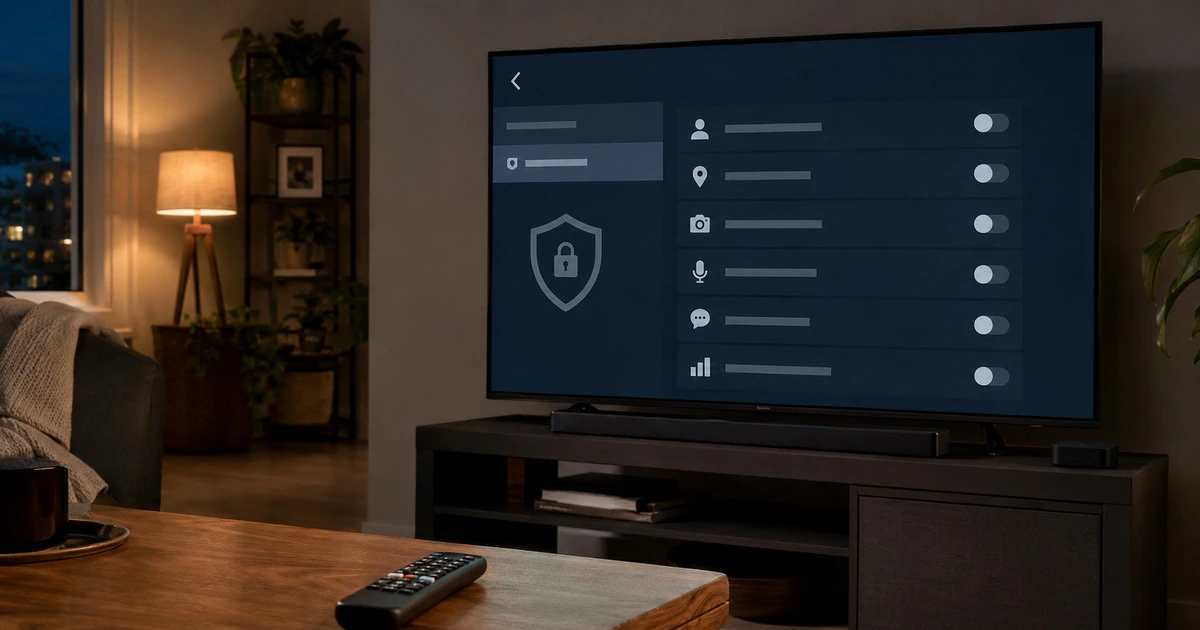
Your television can recognize what appears on its screen even when the picture comes from a cable box or game console. Turning off personalized ads alone may not stop that viewing collection.
The key setting is often automatic content recognition, or ACR. It creates a signature from displayed content and matches it to known programming. Manufacturers use the result for recommendations, measurement and advertising.
This guide covers recent Samsung, Roku TV, Google TV and LG webOS sets sold in Canada. Menu names vary by model, software version and region, so use the television’s settings search or privacy notice when the exact path differs.
Understand the four separate controls
| Control | What it affects | What may continue |
|---|---|---|
| Viewing information or ACR | Recognition of programs and external inputs | Apps still know what you watch inside them |
| Personalized advertising | Use of a profile or advertising ID for targeted ads | Contextual and general ads can remain |
| Usage and diagnostics | Device performance and feature-use data | Essential operational logs may still be collected |
| Voice recognition | Processing of spoken commands | Push-to-talk or local controls vary by model |
These switches are related but not interchangeable. Disabling interest-based ads does not necessarily disable viewing recognition, and resetting an advertising identifier may only break the old profile rather than stop future collection.
Samsung: turn off Viewing Information Services
On supported Samsung televisions, open Settings and look for Privacy Choices, Terms & Privacy or a similar privacy menu. Disable Viewing Information Services if you do not want ACR operating. Review Interest-Based Advertisement and voice options separately.
Samsung’s current ACR explanation says the optional service can collect viewing history, time spent, a television identifier and IP address. Samsung says users can opt out through the TV settings.
Some recommendations or “more like this” features may become less tailored. Normal HDMI inputs and streaming applications should continue working.
Roku TV: disable the Smart TV Experience
On a Roku television—not merely a Roku streaming stick—go to Settings, Privacy, Smart TV Experience. Turn off Automatic Content Recognition. Turn off More Ways to Watch if you do not want suggestions triggered by content on an antenna or HDMI input.
Roku’s June 2026 instructions say ACR is not enabled before a user makes a choice and can be disabled from the same menu. The account’s web privacy settings may also expose Smart TV Experience controls.
Then open Privacy and Advertising to review personalized ads or the advertising identifier. Changing the ad setting does not replace the ACR check.
Google TV: control the advertising ID
From the Google TV home screen, open Settings, Privacy, Ads. Depending on the version, you can reset or delete the advertising ID and manage personalized advertising through the signed-in Google Account.
Google’s TV ad-settings guide documents the Privacy and Ads menu. Also review Settings, Privacy, Usage & diagnostics if your television exposes it.
A television manufacturer can add its own viewing-recognition service on top of Google TV. Search the manufacturer’s privacy menu for Viewing Data, Samba Interactive TV, ACR or content recognition instead of assuming the Google switch controls every layer.
LG webOS: review agreements and Live Plus
On LG televisions, open All Settings and find Privacy & Terms, User Agreements or the privacy dashboard. Review Viewing Information, Live Plus, interest-based advertising and voice information where present.
The path changes across webOS releases. If a guide for another year does not match, open the privacy policy from the television itself and use the settings search. LG Canada’s privacy policy says consent can be withdrawn for non-essential uses and provides contact information for privacy requests.
Disabling Live Plus or viewing information may reduce automatic program information and recommendations. It should not prevent the television from displaying an input.
Review microphones and household accounts
If the remote has a microphone, decide whether voice search is useful enough to keep. Push-to-talk is easier to control than hands-free listening because the button signals when capture should begin.
Remove accounts belonging to former household members and set a purchase PIN. Streaming apps maintain their own histories and advertising settings, so review Netflix, YouTube, Prime Video and other services separately.
Guest mode, child profiles and app permissions can reduce accidental exposure, but a profile is not a privacy firewall. Anyone using the same signed-in streaming account may influence recommendations and see watch history.
Check the result after an update
Restart the TV and revisit the privacy menus. Major software updates sometimes present revised agreements or new prompts, and accepting all terms can re-enable optional services.
- Confirm ACR or viewing information remains off.
- Confirm personalized advertising remains off if that is your choice.
- Review usage diagnostics and voice recognition.
- Delete unused applications and sign out of abandoned accounts.
- Repeat the review after a factory reset or ownership change.
Blocking the television from the internet prevents many transmissions but also disables updates and streaming, which can create security and usability problems. Selective controls are the better first move.
The realistic goal is not an invisible television. It is a television that collects only what is necessary for the features the household actually uses.
Tags: smart TVs, privacy, Samsung TV, Roku, Google TV