Turn On Stolen Device Protection Before Your iPhone Is Gone
Matthew Leo · Published September 13, 2026 · Guides
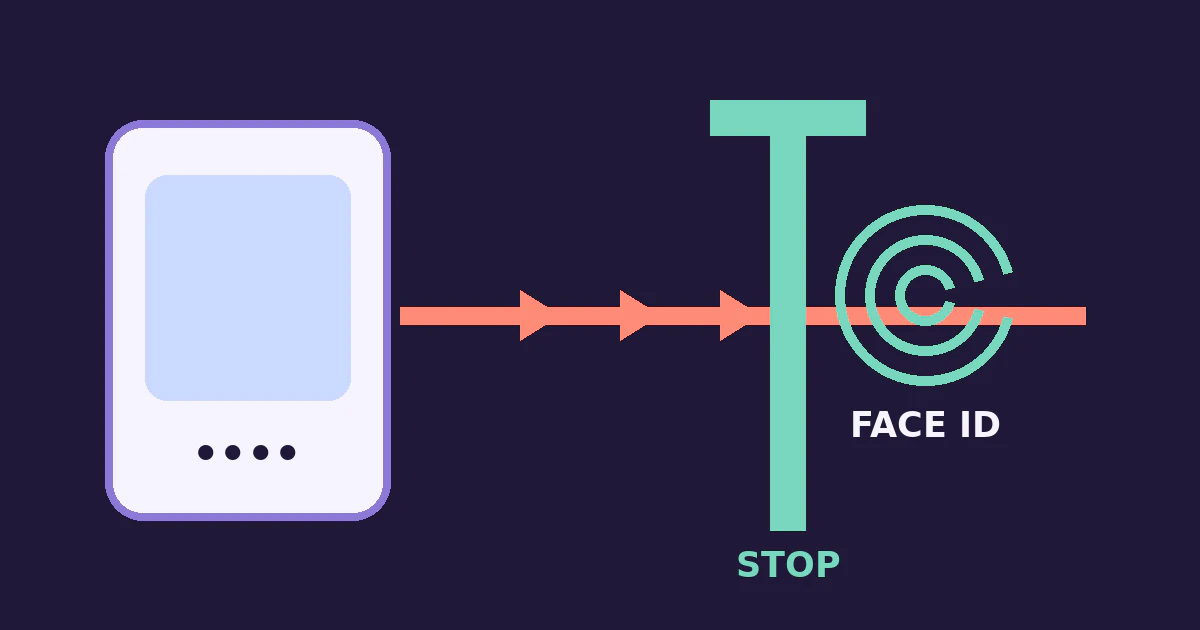
An iPhone passcode can unlock more than the phone. If a thief learns it, the same device may expose saved passwords and provide a route toward account changes. Stolen Device Protection adds checks designed for that situation, but it cannot be enabled after the phone disappears.
Apple says the feature is available on iOS 17.3 or later. It may already be on, so check rather than assume. The setting requires two-factor authentication for your Apple Account, a device passcode, Face ID or Touch ID, Significant Locations and Find My.
Enable it and choose the protection range
Open Settings, tap Face ID & Passcode or Touch ID & Passcode, enter the device passcode, then tap Stolen Device Protection. Turn it on.
Apple's default applies the extra requirements when the phone is away from familiar locations such as home or work. You can choose Always under Require Security Delay if you want those measures regardless of location.
Apple's July 31, 2026 support page explains that the Always option also removes the passcode fallback for protected biometric actions in familiar places. That can provide a more consistent rule, with the tradeoff that legitimate account changes may take longer.
After changing the setting, return to the page and confirm the selected mode. Do not wait for a trip to discover that a prerequisite was off.
Know which barrier you are adding
Stolen Device Protection uses two kinds of friction.
- Biometric-only checks: Away from a familiar location under the default mode, actions such as using Keychain passwords or passkeys, viewing saved Safari payment methods, turning off Lost Mode, erasing the device, setting up another device and transferring an eSIM require Face ID or Touch ID without a passcode alternative.
- Security Delay: Critical changes can require a biometric check, an approximately one-hour wait and a second biometric check. Examples include changing the Apple Account password, changing the device passcode, adding or removing Face ID, signing out of the account and turning off Stolen Device Protection.
The delay is meant to create time to mark a stolen device as lost and secure the account. The phone may end a delay early after it detects a familiar location. If you choose Always, the delay applies regardless of location.
Apple Pay purchases can still use the device passcode. Treat this feature as one layer, not a guarantee that every passcode-authorised action becomes biometric-only.
Check the dependencies before you need them
Find My must remain on while Stolen Device Protection is enabled. Confirm that your Apple Account recovery information is current and that you can sign in from another trusted device or browser. Do not store the only copy of a recovery detail solely on the phone it is meant to help recover.
Review Face ID or Touch ID in ordinary conditions. A failed biometric enrolment becomes more consequential when protected actions no longer accept the passcode as fallback.
Significant Locations supports the familiar-location behaviour. Apple places it under Settings, Privacy & Security, Location Services, System Services, then Significant Locations & Routes. Turning off a prerequisite to reduce location use may also affect how the default protection mode behaves. If you prefer a location-independent rule, consider the Always option.
If the iPhone is stolen
Use a trusted route to follow Apple's stolen-device steps and mark the iPhone as lost. Contact your carrier about the line and review the Apple Account for unfamiliar devices or changes. Do not remove the missing iPhone from Find My merely because a message claims it has been found.
For financial accounts, contact the institution through its real app, card or website if you believe credentials or payment access were exposed. Preserve useful messages and report the theft to local police where appropriate.
A thief may try to turn urgency into a second attack through a fake recovery message. A map link, passcode request or demand to disable Find My should be verified outside the message.
Plan for repairs, trade-ins and transfers
Apple recommends turning off Stolen Device Protection before selling, giving away or trading in an iPhone. If you try to disable it away from a familiar location, a security delay may begin. Do not discover that at the counter with a deadline.
When restoring an iCloud backup or transferring directly to a new iPhone, Apple says the setting transfers and resumes on the new phone, although recognition of familiar locations may take time.
The best moment to enable theft protection is uneventful: while the phone is present, the biometrics work and you still control every recovery channel.
Tags: iPhone security, Stolen Device Protection, Apple Account, device theft