The USB-C Plug Does Not Tell You What the Cable Can Do
Matthew Leo · Published September 5, 2026 · Guides
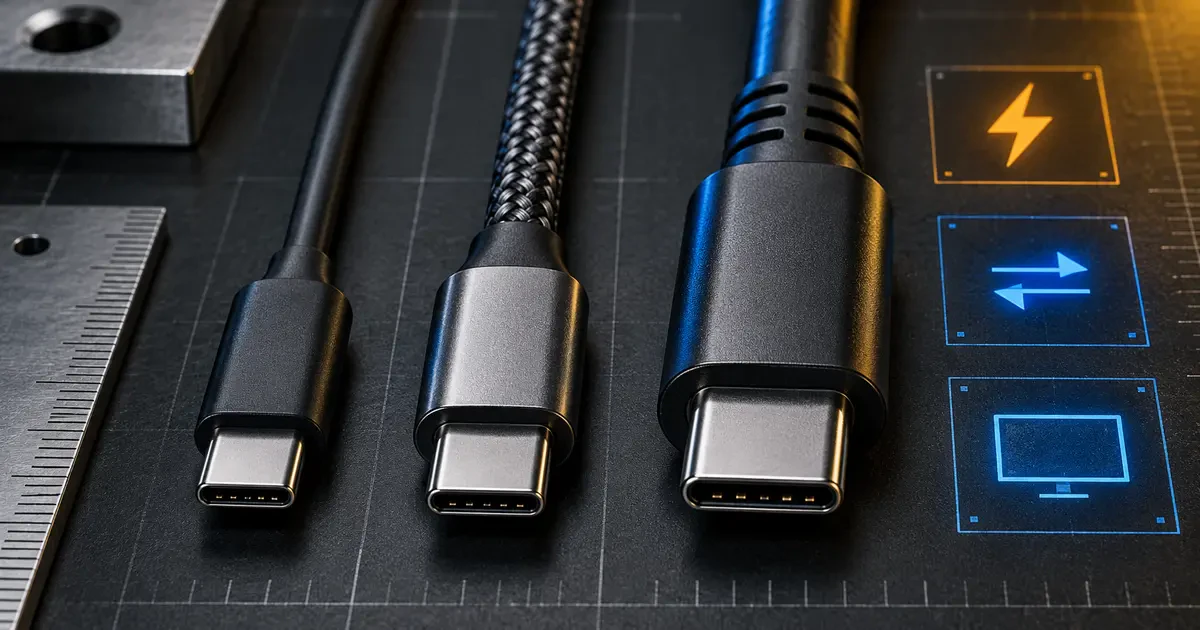
USB-C describes the connector, not the cable's complete ability. Two cables can have the same reversible plug while supporting very different charging power, data speed and display features.
That is why a cable can charge a laptop but make a portable SSD crawl, or move files quickly but fail to light up a monitor. The plug fits, so the failure feels random. It usually is not.
Read every USB-C cable as three separate specifications: power, data and video. A strong claim in one column does not fill in the other two.
Power: 60W and 240W are cable limits
The USB Implementers Forum now requires certified USB-C-to-USB-C cables to display a 60W or 240W power marking before compliance testing. That makes the charging ceiling easier to identify.
- 60W cable: enough for phones, tablets and many thin laptops.
- 240W cable: intended for higher-power USB Power Delivery use, including compatible laptops that need more than 60W.
A 240W cable does not force 240 watts into a phone. USB Power Delivery negotiates among the device, charger and cable. The actual result is limited by the weakest compatible part of that chain.
It also does not guarantee faster charging. A laptop limited to 65W will not suddenly accept 140W because the cable has a higher rating. The charger must offer the right USB PD profile, and the device must request it.
Mapletechie's one-charger buying guide explains how to size the power adapter. The cable still needs a rating that matches the job.
Data: a 240W cable can still be slow
This is the detail most listings bury. USB-IF's January 2026 cable-logo guide states that a USB 2.0 Type-C cable can carry a 60W or 240W power mark while delivering data at only up to 480 Mbps. The charging logo does not represent data performance.
For file transfers, look for a specific speed such as:
- 480 Mbps: basic USB 2.0 data, suitable for accessories and occasional small transfers;
- 5 Gbps or 10 Gbps: useful for phones, hubs and many portable SSDs;
- 20 Gbps or 40 Gbps: intended for faster storage, docks and higher-performance USB4 connections;
- 80 Gbps or higher: available in newer USB4 implementations, but only when every part of the chain supports it.
These are maximum link rates, not guaranteed file-copy speeds. The device port, storage hardware, enclosure, cable length, protocol overhead and thermal behaviour all affect the result.
Video: confirm it separately
USB-C can carry display signals, but not every USB-C port or cable supports video. A laptop port may support DisplayPort Alt Mode, USB4 or Thunderbolt, while a charging-only port may not send a picture at all.
For a monitor or dock, verify four things:
- The computer's USB-C port supports display output.
- The monitor or dock accepts video over its USB-C input.
- The cable explicitly supports the required video or high-speed data mode.
- The complete chain supports the resolution and refresh rate you want.
A cable listing that says only "240W fast charging" is not evidence that it supports a 4K monitor. A data rate alone also may not describe every display configuration. Check the device maker's compatibility notes, especially for multiple monitors, high refresh rates and long cables.
Buy for the task
Phone charging
A certified 60W cable is usually sufficient. If you regularly copy large videos to a computer, choose a cable with an explicit data-speed rating too. The cable included with a charger may be optimized for power rather than fast file transfers.
Laptop charging
Match the laptop's required wattage. If it needs more than 60W over USB-C, choose a 240W-rated cable and a compatible USB PD charger. A cable marketed with an old 100W claim may work for that older ceiling but is not the right assumption for a newer 140W or higher setup.
Portable SSD
Match the cable speed to both the SSD and the computer port. A 10 Gbps drive on a 480 Mbps cable can feel broken even though it connects and receives power.
Monitor or dock
Buy a cable that explicitly supports the required display mode, data rate and charging passthrough. If the dock charges the laptop while driving displays, all three columns matter at once.
Use certification as evidence, not decoration
USB-IF maintains a product search limited to products certified to use its logos. Certification does not guarantee that a cable meets every need. It provides stronger evidence that the labelled capability passed the relevant compliance program.
Be cautious with listings that combine every attractive number without a model-specific specification. Keep the packaging or label with the cable, or add your own tag for its tested job. A drawer full of identical black cables is where useful specifications go to die.
Troubleshoot the chain in order
- Slow charging: check the charger's port rating, cable wattage and device maximum.
- Slow file transfers: check the cable's data rating, then the ports and storage device.
- No monitor image: confirm video support on the computer port, cable and display input.
- Intermittent connection: try a shorter certified cable, inspect the connectors and remove unnecessary adapters.
- Dock problems: test the cable directly with one device before blaming the dock.
If the problem is a laptop that refuses to charge at all, use Mapletechie's USB-C laptop charging checklist.
The buying rule
Do not buy "a USB-C cable." Buy a 60W charging cable, a 10 Gbps SSD cable or a video-capable dock cable. Naming the job forces the listing to prove the relevant specification.
The connector tells you it will fit. The labels and certification tell you what it may actually do.
Sources
- USB-IF cable and connector guidance
- USB-IF January 2026 Type-C cable logo guide
- USB-IF certified product search