Check Which Apps Can Use Your Camera and Microphone
Matthew Mbaka · September 18, 2026 · Guides
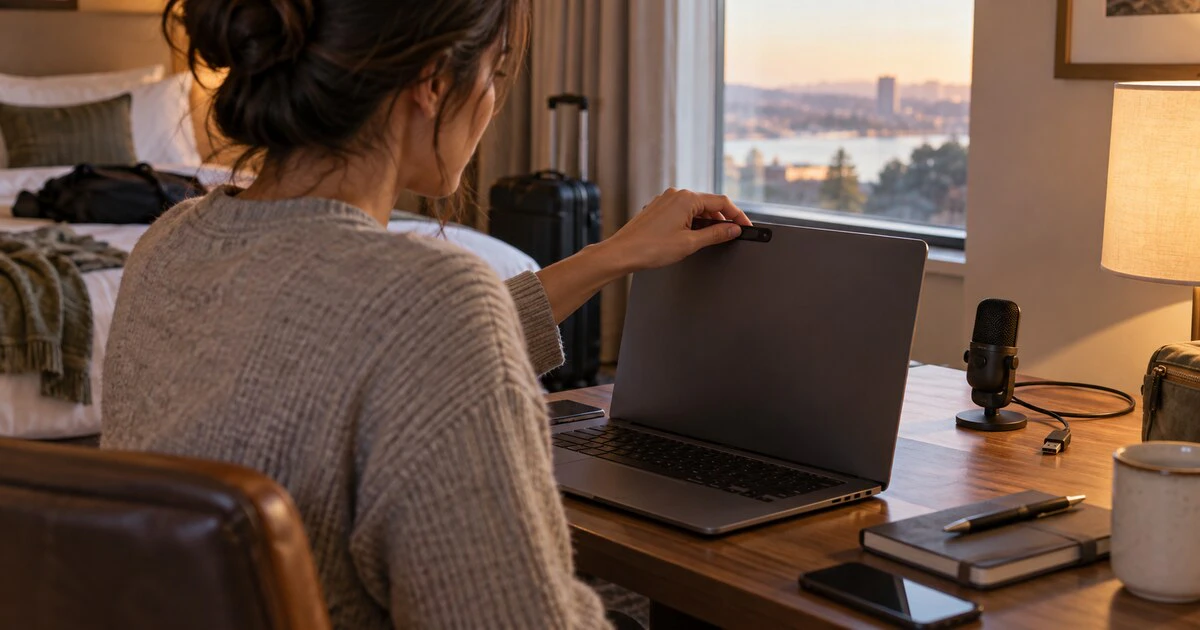
A video-call app needs your camera and microphone. A photo editor may need the camera once. A game, calculator or old browser extension probably needs a better explanation.
Permission lists grow quietly because saying yes is easy and revisiting the decision is not. A short audit lets you remove access without disabling the camera for everything.
Decide what should still have access
Keep permission for apps you actively use to record, scan, call or create audio. Remove it from apps you no longer recognize or have not used in months.
Do not treat every unfamiliar entry as malware. A browser may appear because websites use the camera through it, and a computer maker may install a support or sign-in component. Check the developer and purpose before removing something you need.
Review camera and microphone access in Windows
On Windows 11, open Settings > Privacy & security > Camera. Leave device camera access on if you want to use it, then review the individual Microsoft Store apps below it. Repeat the process under Microphone.
Windows separates Store apps from traditional desktop programs. Microsoft's camera-permission guide says desktop camera access is controlled as a group, not app by app. Browsers and meeting software installed from the web often fall into this category.
That means an app missing from the individual list may still have access through the desktop-app switch. Windows Hello is also an exception: it can use the camera for sign-in even if ordinary camera access is turned off.
Review access on a Mac
Open Apple menu > System Settings > Privacy & Security. Choose Camera, review the apps and turn off anything that no longer needs access. Then do the same under Microphone.
Apple's camera instructions say the list shows installed apps that have requested access. The green light beside the camera indicates that it is active. For the microphone, Control Center shows a recording indicator when the mic is in use or was used recently.
Website permissions are separate. In Safari, open Safari > Settings > Websites, then review Camera and Microphone. Chrome, Edge and Firefox keep their own site-permission lists.
Review permissions on an iPhone
Open Settings > Privacy & Security, then tap Camera or Microphone. Turn access off for apps that cannot justify it.
Apple's iPhone privacy guide also points to App Privacy Report in the same section. When enabled, it can show how apps use granted permissions and which network domains they contact.
A green indicator at the top of the screen means an app is using the camera or the camera and microphone. An orange indicator means the microphone is active without the camera. Open Control Center to see which app used the sensor recently.
Review permissions on Android
Menu names vary slightly by phone, but Google's current path is Settings > Security & privacy > Privacy > Permission manager. Choose Camera or Microphone, then review apps by permission type.
Android may offer Allow only while using the app, Ask every time or Don't allow. Use the narrowest option that still lets the feature work. Google's permission guide also explains how to switch off camera or microphone access for the entire device through Privacy controls.
On recent Android versions, a green privacy indicator appears when an app uses the camera or microphone. Tap it to identify the app.
Check the browser as well as the operating system
An operating-system permission lets the browser reach the hardware. The browser then decides which websites may use it. Revoking only one layer can leave old site permissions in place or break every video call at once.
Open your browser's privacy or site settings and review Camera and Microphone. Remove old conferencing sites, online recorders and one-time support pages. Set the default to ask before access rather than allowing every site.
Use hardware controls for a stronger stop
A physical webcam shutter blocks the picture even if software access is granted. An external microphone can be unplugged, and some headsets have a real mute switch. These controls are useful during travel or sensitive conversations because they do not depend on an app behaving correctly.
Do not put opaque tape over sensors used for automatic brightness or face recognition unless you know where they are. A purpose-built sliding cover should not press against the screen when a laptop closes.
Permissions solve one part of privacy
Removing camera or microphone access does not hide browsing activity, stop network monitoring or remove data an app already uploaded. Mapletechie's private-browsing explainer covers those separate limits.
Repeat the permission audit after testing many apps, changing jobs or installing new meeting software. The useful goal is not zero access. It is a short list where every yes still makes sense.
Tags: Privacy, App Permissions, Camera, Microphone, Windows, macOS