Find Out Why Your Phone Is Charging Slowly
Matthew Mbaka · September 18, 2026 · Guides
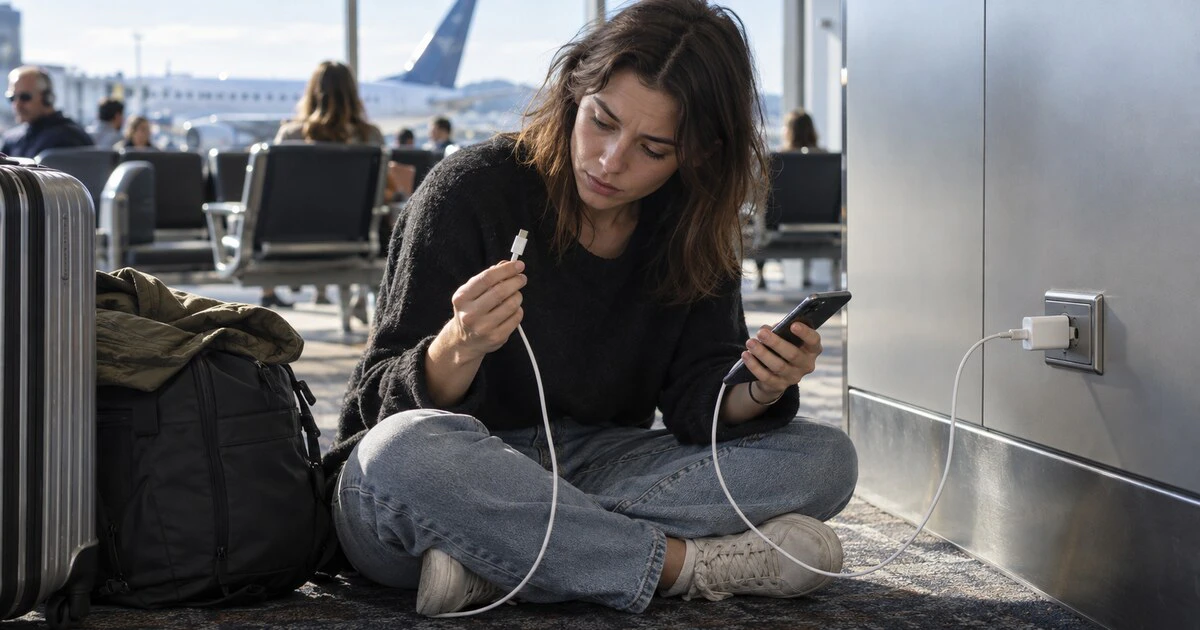
A phone that gains only a few percentage points in an hour does not automatically need a new battery. The slow part may be the outlet, power adapter, cable, charging port, temperature or a software limit that is working as designed.
Test the charging path from the wall to the phone. Change one thing at a time so you know which part fixed it.
Start with a wall outlet
Plug the charger directly into a known-working wall outlet. Avoid a laptop USB port, overloaded power bar, car socket or public USB outlet during the first test because each can provide less power than expected.
Check that the adapter sits firmly in the outlet and the cable is fully inserted at both ends. Let the phone charge with the screen off for 20 to 30 minutes, then note how much the battery changed.
If the phone charges normally from the wall but slowly from a computer or vehicle, the phone may be fine. The weaker power source is the limit.
Test the adapter and cable separately
Use the suspect adapter and cable to charge another compatible device. Then charge the original phone with a known-good adapter and cable.
Look for bent pins, loose connectors, exposed wire, heat damage or a plug that falls out easily. Stop using damaged accessories.
Two USB-C cables can look identical while supporting very different power and data levels. Mapletechie's USB-C cable guide explains why the connector shape alone does not reveal what a cable can do.
The charger also needs enough output for the phone's faster charging mode. A small older adapter may charge safely but slowly. Avoid unlabelled chargers that provide no useful electrical specifications or safety certification.
Check the port without damaging it
Pocket lint can stop the connector from seating fully. Shine a light into the port and compare how firmly a known-good cable connects.
Apple's charging instructions say to remove debris and reconnect the cable firmly. Google gives the same basic advice for Android devices.
Do not force a pin, knife or other metal object into the port. It can damage contacts or cause a short. If debris is compacted, the port is wet or the connector looks bent, use an authorized or reputable repair provider.
Temperature can deliberately slow charging
Charging creates heat. Gaming, navigation, video calls and direct sun add more. Phones may reduce charging speed or pause near 80 per cent when the battery becomes too warm.
Remove a thick case if the phone feels unusually hot, stop demanding apps and move it to a cooler indoor location. Do not place it in a refrigerator or freezer. Rapid temperature changes can create condensation.
Cold can also affect charging and battery performance. Let a phone that was left in a cold vehicle return to normal room temperature before testing it.
An 80 per cent stop may be a setting
On iPhone, Optimized Battery Charging can delay charging beyond 80 per cent when the phone expects to remain plugged in. iPhone 15 and later models can also use a user-selected charge limit.
Many Android phones offer adaptive charging or a battery-protection limit with similar behaviour. Check the battery settings before treating an 80 per cent stop as a fault.
A temporary thermal limit or scheduled charging feature should resume when conditions change. If the phone never charges past the limit even after you disable the relevant setting for a test, continue troubleshooting.
Restart and update after the physical checks
Restart the phone, install current system updates and test again with the known-good wall charger. A stuck process can consume power almost as fast as the charger supplies it, making charging appear slow.
Open the battery-usage screen and look for an app with unusually high background activity. Airplane mode can be a useful short test in a weak-signal area, but it is not a permanent fix.
Wireless charging has its own failure points
Remove metal objects, magnetic accessories and unusually thick cases. Centre the phone on the charging pad and use the pad's intended adapter.
Wireless charging normally creates more heat and may be slower than a compatible wired charger. If wired charging is normal, the battery is less likely to be the cause. Focus on alignment, the case, the pad and its power adapter.
When the battery or port becomes the likely fault
Service is reasonable when several known-good chargers and cables fail, the connector is physically loose, the phone repeatedly disconnects or charging stops after minor movement.
A worn battery may be involved when the phone also shuts down unexpectedly, drops percentage quickly or reports degraded battery health. Back up the device before repair.
Google's Android charging guide recommends testing the cable, adapter, outlet and port before moving to more advanced steps. That order prevents a cheap cable problem from becoming an unnecessary battery replacement.
Tags: Phone Charging, USB-C, iPhone, Android, Troubleshooting