Check Your Phone Backup Before You Need It
Matthew Leo · September 26, 2026 · Guides
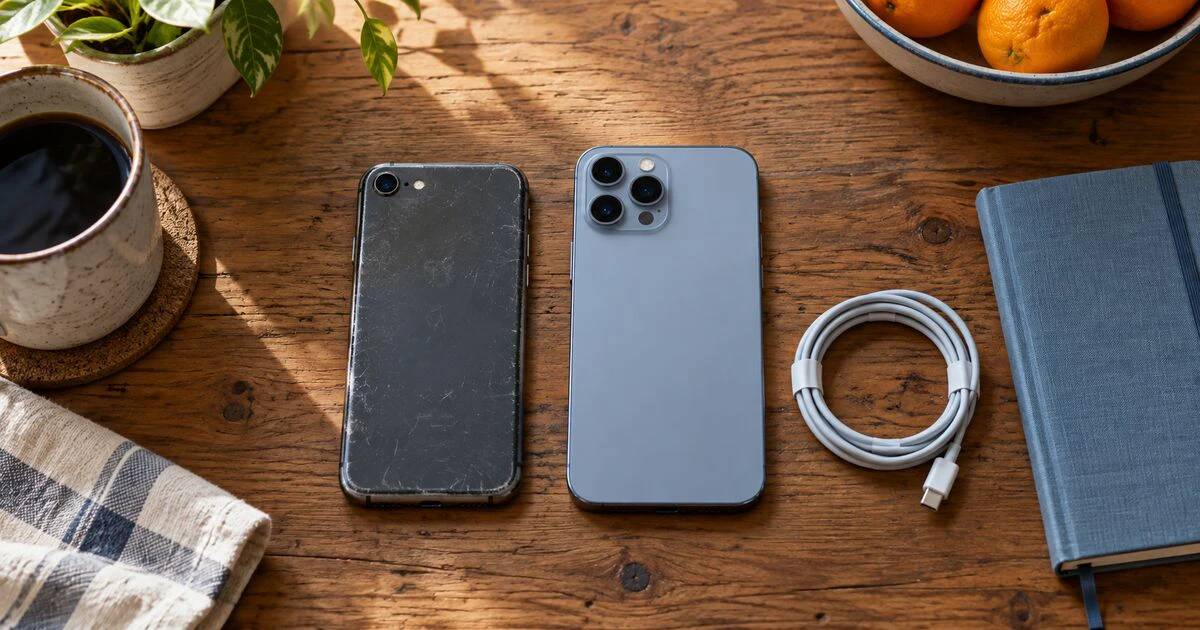
“Backup on” is reassuring until you discover the last successful copy is months old. Before replacing or erasing a phone, check the date, the account and the kinds of data actually protected. You can do most of this without resetting anything.
A backup is only part of the picture. Photos, messages and files may sync through separate services. Some app data may not restore at all. The sensible check is a short inventory of the things you would miss most.
On iPhone, check the last successful backup
Connect to Wi-Fi, open Settings, tap your name, then iCloud and iCloud Backup. Make sure Back Up This iPhone is on. Tap Back Up Now and stay on Wi-Fi until the process finishes. Apple shows the date and time of the last backup beneath that button in its current Canadian instructions.
Look for an alert about insufficient iCloud storage. If the backup cannot complete, either free appropriate space, use a suitable paid storage plan or make a computer backup. Do not erase the old phone because a switch is turned on. Wait for a completed backup with a recent timestamp.
Automatic iCloud Backup normally needs the phone connected to power and Wi-Fi with the screen locked. If you mainly charge briefly while using the phone, the last copy may be older than you expect. A manual backup before a handover removes that uncertainty.
Check what is syncing outside the iPhone backup
Apple explains that iCloud Backup covers information that is not already syncing to iCloud. If iCloud Photos is on, photos and videos sync separately rather than being duplicated in the daily device backup. Messages in iCloud works similarly for messages. iCloud Drive and Notes can also sync independently.
Open the relevant iCloud settings and confirm that the services you rely on are enabled. Then use another trusted device or the official iCloud web interface to check that recent, non-sensitive sample items have appeared. A photo visible only on the old phone is not proof it reached the cloud. Be careful with deletion: syncing can propagate a deletion, whereas a snapshot backup serves a different purpose.
App-specific data needs its own check. Ask a messaging, authenticator, banking or game app how it transfers or restores information. Some require an in-app backup, a recovery key, a transfer from the old device or a fresh identity check. Our authenticator transfer guide is worth doing before the old phone is erased.
On Android, review both device data and photos
Google's Android backup guide directs you to Settings, Google services, All services and Backup. Check the backup account and whether Device data, Photos & videos, or both are selected. Menu names can vary by manufacturer. Start a backup if the phone offers that option, then revisit the page and check its status and details.
Google says a backup can take up to 24 hours, and “On” appears below selected data types when they are saved. Do not confuse a pending job with a completed copy. Google provides 15 GB of no-charge account storage, shared with other Google services; check available space if uploads stall.
Open Google Photos separately and inspect its backup status and account. A picture in the phone's gallery may not be in the Google account you plan to use on the new phone. Check a few recent items from another device or the official Photos website. If you use another cloud photo service instead, verify it there.
Android backups can include settings, contacts, call history, SMS/MMS and app data, but Google warns that not every app backs up or restores all of its settings. Restoring a backup made on a newer Android version to a phone with an older version is not supported. Personal-device backup instructions also do not apply in the same way to company-owned phones or certain work profiles; follow your employer's process.
Before you wipe the old phone
- Account: Confirm which Apple or Google account holds the backup and that you can sign in without relying only on the old phone.
- Recent copy: Record a successful backup date and check a few recently synced photos, contacts and files from another device.
- Special apps: Move authenticator codes, verify messaging history and save recovery keys by each service's approved method.
- Mobile service: Check the carrier's transfer process. An eSIM is not simply another file in a cloud backup; see our eSIM transfer guide.
- New phone: Finish setup, open important apps, place a test call and check the data you care about before erasing or trading in the old device.
If a backup fails, keep the original phone intact while you fix storage, Wi-Fi or account problems. If the old phone is already gone, use the provider's official restore flow and the account you checked; some items may still be available through separate sync services. A backup indicator reduces risk, but checking a few real items and recovery routes gives you a much better idea of what would come back.
Tags: iPhone, Android, phone backup, data recovery